**Setting up Cost Types

To use APM’s costing function, you must first set up cost types. Cost types are required to collect costs throughout the system.
All costs entered through transactions in APM will be distributed to cost types except for costs charged for non-catalog purchases. For example, if a purchase order is used to buy an employee a new desktop PC (a resource that is not in the catalog) and the buyer selects the specific whole account to charge for the purchase, that cost will not appear in a cost type. Cost types should detail only maintenance-related charges. In addition, any cost that is currently in the RNI account will not appear in a cost type until the final transaction is entered.

Cost Type Hierarchy

You can enter a hierarchy of cost types to which you charge the costs of transactions in the system. If you are using GL account numbers in APM that match the accounting department's general ledger, you should create at least one cost type for each account. If you are using simplified GL account numbers, you can create the hierarchy to the level of detail needed by the maintenance department.
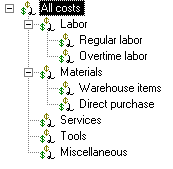
The cost type hierarchy usually includes a level for each of the four resource types (trades, materials, services, and tools), plus a level for miscellaneous expenses. In addition, you can provide a further breakdown to collect the detailed information you want. For example, you can include cost types for regular and overtime labor below the labor entry.
You can only charge costs directly to the lowest-level cost types. If you have regular and overtime labor below trades, you must choose one of those two categories for all labor costs; you cannot charge directly to the labor entry.
The following is an example of a cost type hierarchy:
In order to view accurate cost summaries on views such as the Costs view on the Work Order window you must:
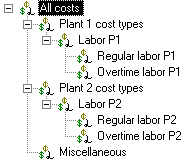
Tip: If you will be setting different cost types for each site, you might want to create a summary cost type for each site in the cost type hierarchy. This will help you to organize your site-based cost types in the hierarchy, and might make it easier to view cost type summaries. For example:

To Set up Cost Types

1.
2.
Select the Accounting view, Cost Types tab, and then the Hierarchy tab. This tab shows the existing cost types hierarchy.
3.
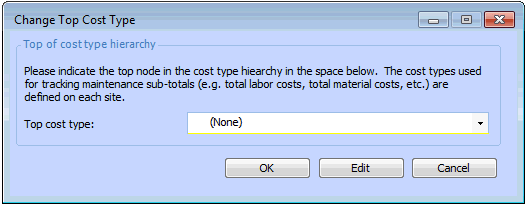
If no hierarchy is shown, you need to select the top cost type. Click Change. The Change Top Cost Type dialog appears.
Note: Only cost types that already have a child cost type are available for selection. If you are starting from the Install database, you must first add a child cost type to the Default Cost Type. You can do this on the Cost Types tab, Listing tab: click New, and then select Default Cost Type as the Parent cost type. Then, you can use the Default Cost Type as your top cost type. You may change the name of this cost type (for example to “All costs”) by double-clicking it.
4.
To add a new cost type right-click a cost type in the hierarchy, and select New Child or New Peer. The Cost Type dialog appears.
5.
On the General tab, enter the following settings:
6.
On the Usage tab, enter the following settings:
Materials: material purchases or stores issues
Trades: time cards
Services: outside or contract labor
Tools: equipment purchases, rentals, or repairs
Miscellaneous expenses: miscellaneous maintenance costs (for example, maintenance cost adjustments)
7.
On the Policies tab, enter the following settings:
Expensed or capitalized: All costs can be charged to the cost type.
Expensed: Includes costs for operational-type projects and all work order and transaction costs not related to projects.
Capitalized: Includes costs on capital-type projects only.
8.
Click OK to save the cost type and close the Cost Type dialog.
9.
Repeat steps 4 to 8 for all of cost types that you need to enter.
10.
For more information, see **Setting Cost Types for a Site.