**Asset Hierarchy Settings

When you enter assets, you can organize them in up to five different hierarchies. The first hierarchy is the comprehensive physical hierarchy (“physical hierarchy”). Most (if not all) of your assets should be included in this hierarchy. Ideally, the lowest level of your physical hierarchy is usually the level at which you write work orders, collect costs, and collect indicator data. Items lower than this level do not generally appear in the hierarchy, but you can include them in the parts list for an asset. Bentley Systems’s implementation consultants can help you to determine an appropriate structure for the physical hierarchy for your organization.

Alternate Asset Hierarchies

You can use the other four alternate hierarchies available in APM to make it easier for specific groups of people to view the assets that matter to them. You can set up hierarchies 2-5 differently from the first one if you want to track costs in a different way. During implementation, you will decide how many hierarchies to use. For example, your accounting department might assign costs by department. If departments are not included in the physical hierarchy, you might want to set up a financial asset hierarchy organized by departments in order to better analyze costs.
Alternate asset hierarchies 2-5 do not display locations and installed components the same way the first hierarchy does. You cannot “install” components into locations in alternate hierarchies. In the alternate hierarchies, if you want to include components you must add them directly into the hierarchy as children of other assets.
Each hierarchy must be maintained independently. If you remove a component from the physical hierarchy, it will still appear in the alternate hierarchies to which it was added.
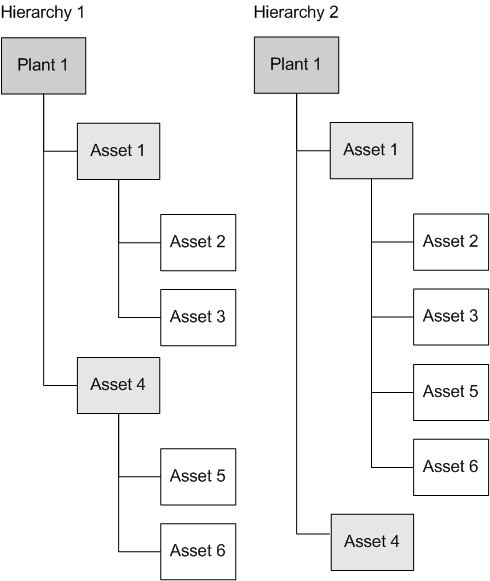
Costs independently “roll up” each alternate hierarchy based on its structure. Cost roll-up for the two example hierarchies shown in the following diagram are described next.
For example, in Hierarchy 1, asset 1 will show the costs for assets 2 and 3 only, while asset 4 will show the costs for assets 5 and 6 only. In Hierarchy 2, asset 1 shows the costs for assets 2, 3, 5, and 6, while asset 4 shows only its own costs.
If both the component and location are in an alternate hierarchy, only the component shows the costs. The costs collected on that asset are also shown on that component’s alternate hierarchy parent. The reverse is also true: costs charged to a location in the physical hierarchy are not shown on the installed component in alternate hierarchies.

To Enter Asset Hierarchy Settings

1.
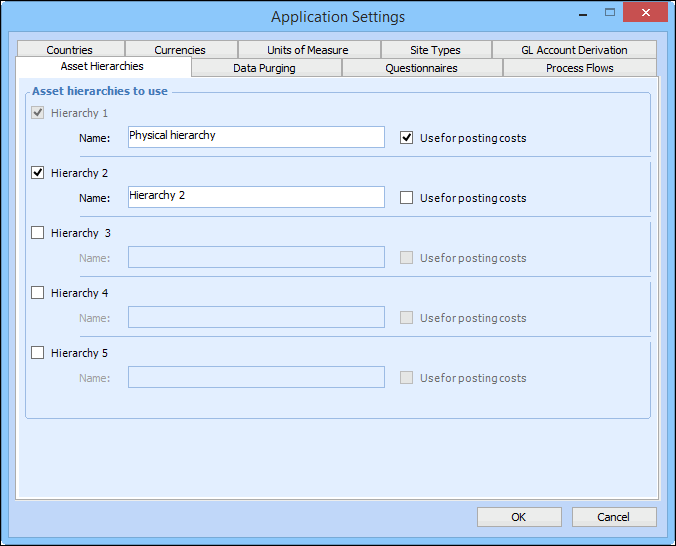
From the Enterprise window, click the Administration menu and then Application Settings. The Application Settings dialog appears.
2.
Click the Asset Hierarchies tab.
3.
4.
5.
6.
Click OK.