|
Setting up Purchasing Approvals
Requisition Policies
Purchase Order Policies
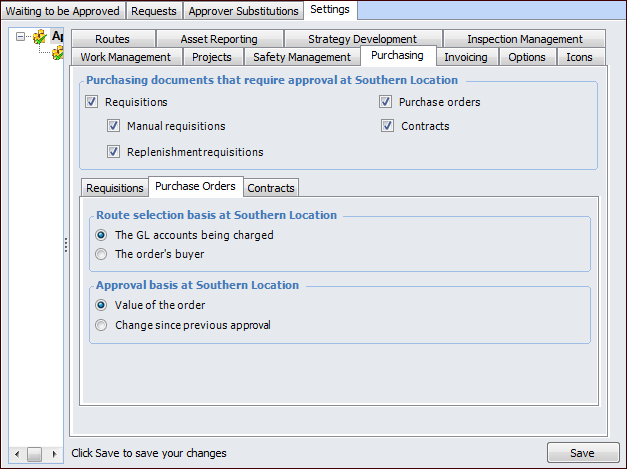
When the GL accounts option is selected, the system filters the list of approval routes to include only those routes for the GL account being charged on the purchase order.When the Buyer option is selected, the system filters the list of approval routes to include only those routes for the buyer responsible for the purchase order.To Set up Purchasing Approval Options
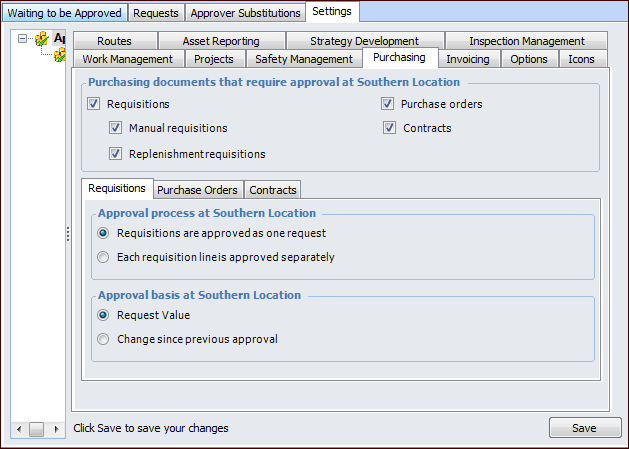
1. On the site window, select the Approvals view and the Settings tab. Select the Settings node in the tree.
2. Select the Purchasing tab.
3.
4. Select the types of documents that require approval. When you select an option in the Purchasing documents area, its corresponding tab is added.
5. If requisitions require approval, the Requisitions tab is displayed.
• Requisitions are approved: When a requisition is sent for approval, the entire requisition is sent to a single approval route. This is the default value.
• Requisition lines are approved: When a requisition is sent for approval, each line must be approved separately. The approval requestor will be able to select a different approval route for each line.
• Value of the request – approval is based on the total value of the document
• Change since previous approval – approval is based on the net change in the value of the document. For example, if the document was approved for $1000 and then redrafted and changed to $1,150, re-approval is required for the $150 difference.
7. If purchase orders require approval, select the Purchase Orders tab.
When the GL accounts option is selected, the system filters the list of approval routes to include only those routes for the GL account being charged on the purchase order.When the Buyer option is selected, the system filters the list of approval routes to include only those routes for the buyer responsible for the purchase order.
• Value of the order – approval is based on the total value of the document
• Change since previous approval – approval is based on the net change in the value of the document. For example, if the document was approved for $1000 and then redrafted and changed to $1,150, re-approval is required for the $150 difference.
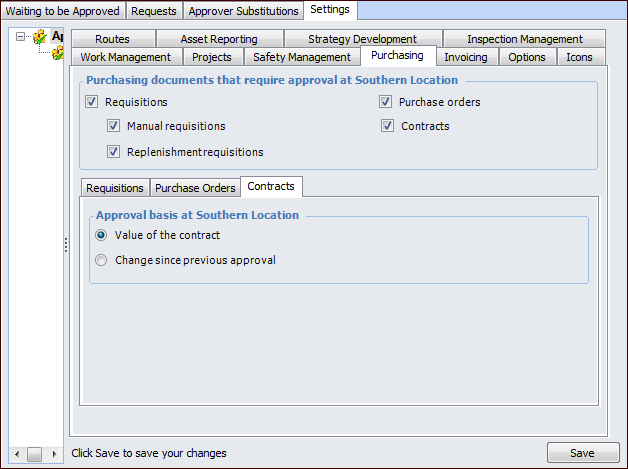
9. If contracts require approval, select the Contracts tab.
• Value of the contract – approval is based on the total value of the document
• Change since previous approval – approval is based on the net change in the value of the document. For example, if the document was approved for $1000 and then redrafted and changed to $1,150, re-approval is required for the $150 difference.
11. Click Save.