Setting up Approvals for Work Management

To use APM’s document approval function with work requests and work orders, identify the types of documents that require approval at your site and set options for the approval process. This topic describes how to set up work management approvals.
After entering approval settings, you must set up authorized employees as approvers and create approval routes in order to use approvals with these documents.

Work Management Approval Policies

Work order approval can consist of a single- or two-step process, depending on your organization’s policies. Work orders can be approved as a single document, or they can require a separate approval step for requirements.
If a single-step process is used, approving the work order approves both the work order and all of its requirements: both the work that is being done and any requirements that have to be purchased to complete it.
If the two-step process is used, the work and purchases are approved separately. The first step is approving the work. Once the work has been approved, a separate approval request is created for each of the work order’s requirements with a fulfillment method of purchase. If you select the two-step process for work orders, APM automatically sets requisitions as requiring approvals.

Work Order Approvals by Work Type

For work orders, you have the additional option of controlling approvals by work type so that only work orders of the work types you specify are subject to the approvals process.
On a work order, each task can have a different work type. If any of the work order’s tasks have a work type that requires approval, the work order and all the tasks are sent for approval.
When a work order has tasks with work types that do not require approval, the work order’s approval status remains always as “Approval not required” and the work order (and requirements) cannot be sent for approval.
Tip: The work type’s properties identify the attributes that cannot be changed on an approved work order task. For more information, see

Standard Job Work Types and Routes

You can specify a standard job’s work type so that work orders created from the standard job use the work type entered on the job. If approval is based on work types, the work type entered here controls whether or not the work order can be sent for approval.
Planners can indicate the approval route to be used with the work orders created from a standard job. If an approval route is entered on the standard job (or PM route), the work order is sent for approval as soon as it is created to the route entered on the job. If an approval route is not entered on the standard job, one can be entered when the resulting work order is sent for approval.

To Set up Maintenance Approval Options
1.
Select the site’s Approvals view, Settings tab, and then select the Settings in the tree.
2.
Select the Work Management tab.
3.
Click Edit to modify the site settings. The Edit button is replaced by the Save button.
4.
Select the types of documents that require approval. When you select an option in the Maintenance documents that require approval area, its corresponding tab is added.
5.
6.
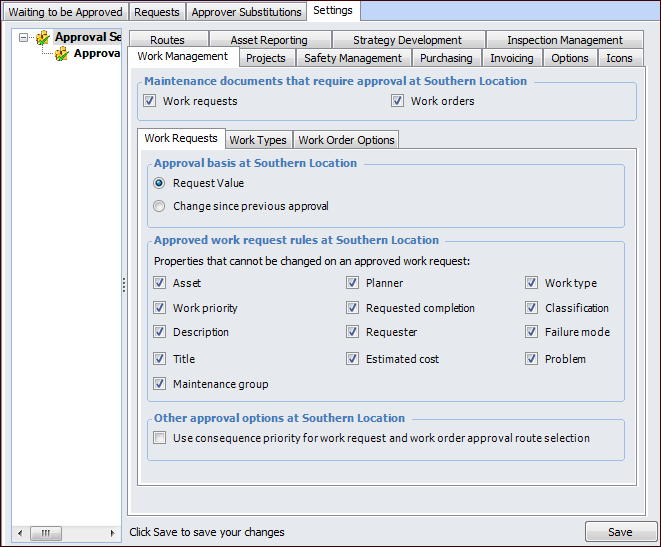
Request value – approval is based on the total value of the document
Change since previous approval – approval is based on the net change in the value of the document. For example, if the document was approved for $1000 and then redrafted and changed to $1,150, re-approval is required for the $150 difference.
7.
8.
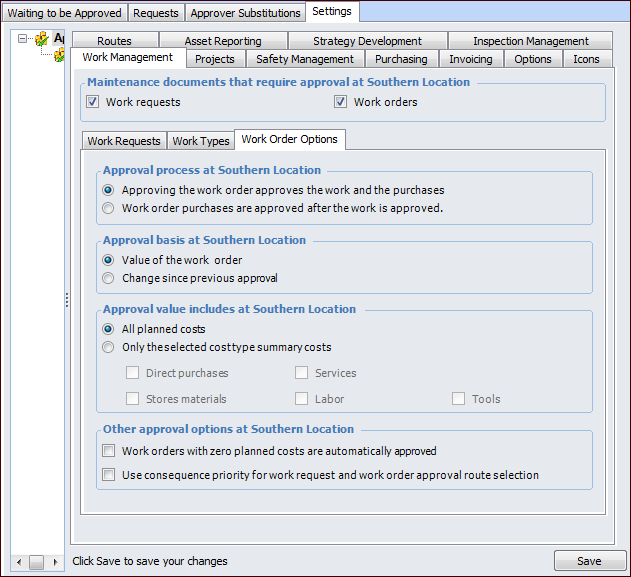
To allow approval routes to be filtered by an asset’s consequence priority setting, select Use consequence priority for work request and work order approval route selection.
9.
10.
Work order purchases are approved after the work is approved – any purchase requirements must be approved separately
Value of the work order – approval is based on the total value of the document
Change since previous approval – approval is based on the net change in the value of the document. For example, if the document was approved for $1000 and then redrafted and changed to $1,150, re-approval is required for the $150 difference.
All planned costs – approval is required for the total value of the document
Only the selected types of requirements – approval is required for costs on the selected requirements
11.
On the Work Types tab, select the work types for which work orders require approval.
12.
On the Approved Work Order Rules tab, click the arrow buttons to browse to each work type that requires approval. Select the properties that are locked on an approved work order. If a property is not selected, the property can be modified as long as the value of the document is not changed.
13.
Click Save.