Creating Sets of Default Approval Routes

This topic explains how to create default sets of approval routes. These sets can be assigned to sites and employees.
For information about creating approval routes, see Creating Approval Routes.

How Approval Routes are Selected

When you send a document for approval, the system searches for appropriate approval routes for that document. The system filters the list of available routes so that you can only select a route that:
If the system cannot find an approval route that meets the above criteria, it first checks if the employee is assigned a default approval route for the type of object and then uses the set of default routes for the site.

Default Approval Route Sets

Default approval routes can be identified for each type of document that supports approvals. You can identify a set of default approval routes for individual employees and sites.
Note: Default approval route sets are a “generally available” product feature. You must first enable feature 57 to use the functionality in APM. In the Enterprise window, select the Features view and the Enabled Features tab. Click Browse, select “Default approval route support” and click OK. If APM is running as a smart client, click Refresh Enabled Features on the server. Then restart the client to use the functionality.
Setting up and using sets of default approval routes involves these steps:
1.
2.
3.

To Create a Set of Default Approval Routes

1.
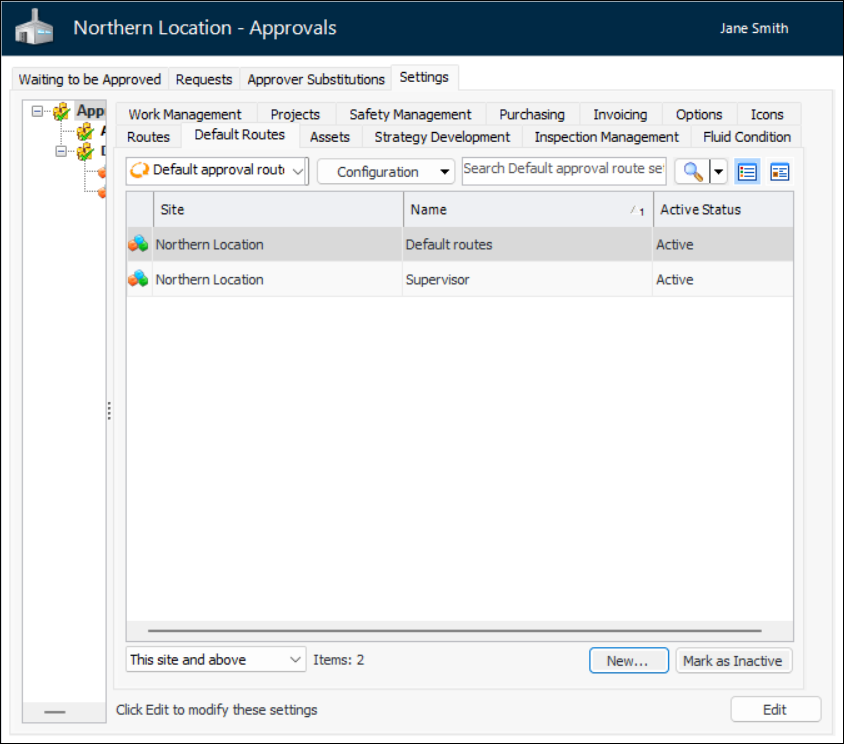
Select the site’s Approvals view, Settings tab, and then the Settings node in the tree.
2.
Select the Default Routes tab.
Tip: You can mark individual sets as inactive while you are setting them up. Inactive sets are unavailable for selection. To deactivate or reactivate a set, select it in the list and click Mark as Inactive or Mark as Active. The Mark as Inactive/Active dialog appears, where you can enter a comment and click OK. Click OK in the confirmation message that appears.
3.
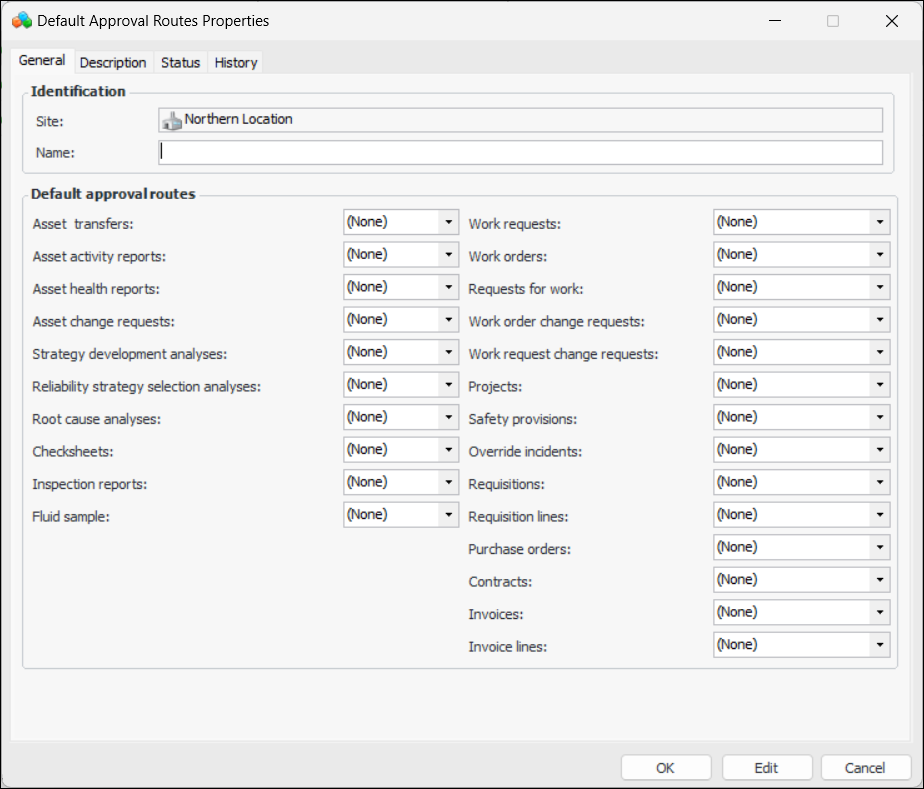
Click New. The Default Approval Routes Properties window appears.
4.
5.
6.
On the Description tab, you can provide information about how the set should be used.
The Status tab displays the set’s Active/Inactive status and history.
7.
Click OK. The set is added to the Default Routes tab.

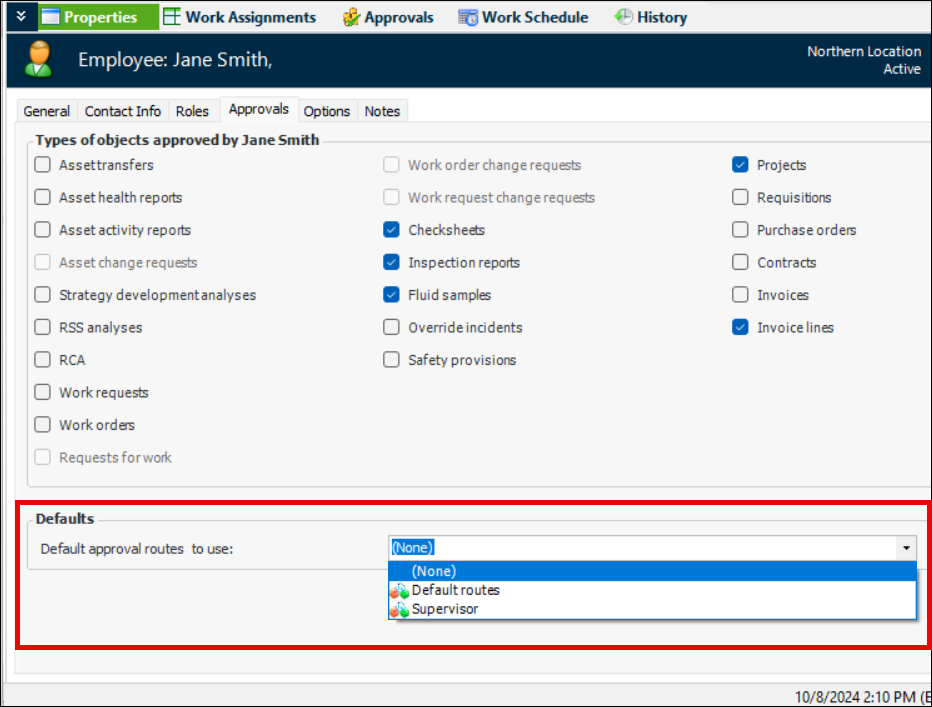
To Assign Default Approval Route Sets to Employees
1.
2.
3.
On the Properties view, select the Approvals tab.
4.
5.