|
Changing User Interface (UI) Settings
At the enterprise level, you can adjust how dates appear in the UI, specify whether time and time zone values appear in tables, and set the first day of week. You can also set the default for proportional scroll bars in lists. When proportional scrolling is enabled, the size and position of the “thumb” on a scroll bar accurately reflects the number of items in the list.Note: You can override the time and proportional scroll bar settings on individual configurations. For more information, see Table Configurations.Finally, you can select the default find bar set for the enterprise. The find bar set is a subset of classes that is available for selection in the Find bar in APM windows. For information, see Creating Find Bar Sets.To Change User Interface Settings
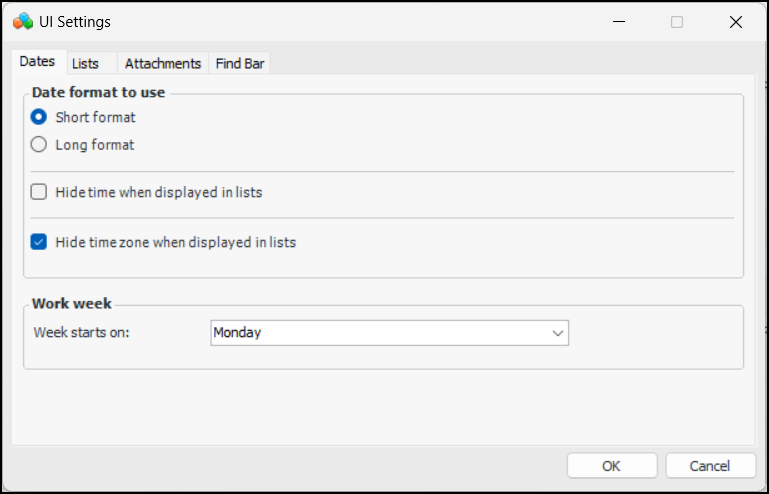
1. From the Enterprise window, select the Administration menu and then UI Settings. The UI Settings dialog appears.
2. On the Dates tab, you can change the following options:
• Short format – the short format selected in Windows regional and language settings (for example, dd/MM/yyyy)
• Long format – the long format selected in Windows regional and language settings (for example, dddd/MMMM/yyyy)
3. Select the Lists tab. Enable proportional scroll bars in lists is selected by default. If you clear this option, proportional scrolling will be turned off by default in new configurations.
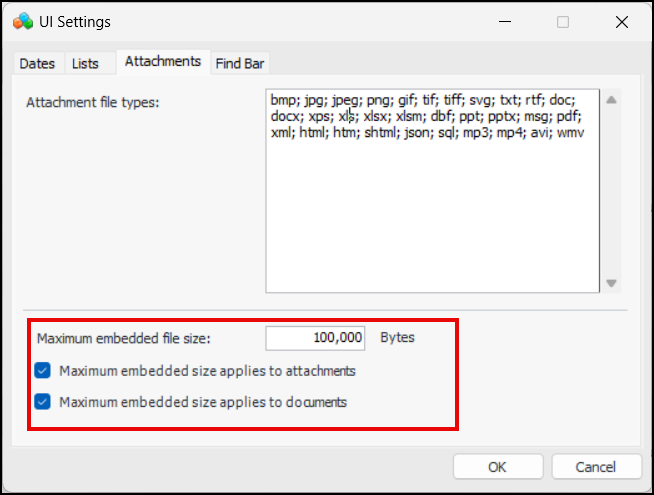
4. Select the Attachments tab.The Attachment file types box lists the file extensions for the types of files supported as attachments.
5.
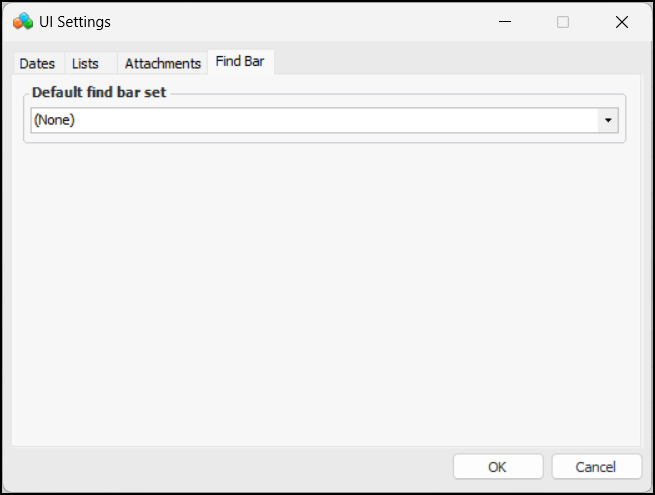
7. Select the Find Bar tab.
8. To restrict all users to the classes defined in a find bar set, select the set from the list. Only those classes will be available in the Open list in the Find bar in APM windows.
9. Click OK.