**Setting up GL Accounts

To use APM’s costing function, you must set up all of the GL accounts that will be used at your site. All valid account numbers (including numbers created by combining account segments) must exist in the GL account table as a whole account number.
GL accounts in APM are text strings used to create accounting transactions for each transaction you enter in the system. You can set up these strings to match your accounting department’s general ledger so that you can import the accounting transaction entries into your accounting package. Alternatively, you can enter a simplified GL account system that supports your basic maintenance functionality. If you do not plan to export accounting transactions from APM, you can enter one account number (a whole account) and use cost types to collect and view charges to the level of detail required by the maintenance department.

Deriving Account Numbers

When APM derives an account number for a transaction, it can either generate the GL account from two account segments or choose a whole account number. Account derivation is based on the accounting settings selected for the enterprise.
If you are going to interface APM with existing plant cost systems, the account numbers in the two systems must match exactly. If you are using APM alone, simply define the account numbers so that they support the level of cost analysis done by the maintenance department.

Whole Account Numbers

When you create whole number accounts, you can assign rules and approvers to the accounts. For example, you can restrict an account number from being used if there is no asset or work order information on the transaction.
The GL accounts that you enter for temporary accounts (for example, a warehouse’s In-transit account) or for special accounts (for example, the RNI account) must be valid, whole account numbers.

Matching Derived and Whole Account Numbers

If your organization uses account numbers that are derived from segments, APM tries to verify the derived number before completing a transaction. To verify the number, APM tries to match the account number created from the segments to a whole account number. This means that all account numbers that can be derived by the system must also exist in APM as whole account numbers.
When you post a transaction, if a derived account number cannot be matched you will be warned that the transaction can be saved but not posted. The transaction can then only be posted if the account segments are corrected, a valid whole account number is created for the derived account, or if the account number is entered manually (overridden).
When planning resource demands (for example, a labor demand on a work order), you may see the message “Account [derived account number] has been derived but does not exist”. Depending on your site’s accounting policy, you may be able to save the demand as is, or you may need to enter a valid account number before saving the demand. Transactions created for a demand without a valid derived account can only be posted if the account segments are corrected, a valid whole account number is created for the derived account, or if the account number is entered manually (overridden) on each transaction.
When a work order task is charged to an asset for which a default GL account segment is not entered, and that does not have an ancestor asset with a default GL account segment, APM issues a warning when the work order task is saved. If users choose to continue, they will need to enter the GL account number manually on each transaction.
Note: If the site has a default GL account segment, the system uses that segment when deriving the GL account number for the work order transactions.
For information on account derivation rules, see **Setting up GL Account Derivation Rules.

To Set up GL Accounts and Account Segments

1.
2.
Select the Accounting view, GL Accounts tab. This tab shows a list of all GL account numbers and segments entered in APM.
3.
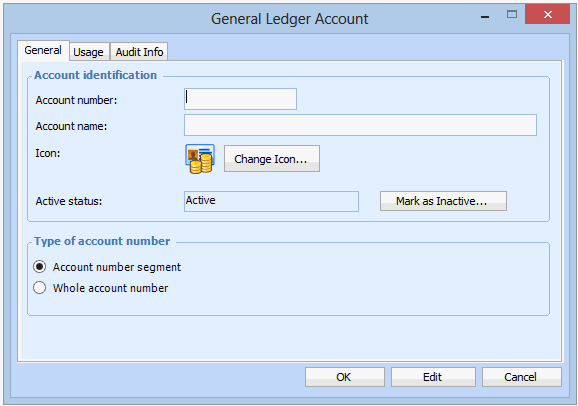
Click New. The General Ledger Account dialog appears.
4.


If you select the Whole account number option, the Usage Policies, Maintenance Rules and Approvers tabs will appear on the dialog.
 
5.
If you are creating a segment, click OK to save the account segment.
6.
If you are creating a whole account number, select the Usage Policies tab and enter the appropriate policies:
General usage (GL accounts only): Use this setting to restrict the use of special accounts (such as the RNI account). If you set this policy to Not available, the rest of the policies are turned off.
Materials: material purchases or stores issues
Trades: time cards
Services: outside or contract labor
Tools: equipment purchases, rentals, or repairs
Miscellaneous: miscellaneous maintenance costs (for example, maintenance cost adjustments)
7.
If you are creating a whole account number, select the Maintenance tab and enter the appropriate settings:
No restrictions: this account may be used for all costs
Requires a work order or asset: this account may only be used on transactions with work order or asset information.
Cannot be used with a work order or asset: this account can only be used if the transaction is not associated with a work order or an asset.
Requires a capital project work order: This account can only be used on work orders that are included in capital projects.
Cannot be used with a capital project work order: This account cannot be used on work orders that are included in capital projects.
Note: On the Approvers tab you can view approval routes available for approving purchases for this account. You can create approval routes now, or later when you set up approvals for each site. For information about creating approval routes, see Creating Approval Routes.
8.
Select the Audit Info tab to display all activity related to setting up this GL account including the user who initiated the changes, and the date and time of the change. This tab is for information only.
9.
Select the Usage tab to view assets, cost types, resource categories and warehouses where this account is used.
10.
11.
Repeat steps 3 to 10 for every GL account and segment that you need to create.