Creating Fluid Sample Receipts and Sending Samples to the Lab

APM provides functionality for:
Note: Attributes on the lab record determine the number of receipt steps (one or two) and the organization that verifies each receipt (for example, compliance office or lab).
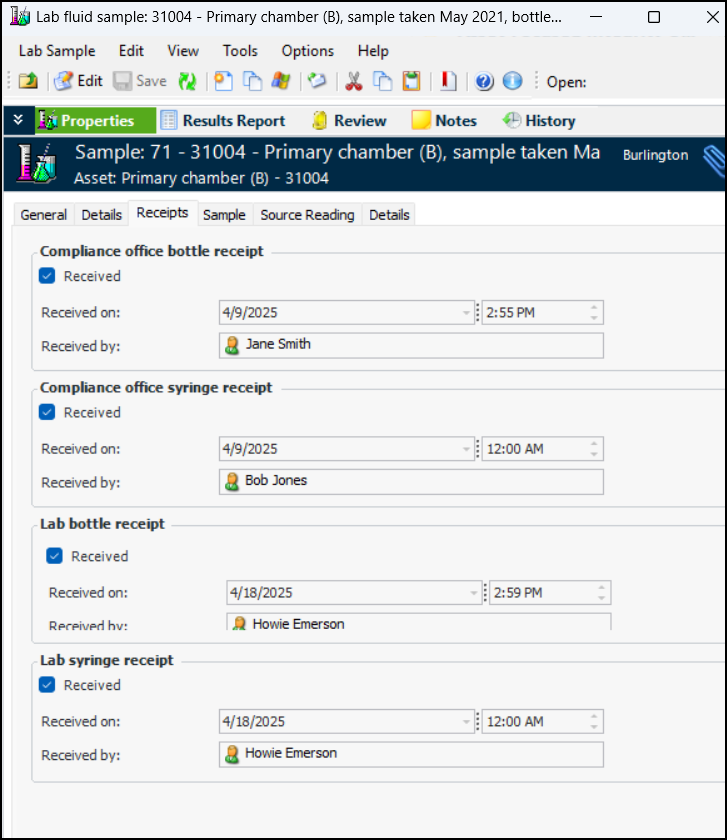
You can view a lab fluid sample’s receipts in the Lab Fluid Sample window. See To View Receipts on a Fluid Sample.

To Verify Sample Collection

1.
In the site’s Fluid Condition view, select the Lab Samples and Office tabs. The default table configuration lists samples that are “Waiting for office receipt”. For example:
This configuration indicates whether bottles and syringes have been received by the office, their bar codes, the date and time received, and the employees who received them.
2.
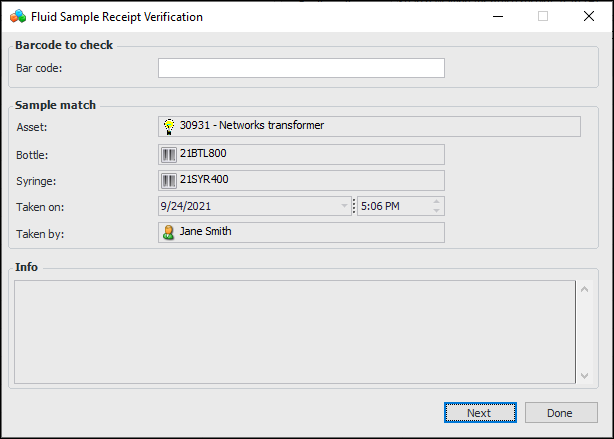
Click Receive Samples to open the Fluid Sample Receipt Verification window. When you scan (or enter) a bar code, APM checks that a matching bar code exists in the system, that the bar code has been assigned to a sample, and that it was not previously received. Here’s an example of a successful verification:
A message appears in the Info box if a match is not found, the sample has already been received, or the bar code has not been used in a sample.
3.
4.
When you click Done, the window closes and the bar codes you scanned are moved to the “Ready to send to lab” configuration.

To Record Sending Samples to the Lab

1.
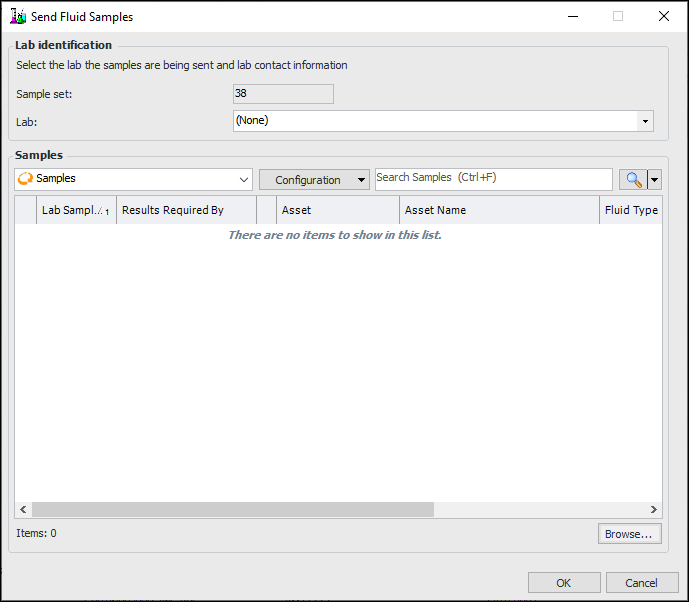
On the Lab Samples tab, Office tab, select the “Ready to send to lab” configuration and click Send to Lab. The Send Fluid Samples window appears:
2.
3.
Select the “Send Samples Requests” configuration on the Office or Samples tab to see a list of requests. You can double-click a request to open the Sample Set window, which confirms that the XML package was generated and lists the samples.

To Verify Receipt of Samples by the Lab

1.
In the site’s Fluid Condition view, select the Lab Samples and Lab tabs. The tab lists samples that are waiting for lab receipt.
2.
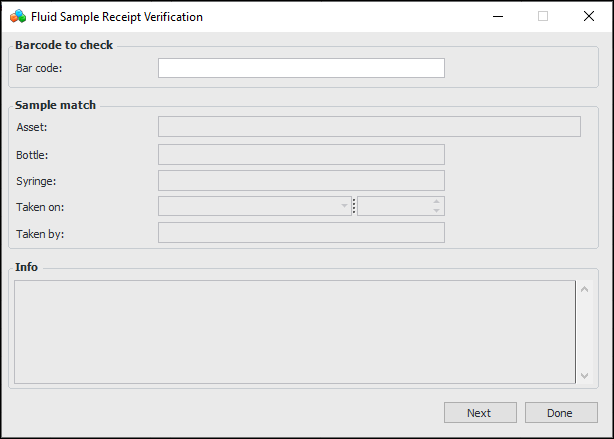
Click Receive Samples to open the Fluid Sample Receipt Verification window:
3.
4.

To View Receipts on a Fluid Sample
1.
2.
Select the Properties view, Receipts tab. For example: