|
Features Management
Enabled and Disabled States
Availability Statuses
• Available – Generally available features are functionally complete and have been fully tested. You might wish to enable a feature that promises useful functionality and pass on features that are not suitable to your APM implementation
• Available for preview – Technology preview features provide early access to upcoming product innovations, allowing you to test functionality and provide feedback during the development process. Technology preview features are not fully tested and might not be functionally complete. As such, they are not suitable for deployment in production. However, you might find them useful in a non-production environment. We welcome your feedback and suggestions for improvement as it is our goal to fully support them in the futureTip: In the Bentley Communities page for Features Management, you can view current lists of features that are available and available for preview.To View Available Features from the Site
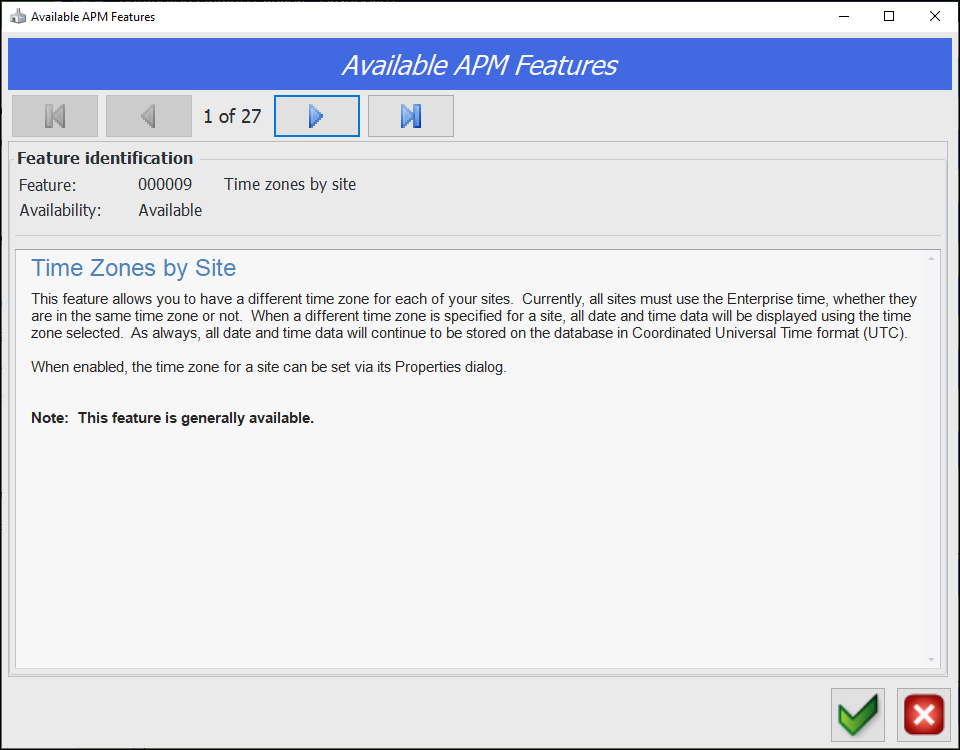
1. In the Site window, click the Administration or Help menu and then APM Features. The Available APM Features dialog appears:To Enable and Disable Features
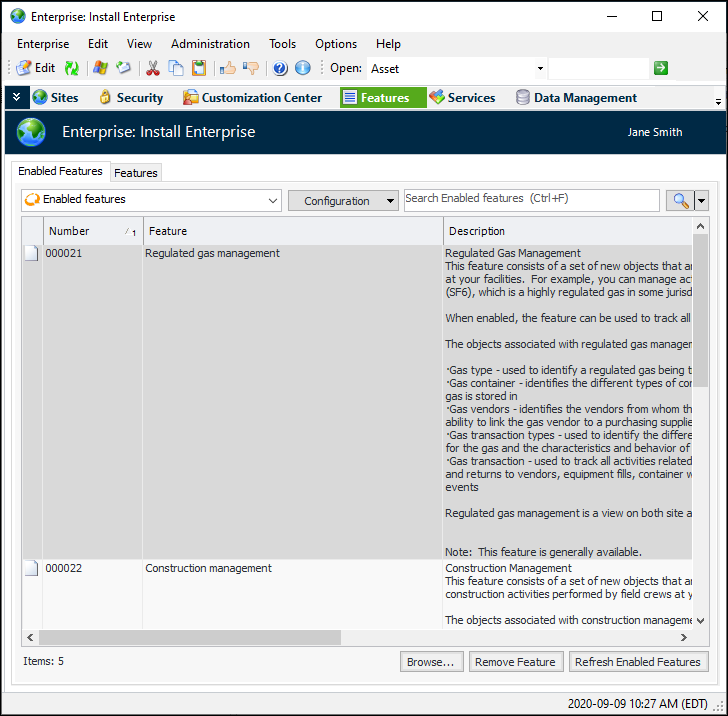
1. Open the Enterprise window, select the Features view and the Enabled Features tab. This tab shows features that have been enabled for your enterprise.
2. To disable a feature, select it in the table and click Remove Feature. Note that any data you created using the feature will be hidden.
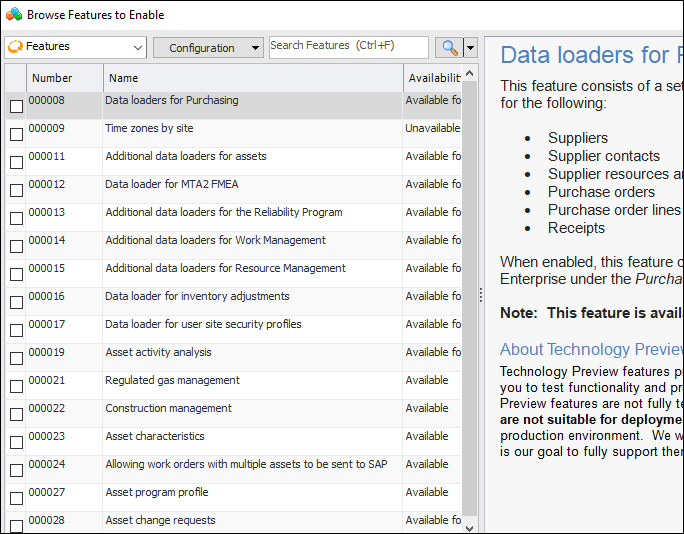
3. To enable a feature, click Browse. The Browse Features to Enable dialog appears listing all features. For example:
4. Click the selection box for the feature and click OK. The dialog closes and the feature is listed in the Enable Features tab, along with the date.Note: When APM is running as a smart or remote client, you must click Refresh Enabled Features on the server. Then restart the client to use the functionality in the product.