Creating an RCA from a Failure

You can create an RCA from a failure record. Typically, you will do this after evaluating the failure’s suitability for root cause analysis in the Failure window’s RCA view.
If you wish to create the RCA later, you can create an analysis request and a project to track the RCA. When you are ready to create the RCA, process the request. You can also cancel requests and reopen processed and canceled requests.
This topic explains how:

To Create an RCA

1.
Open the Failure or Anomaly window and select the RCA view. Click New at the bottom of the Analyses table.
Tip: You can also click the Tools menu and then New RCA.
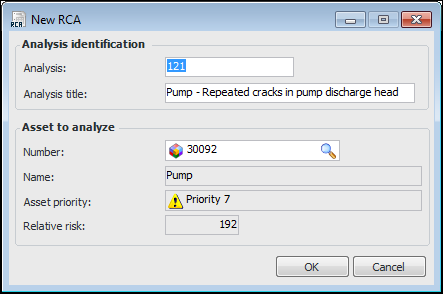
The New RCA dialog appears.
2.
3.
4.
The Asset identification area displays information about the failure asset. You can select a different asset by clicking Browse.
5.
Click OK. The RCA window appears. Information from the failure and evaluation is copied to the Definition view. The failure is copied to the Analysis view.
6.

To Create an RCA Request

1.
Click New at the bottom of the Analysis Requests table.
Tip: You can also click the Tools menu and then Request RCA. This allows you to create a project to track the RCA.
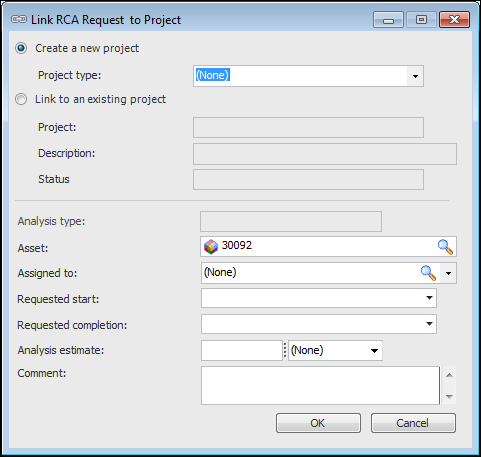
The Link RCA Request to Project dialog appears.
2.
To link to a new project, select Create a new project. Select a project type from the list.
To link to an existing project, select Link to an existing project. Click the browse icon () to select the project and click OK. The project’s number, title, and status are displayed.
3.
4.
Click OK. The request is added to the Analysis Requests table, including the project number. A project is created with the title “New RCA, asset number, name”, where number and name are the failure asset’s number and name, respectively. The Project window’s Analysis Requests tab displays the request.
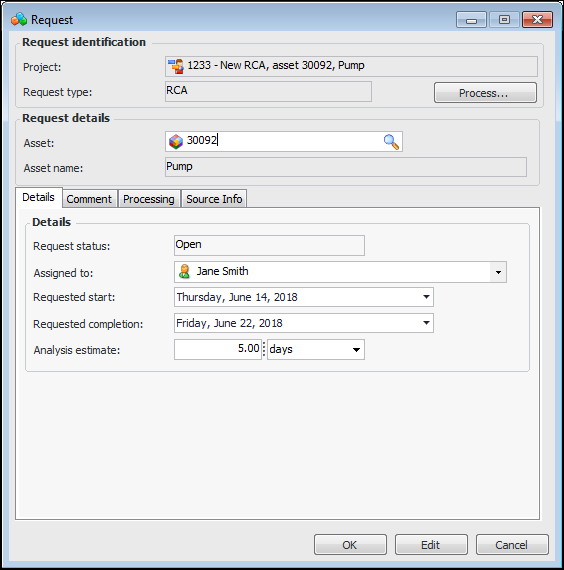
Tip: You can double-click the request to open the Request dialog, which displays information about the request, as well as its processing and source.

To Process an RCA Request

1.
In the Failure or Anomaly window, select the RCA view and double-click the request in the Analysis Requests table.
In the Project window, select the Properties view, Analysis Requests tab. Double-click the request.
The Request dialog appears.
This dialog displays information about the request, its processing, and its source.
Tip: In the Project window, you can select the request, click the Selected list, and click Process. The Request dialog does not appear; the RCA is created immediately.
2.
Click Process. The RCA window appears, and information from the failure is copied to the new analysis. The title of the analysis is the asset name followed by the failure description. The request is added to the Properties view, General tab, Analysis Requests tab.
The status of the request changes to “Processed”, and information is added to the Processing tab on the Request dialog.
3.

To Cancel or Reopen an RCA Request

1.
2.
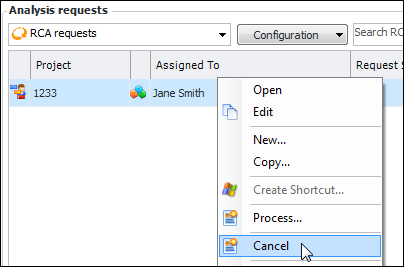
The request status changes accordingly.