Adding Downtime to Failure Records

You can record downtime incidents that occurred as a result of a failure. You can track the duration of the downtime incident, the scheduled and unscheduled downtime, the reason for the downtime, the asset’s operating level percentage, the work order task associated with the repair, and the costs for lost production.
Note: To record downtime incidents, downtime must be enabled for the asset’s asset type.
Tip: You can also browse for existing downtime incidents and add them to the failure record.
This topic explains how to add a new downtime incident to a failure record.
Tip: You can also browse for downtime incidents to add to the failure record.

To Add a Downtime Incident to a Failure Record
1.
Open the Failure or Anomaly window. On the Activities view, select the Downtime tab.
2.
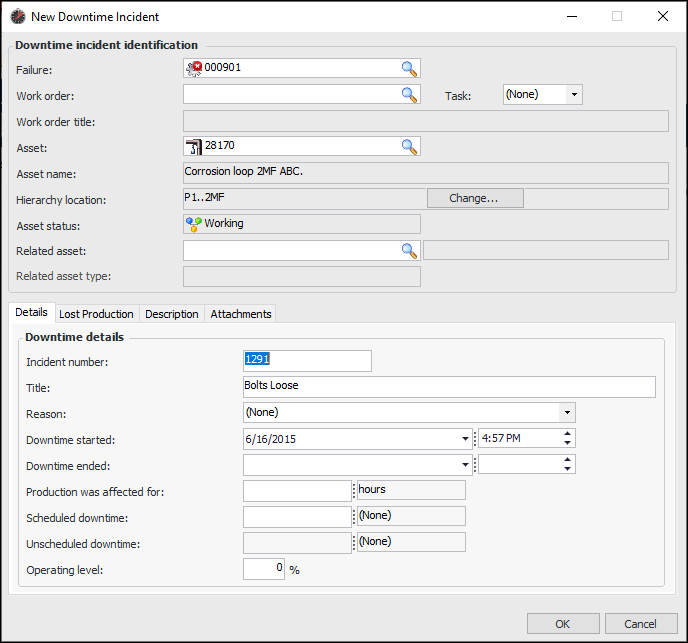
Click New. The New Downtime Incident dialog appears.
The failure number, asset information, incident title, and downtime start date and time are drawn from the failure record.
3.
4.
If the downtime incident involved another asset, you can identify it in the Related asset box. You can select the type of relationship: “Caused by”, “Affected by”, or “Other”. The incident can then be included in comparative analyses for the related asset.
5.
On the Details tab, the incident title is taken from the name of the failure mode or problem identified on the failure record, if any. You can change the title, if you wish.
6.
7.
8.
9.
When you enter the date when the downtime ended, APM automatically enters the length of time from the start of the downtime incident until its end in the Production was affected for boxes. You can change the duration if production was affected for a longer or shorter period than the length of time the asset was down.
10.
11.
12.
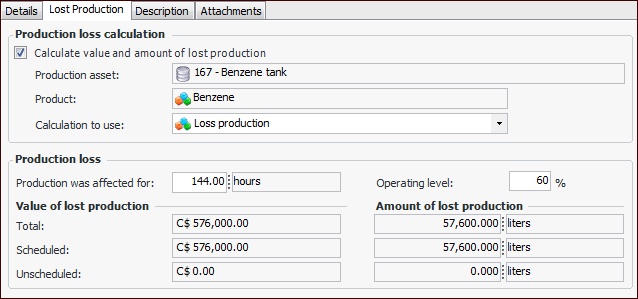
To calculate the costs and amounts of lost production incurred by the incident, select the Lost Production tab. Click Calculate value and amount of lost production. APM calculates the amounts based on the asset’s production loss accounting rules, the incident’s duration, and operating level. For example:
Tip: You can select a different equation from the Calculation to use list for the asset.
13.
14.
Click OK to save the incident and close the dialog.