|
Adding Follow-up Work to Failure Records
In the Failure or Anomaly window’s Activities view, you can add the documents needed to complete corrective work that will resolve or prevent equipment failures.
•
•
•
•
• A request for work’s Source tab displays the follow-up actionTip: You can view a list of failure follow-up actions for the site. In the Performance Management view, select the Failures tab. Select “Failure actions by due date” in the configuration list.To Add a Follow-up Work Action to a Failure Record
1.
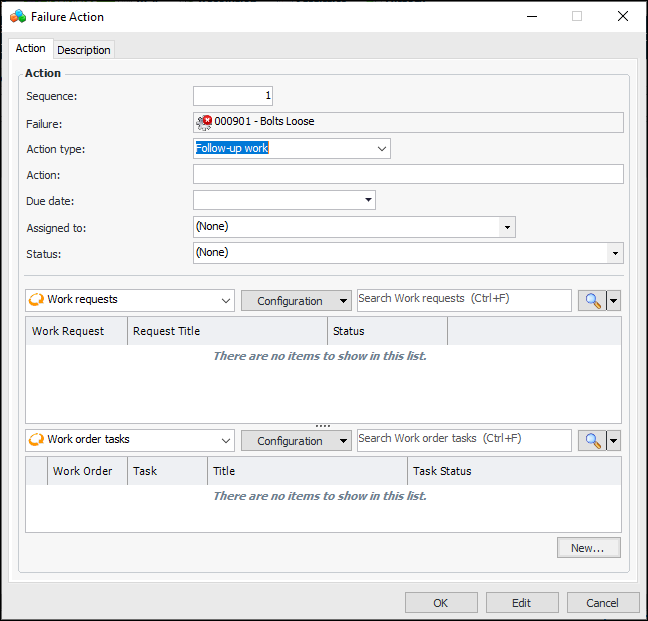
2. Click New. The Failure Action dialog appears. Here is an example where APM work documents are used:Tip: In the Activities view, the Actions tab provides Move Up and Move Down buttons to change the order of the actions as well as their sequence numbers.
4. In the Action type list, select “Follow-up work”.
5. In the Action box, provide a brief description of the required action.
7. Select the Description tab to provide more information about the failure action.To Request a Follow-up APM Work Document
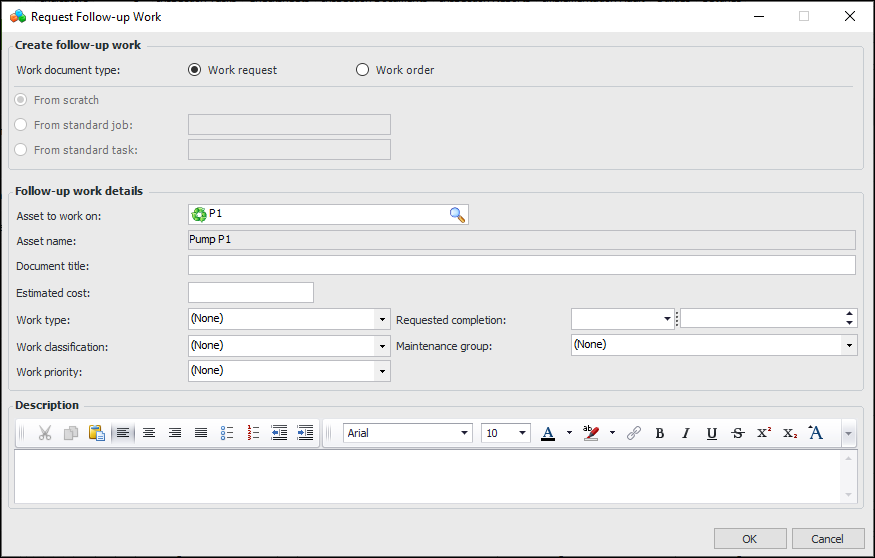
1. In the Failure Action dialog, Action tab, click New. The Request Follow-up Work dialog appears. For example:
3. If you selected Work order, select the method for creating the document. The options are:
• From scratch – Add a new work order. See step 4.
• From standard job – Browse to select the appropriate standard job. Select the requested completion date.
• From standard task – Browse to select the appropriate standard task. Select the requested completion date.
• If the site settings specify that work documents must be approved, Send for approval to is selected by default. Select the approval route
5. Click OK. The Request Follow-up Work dialog closes. The document window appears.
6. In the Failure Action dialog, the work document is listed in the appropriate table. When you have finished adding work documents, click OK. The Failure Action dialog closes and the follow-up action is added to the table in the Actions tab. The Corrective Tasks tab, APM tab lists the work documents.To Request a Follow-up Request for Work (AWEIS)
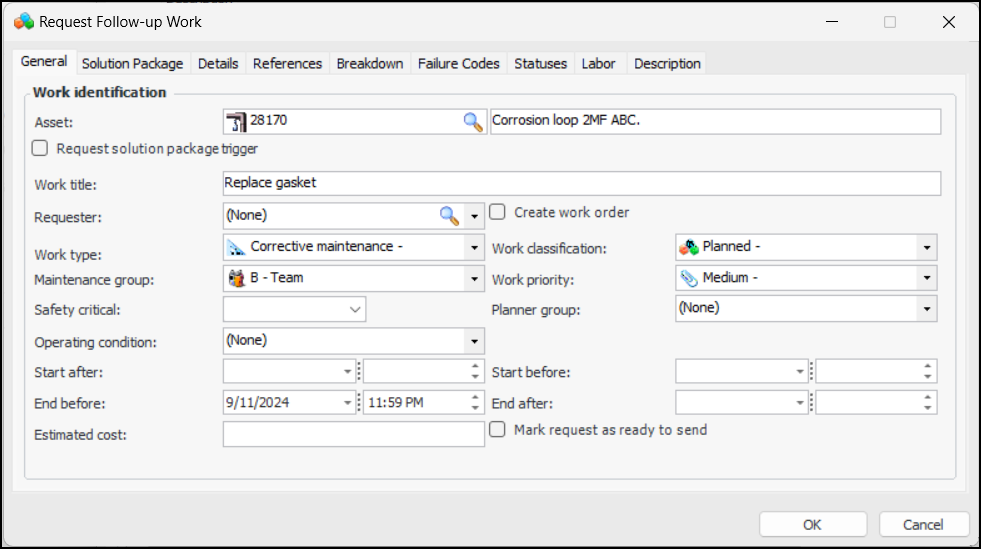
1. In the Failure Action dialog, click New. The Request Follow-up Work dialog appears. For example:Tip: If the request for work’s work type requires risk assessment, you can perform it from the Failure Action dialog, Action tab. Right-click the request for work in the table and click Assess Risk. The Anomaly Risk Assessment dialog appears. For information about using this dialog, see Performing Risk Assessment on a Request for Work. When you have completed the anomaly event, it is displayed in the Anomaly Events view in the Failure Event window.To Request a Follow-up SAP Maintenance Order
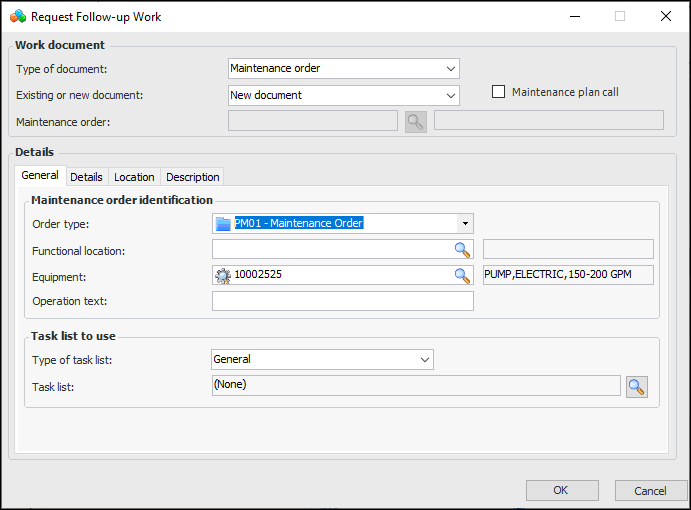
1. In the Failure Action dialog, click New. The Request Follow-up Work dialog appears. For example:
2. To use an existing maintenance order, select the New or existing document list and click “Existing document”.
• Select the maintenance order and click OK. The maintenance order number and description are displayed in the dialog.
• Click OK to add the follow-up work to the reading.
3. To create a maintenance call, select Maintenance plan manual order call.
• Select the maintenance plan and click OK. The maintenance plan’s identifier and description are displayed in the dialog.
• Click OK to add the follow-up work to the reading.
4. To create a maintenance order, select the New or existing document list and click “New document”.
•
5. Click OK. The Request Follow-up Work dialog closes. The maintenance order is created or updated in SAP. The maintenance order is listed in the Failure Action dialog.
6. When you have finished adding work documents, click OK. The Failure Action dialog closes and the follow-up action is added to the table in the Actions tab. The Corrective Tasks tab, SAP tab lists the work documents.To Request a Follow-up SAP Notification
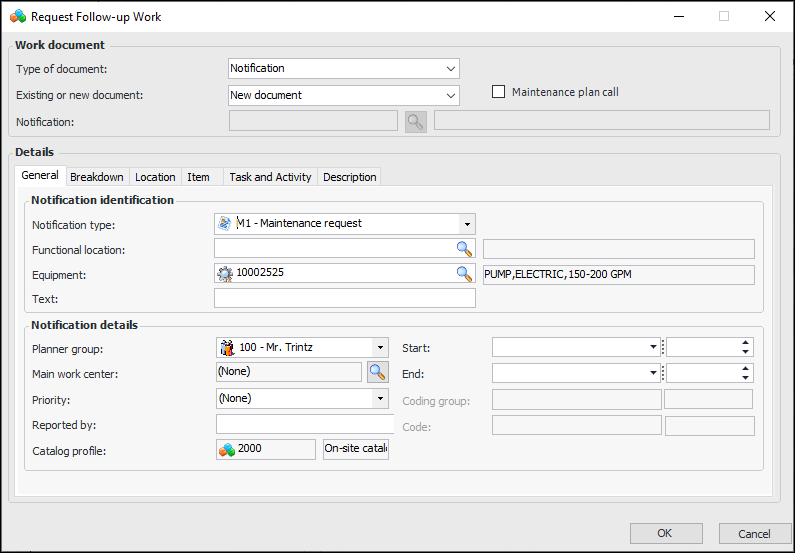
1. In the Failure Action dialog, click New. The Request Follow-up Work dialog appears.
2. In the Type of document list, select “Notification”. The dialog changes as follows:
3. To use an existing notification, select the New or existing document list and click “Existing document”.
• Select the notification and click OK. The notification number and description are displayed in the dialog.
• Click OK to add the follow-up work to the reading.
4. To use a new notification, select the New or existing document list and click “New document”.
• In each of the Breakdown, Location, Item, Task and Activity, and Description tabs, review and change the values, as needed.
5. Click OK. The Request Follow-up Work dialog closes. The notification is created or updated in SAP. The notification is listed in the Failure Action dialog.
6. When you have finished adding work documents, click OK. The Failure Action dialog closes and the follow-up action is added to the table in the Actions tab. The Corrective Tasks tab, SAP tab lists the work documents.