Creating a Failure when Linking a Work Request to a Task

You can create a work order task to fulfill a work request, add a new task to an existing work order, or link a work request to an existing task. You can select a standard task, task template, standard job, or job template on which to base a new work order task.
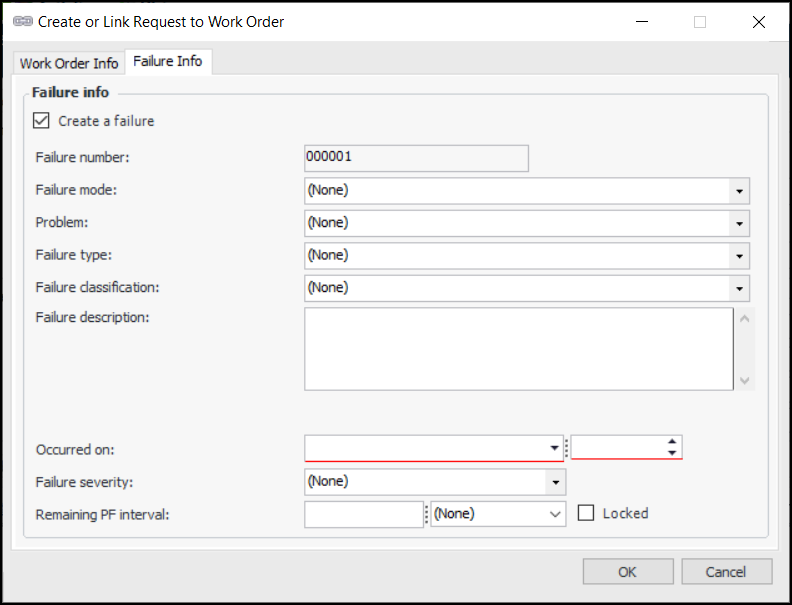
If the purpose of the work request and work order is to resolve the asset’s full, partial, or potential failure, you can create a failure record to document the failure or anomaly and track its resolution. You can view the new failure record from the work order task’s Activity view. The failure record is automatically given the status Open and its source is shown as “Work Request”.
Only work orders and work requests from the same site can be linked. If the work has already been completed, you can link the request to a closed work order. When a request is linked to a closed work order, the status of the request is set to “Work completed”. A request cannot be linked to a work order that is canceled.
If your organization requires that work requests be approved, a work request must be approved before you can link it to a work order task.
If the work request was created to acknowledge an indicator alarm, this information is copied to the work order.
This topic explains how to link a work request to a work order and create a failure record.

To Link a Work Request to a Work Order Task
1.
2.
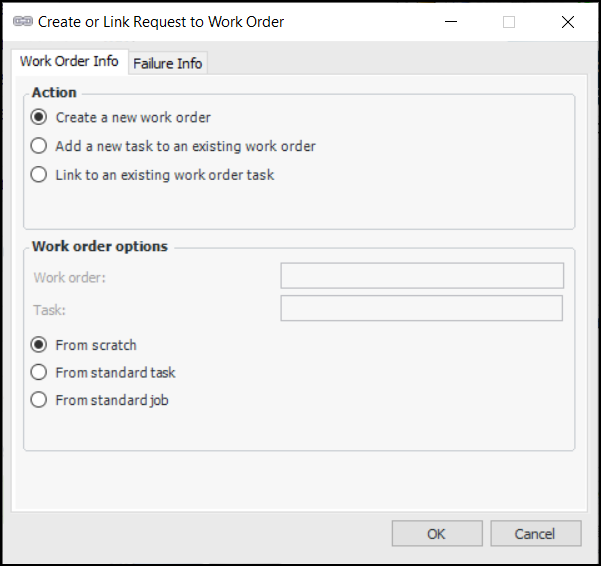
From the Tools menu, select Create or Link to Work Order. The Create or Link Request to Work Order dialog appears.
3.
Create a new work order: If appropriate, select a standard task, task template, standard job, or job template on which to base the new work order.
Add a new task to an existing work order: Select a work order on which the new task will be created. If appropriate, select a standard task or task template on which to base the new task.
Link to an existing work order task: Select an existing work order task to link to. The system creates the link without changing the planning information on the work order and task.
Create a new work request: When you click OK, the work request is created. This option is enabled if you are creating a work document from a failure record.
4.
5.
6.
Select Create a failure.
APM assigns each failure record a unique failure number. The failure number can be used to locate the failure or to launch it from the find bar.
7.
If problems have been defined for the asset type, select a suitable problem from the Problem list. The selected problem’s description, failure type, and failure classification are copied to the failure record.
8.
9.
On the Description tab, enter or modify the description of the failure as needed.
10.
11.
Total: the asset’s performance has decreased to a point where the asset no longer performs at its required level. The asset has completely failed.
Partial: the asset’s performance has decreased to a point where it no longer performs one of its functions at the specified levels. The asset is still functioning.
Potential: a condition has been noticed that would result in a failure if the problem is not resolved. Potential failures are most often reported when an indicator reading raises an alarm against the asset.
12.
13.
14.
Click OK. The system opens the new or existing work order.
Tip: You can view and edit the failure record from the work order task. Select the Activity view, expand the Failure node, and select the failure to view information about it. Double-click the failure’s icon to open the failure record. For more information, see Working with Failure Tracking.
You can now continue planning the work order task. When you are finished entering information about the task, you can: