|
Exploring the Object Model Through the User Interface
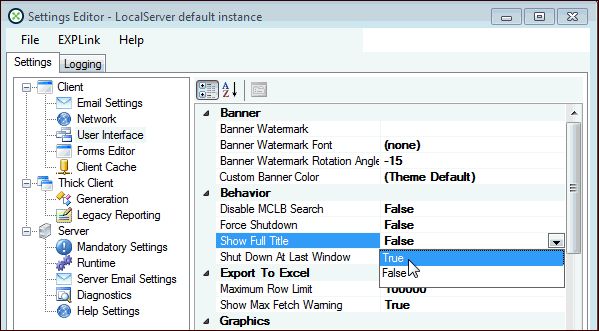
Note: To see the join path information in the status bar, you must be logged on as an APM administrator.The object ID information is useful for some customizations. To view the object IDs in the title bar of every object, open APM Configuration, select the thick-client instance, and click Full Settings. In the Settings Editor, click the File menu and then Show Advanced Settings. Under the Client node, select User Interface. Set the Show Full Title option to “True”. For example:To Explore the APM Object Model Through the User Interface
(Select the site’s Work Management view and then open an existing work request.)
2. Click in the Title field. In the status bar (bottom-left corner) the system shows the context class and the name of the attribute that the field represents. In this case:
3. Fields can also represent relationships with other classes, or attributes from other classes. For example, click on the Type field in the Asset to work on section. In this case, the status bar shows:
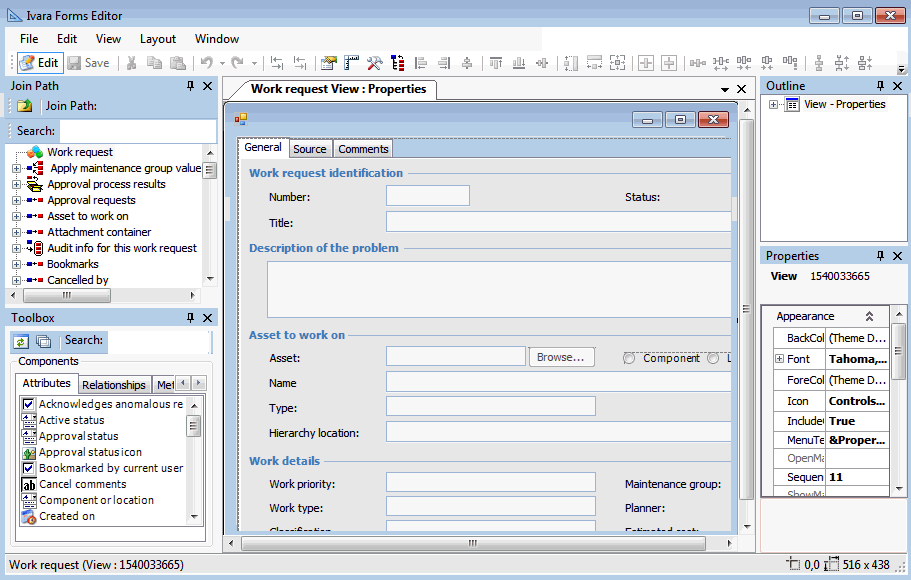
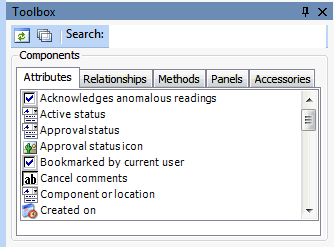
4. To see more information about the attributes and relationships linked to an object, you can edit the view you are looking at. From the View menu, select Edit View. The APM Forms Editor window appears, with Work Request view:Properties displayed in the Layout panel.By default, the Toolbox panel appears at the bottom left corner of the Forms Editor. This panel shows object model items that you can add to the user interface.
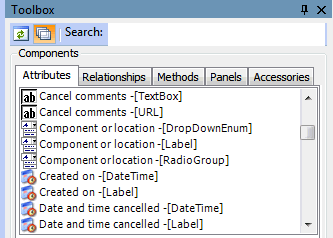
5. The Attributes tab displays attributes for the context class. The icons represent the data type of each attribute. The data type determines how the attribute will be displayed on the user interface. For example, if you drag the Date Requested attribute onto the Work Request Form, it will show a field with a dropdown arrow that, when clicked, opens a calendar:You can click the “show full” iconin the Toolbox to view the characteristics of the attribute. For example:
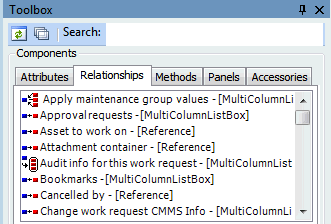
6. Click the Relationships tab to see a list of relationships with the class.
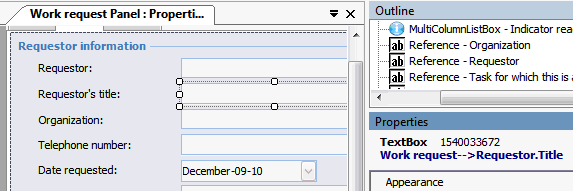
7. On the Work Request layout panel, select the Source tab. This tab shows an Alarm acknowledgments multi-column list box (MCLB) or table.The Properties panel also displays the relationship information. Click a field on the Work Request Panel that is on the layout panel to view the relationship at the top of the Properties panel. For example, click the box beside the Requestor’s title label and view the relationship:
9. When you are finished reviewing object model references in the view, close the Forms Editor without saving any changes.