Viewing 4D Indicators and Readings

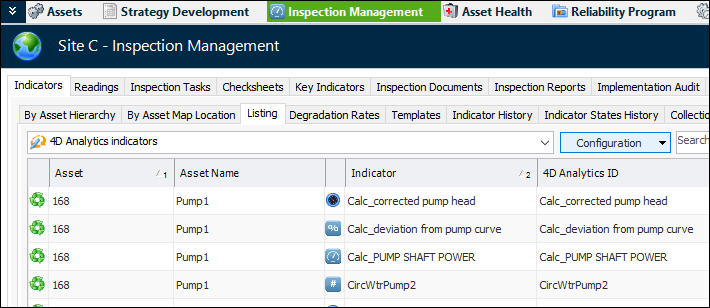
You can view tables of 4D indicators in APM Site and Asset windows using the “4D Analytics indicators” configurations.
You can review indicator readings in 4D charts, where the Analytical Viewer provides a view into the Influx data. Readings tabs list the readings that have been pushed to APM from 4D Analytics processes, as well as any indicator readings entered directly in APM.
This topic explains how to view 4D indicators and readings, as well as the features of 4D charts.

Table Configurations for 4D Indicators

APM provides table configurations specifically for 4D indicators in the Site and Indicator windows.

To View 4D Indicators for a Site

1.
In the Site window, Inspection Management view, select the Indicators tab and the Listing tab.
2.

To View 4D Indicators for an Asset

1.
In the Asset window, Inspection Management view, select the Indicators tab.
2.
Select the Listing or By Asset tab and select the “4D Analytics indicators” configuration.

Viewing 4D Charts

You can access 4D charts at the site, asset, and indicator levels.

To View 4D Charts for the Site or Asset

1.
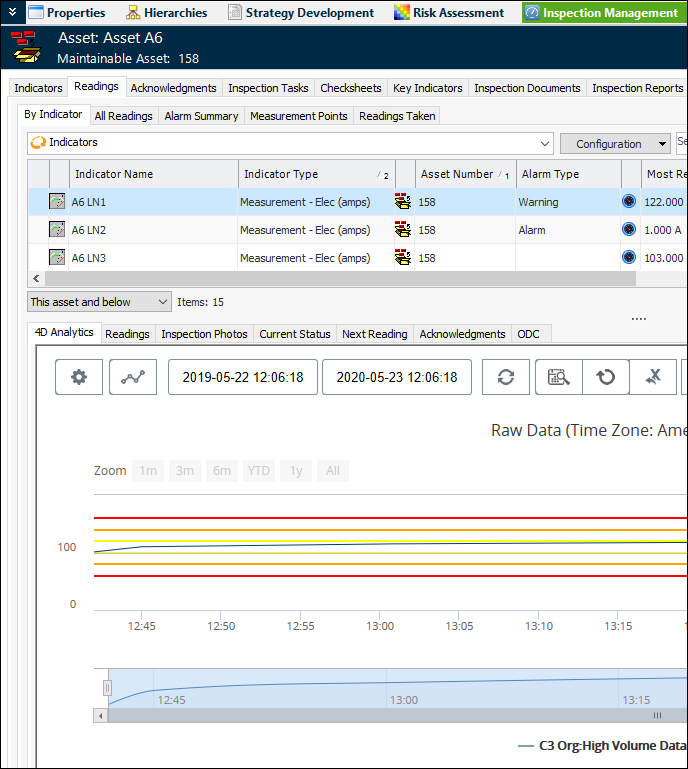
In the Site or Asset window, Inspection Management view, select the Readings tab and then the By Indicator tab.
2.

To View 4D Charts for an Indicator

1.
2.
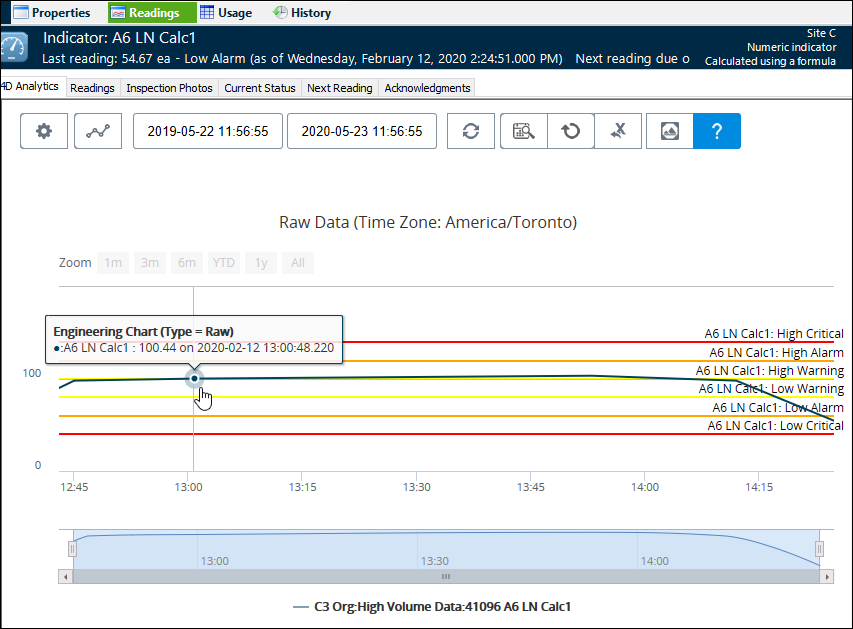
The 4D Analytics tab displays the readings in the analytical viewer. For example:
By default, the chart shows the indicator states in vertical bands. Hover the mouse cursor over the data line to view a reading’s value and time stamp.

Analytical Viewer Tools

The tool bar appears at the top of the chart. Hover the mouse pointer over an icon to see its purpose. For example:

Show/Hide Options

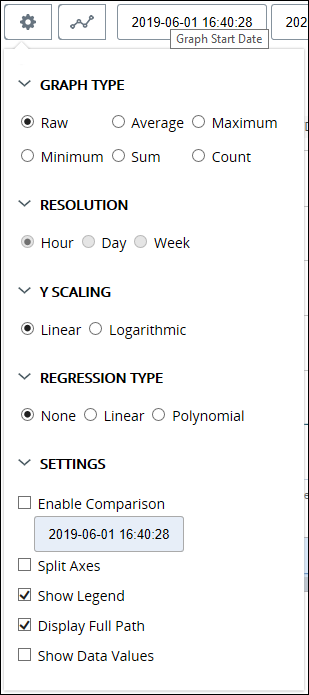
Click the Show/Hide Options icon to show – or hide – the settings that control what data appears in the chart. This example displays maximized settings to show the default values:
Here are some tips for using these settings:
Enable Comparison – click this option and select another date to compare the indicator’s values in the chart
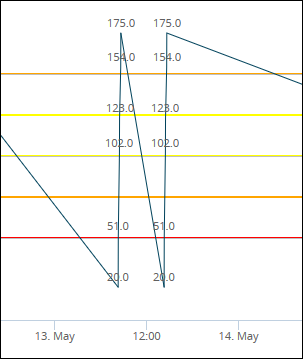
Show Data Values – Displays the reading values in the chart. For example:

Chart Details

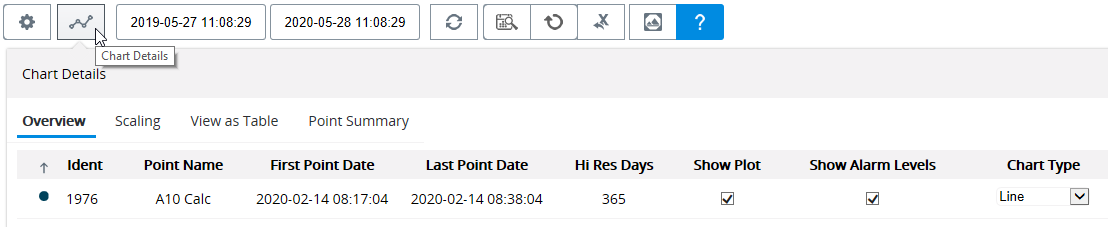
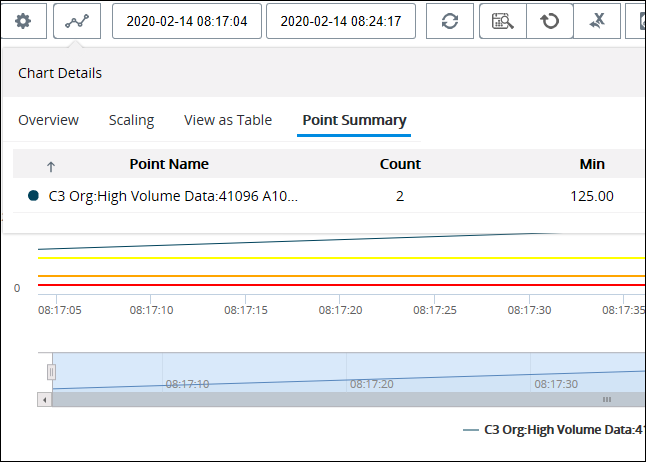
Click the Chart Details icon to show – or hide – an overview of the points (readings), as well as viewing options. For example:
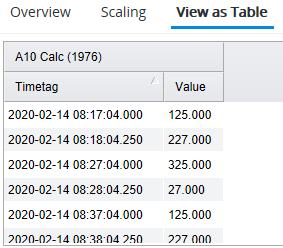
Select View as Table to see a list of the reading values and their collected-on dates. Click a column heading to sort on that column’s values:
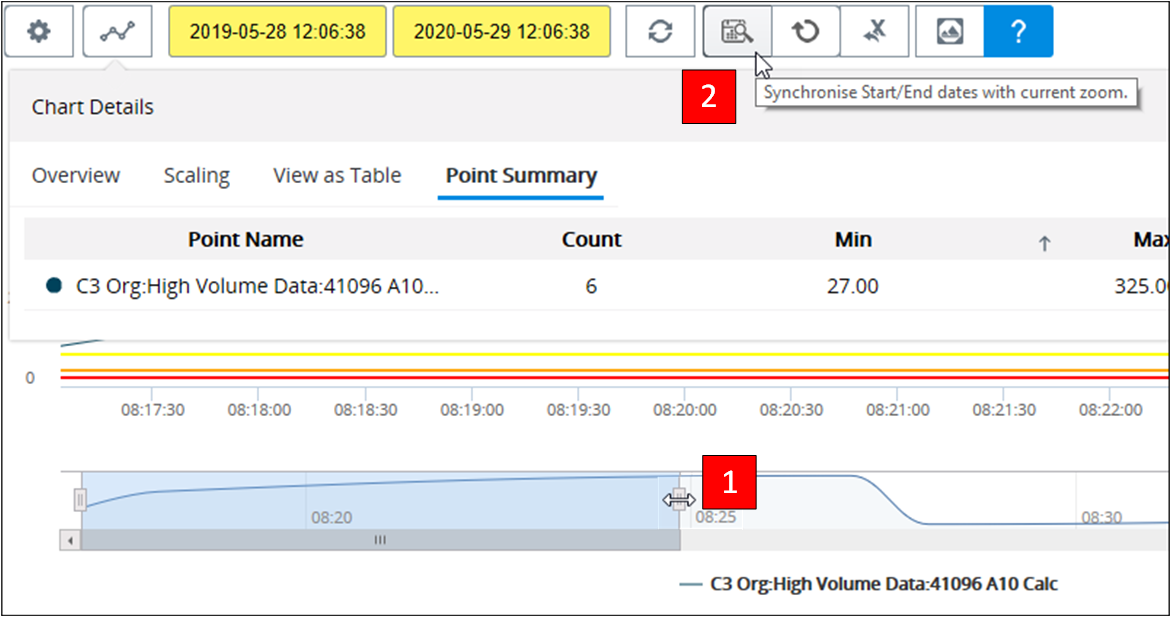
Select Point Summary to see a count of the values in the chart, as well as the minimum, maximum, and average values.
When you drag the timeline at the bottom of the chart, click the Synchronize icon to update the values shown in the point summary:
The chart zooms in on the shorter timeline, and the graph dates and summary statistics are updated:
To return to the original timeline, click the Reset icon:

Graph Dates

Click the Graph Start Date or Graph End Date field to enter or select a date. Click the Refresh Graph icon to update the chart.
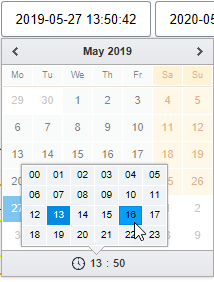
If you wish to show hour and minute values in the Start and/or End Date field, click in the field to open the calendar. At the bottom of the calendar, click the hour and minute values to change them. For example:

Timeline

The Timeline control below the chart reflects the current data set and zoom level. You can drag the grips at either end to expand or reduce the time period presented in the chart.
The Graph date fields change color to indicate that the dates are no longer synchronized with the timeline. Click the Synchronize icon to update the chart.
Click the Reset icon to return to the full span of the data.

Export to Excel

Click the Export to Excel icon to create a spreadsheet of the data from the chart.

Download

Click the Download icon to save the chart as a separate png, jpeg, pdf, or svg file.