Creating a Rule-based Indicator

A rule-based indicator is an indicator whose current state is determined by a rule rather than by a direct reading. The rule is made up of clauses based on the current state of other indicators that, when considered together, can indicate the existence of a problem. APM uses “and/or” logic to evaluate the rule clauses that make up each rule.
For example, consider an indicator on your vintage car called “Service Engine Soon.” The purpose of this indicator is to let you know that your car engine is due for a tune-up. The indicator comes on when a certain number of conditions that your car measures on a regular basis exist together. For instance, the indicator light might come on if all of the following conditions are true:
APM evaluates the indicator rule whenever a reading is entered for any of the indicators named in the rule. When the rule is logically true, the rule-based indicator goes from being in a normal state to being in an alarm state. The severity of the alarm that gets raised depends on what is defined for the indicator. For example, in the previous example, the alarm might be a simple warning to take the car in for service.
You can prevent APM from evaluating a triggering rule if one or more of the contributing indicator readings are outdated. For example, you can say that all of the indicator readings included in the rule must have been collected within one day of each other. This is called the “required proximity” of the indicator readings.
Whenever an indicator reading is entered for an indicator that is included in the rule, APM records a reading for the rule-based indicator. The reading includes the date and time, if the alarm was triggered, and information as to why it was triggered. This includes information about the states of all the indicators that were used in the rule. If the indicator readings that contributed to the rule were collected on a checksheet or on a work order task, the resulting rule-based indicator reading is also shown on the checksheet or work order task.
When you create a rule-based indicator, you must create the rule clauses that make up the triggering rule, and then select an alarm for when the rule is true.

To Create a Rule-based Indicator

1.
Open the asset that needs the indicator. Select the Inspection Management view, Indicators tab.
2.
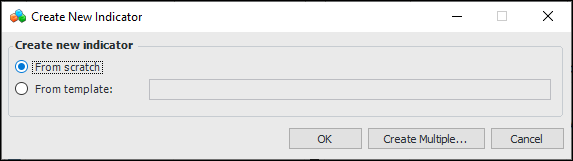
Click New. The Create New Indicator dialog appears.
3.
Select From scratch and click OK.
4.
5.
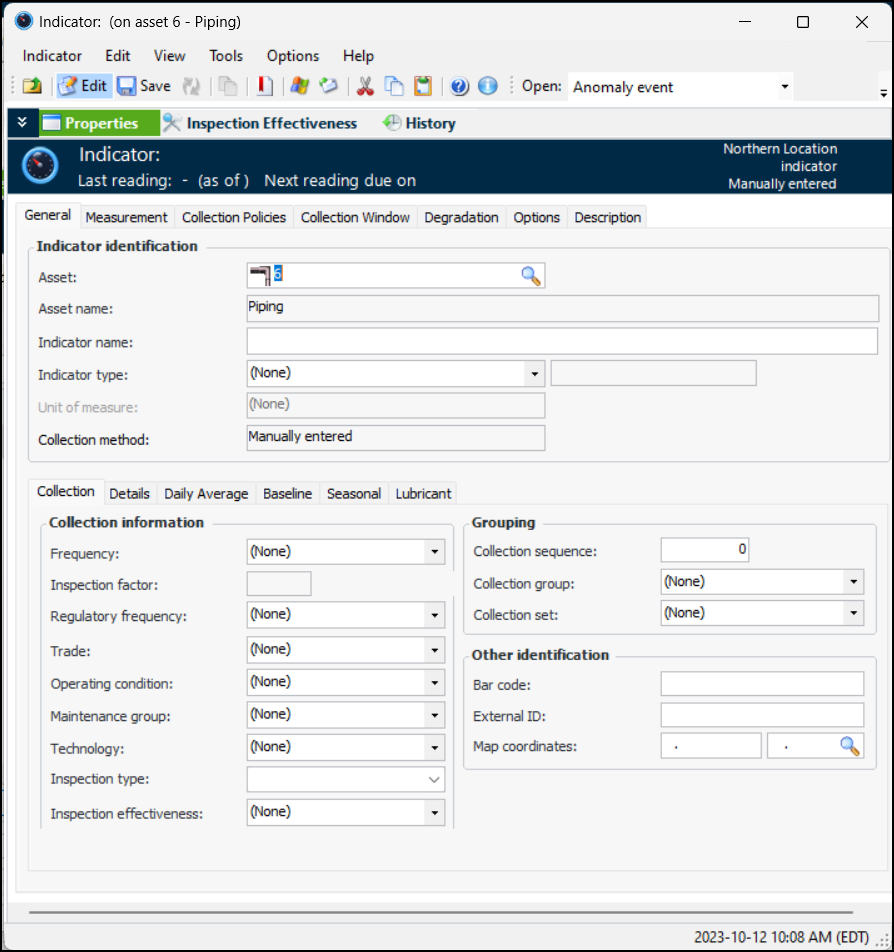
On the Properties view, General tab:
Select a rule-based indicator type from the Indicator type list. When you select a rule-based indicator type, the Type of value box says “rule-based.”
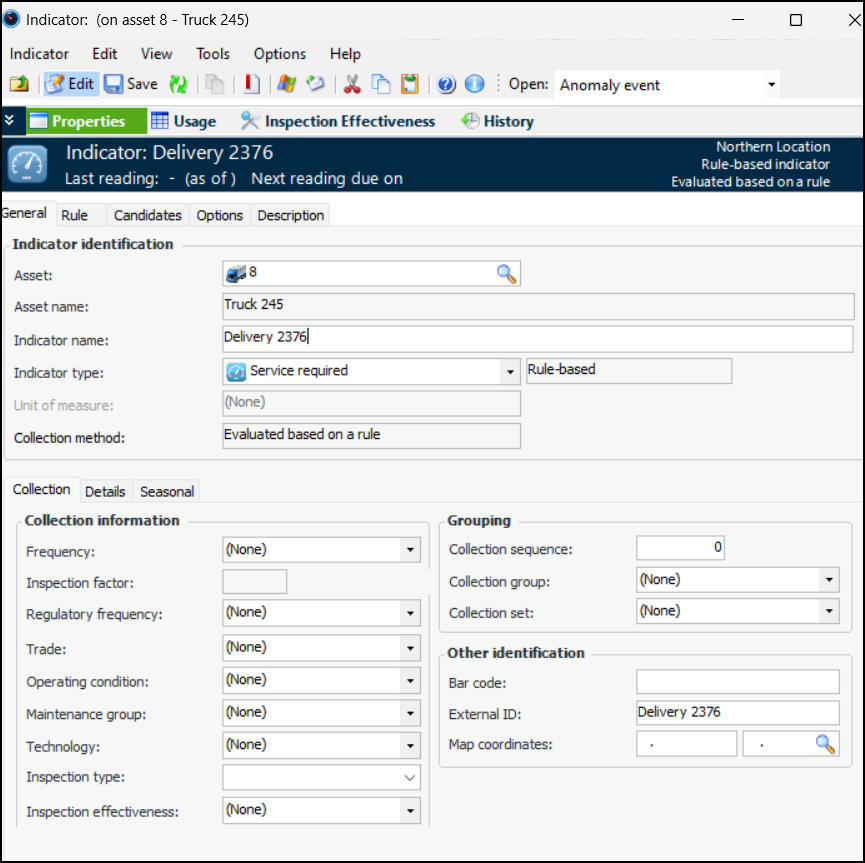
The window changes to reflect the rule-based value type:
The collection method is “Evaluated based on a rule”.
6.
On the Collection tab, you can enter values that determine how often readings are expected and the next collection date. You can also enter information to make it easier to select this indicator when adding indicators to a work order task or standard task, when copying indicators to another asset, when setting up dynamic inspection routes, or when implementing reliability programs.
If you are creating the indicator from a strategy development analysis (MTA2, RCM2, RBI, CPR), the searching values (frequency, regulatory frequency, trade, operating condition, maintenance group, and technology) are automatically copied from the associated action plan, if the analysis’ indicator settings allow it. In this case, you need only verify the values.
Note: Any changes that you make to the searching values are not copied to the indicator’s associated action plan.
Review and select values, as appropriate:
Tip: If the technology is linked to an asset type that is used to collect indicator readings, you can identify the measurement device on indicator readings and checksheets.
7.
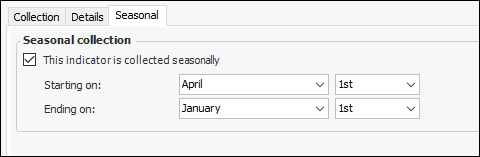
To specify the months during which readings should be taken, select the Seasonal tab. Click This indicator is collected seasonally and select the starting and ending dates. For example:
Reading due dates will reflect the seasonal settings.
8.
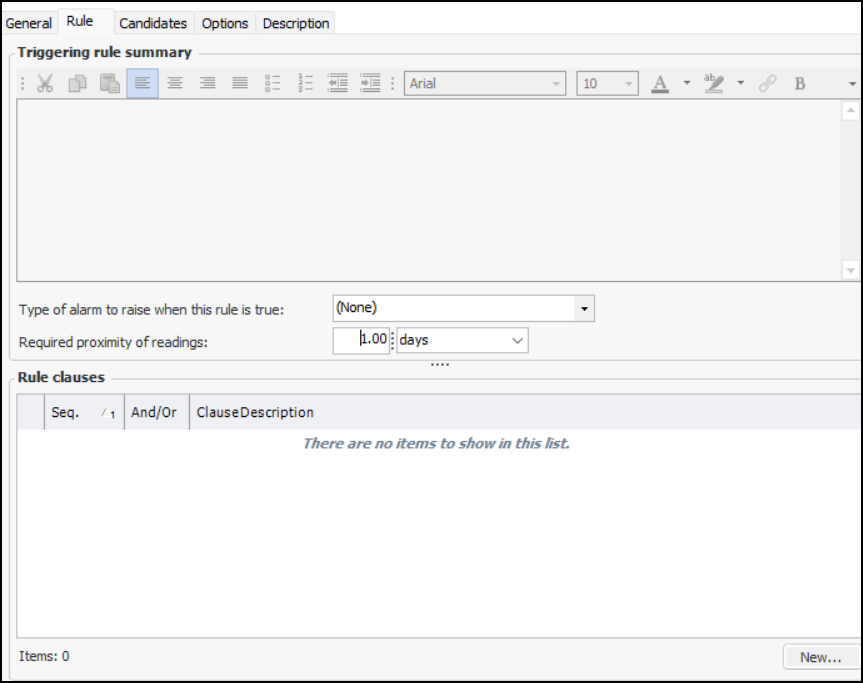
Select the Rule tab.
9.
10.
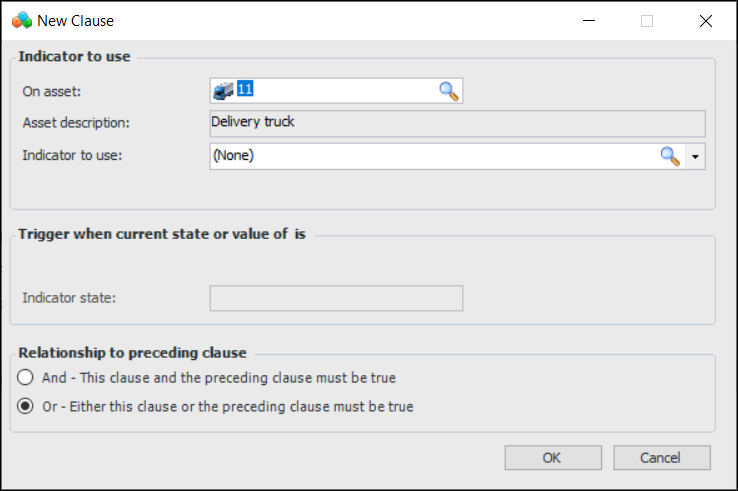
Make sure that the asset in the On asset box is correct. If necessary, you can change it by clicking the browse icon.
11.
From the Indicator to use list, select an indicator to use for the clause.
12.
In the Trigger area, select whether the clause is evaluated based on the state or the value of the indicator. For a temperature indicator, for example, the rule clause might be triggered when the indicator has a value of 30º or when the indicator is in a “warning” state.
13.
In the Operator list, select how the clause is to be evaluated. There are six possible operators: Equal to, Not equal to, Greater than or equal to, Less than or equal to, Greater than, and Less than.
For example, for a temperature indicator, the rule clause might be true when the indicator value is “Greater than or equal to” 30º.
If the rule clause is based on indicator states, the rule clause might be true when the indicator has a state that is “Greater than or equal to Warning”. In this case, the clause is true when the indicator is in a Warning state or in any other state with a severity greater than the Warning state, such as an Alarm state.
14.
15.
If you are entering the second clause or a subsequent one, select the clause’s relationship to the previous clause. Select And if this and the previous clause must be true for the rule to be true. If you select OR, only one of the clauses must be true for the rule to be true.
Brackets are supported implicitly in APM. If you have more than two clauses, APM assumes that there are brackets around the parts of the rule on either side of the OR operators.
For example, if the rule says: Clause 1 AND Clause 2 OR Clause 3 AND Clause 4, APM evaluates it as (Clause 1 AND Clause 2) OR (Clause 3 AND Clause 4).
16.
17.
18.
Select an alarm for the rule in the Type of alarm to raise when this rule is true list.
19.
If necessary, you can change the Required Proximity of the rule inputs. By default, APM sets this to be 1.00 day. If any of the inputs are outside of the required proximity time, APM does not evaluate the rule.
Note: Required proximity is only applicable if two or more calculation inputs are based on indicator readings and use the most recent reading in the input.
Select the Candidates tab. On this tab, you can suggest standard jobs (APM), solution packages (AWEIS), standard tasks, and templates to users who are acknowledging alarms or warnings. When users acknowledge alarms or warnings for the indicator, APM prompts them with the list so that they can create work orders.
Note: If you are creating the indicator during a strategy development analysis (MTA2, RCM2, RBI, CPR), the action plan’s corrective tasks and jobs are automatically added to the indicator when the action plan is marked “Implementation Completed”.
20.
To add a corrective job (APM), solution package (AWEIS), or task to the list, click Browse. Select the item that you want to add, and then click OK.
21.
Select the Options tab and the Work Orders tab. On this tab you can have APM take “snapshots” of indicators for the asset that is being worked on for a work order task. This means that APM records the current state of the indicator at the time that the work order task is created, when it is closed, or both when it is created and closed. Select the appropriate options in the Snapshots and Snapshot timing areas.
22.
Select the Description tab to add more information about the indicator.
23.