Creating Multiple Indicators

When creating indicators from scratch or from a template, you can create two or more at the same time. The Create Multiple Indicators window allows you to quickly add indicators that are numbered sequentially and with the name and prefix you supply, but are otherwise identical. If needed, you can then open the indicators individually to adjust their properties.
You can use the Create Multiple Indicators window from the site’s or asset’s Inspection Management view or from a maintenance action plan in a strategy development analysis. This topic explains how to create multiple indicators from the Asset window’s Inspection Management view.

To Create Multiple Indicators

1.
Open the asset that needs the indicators. Select the Inspection Management view, Indicators tab.
2.
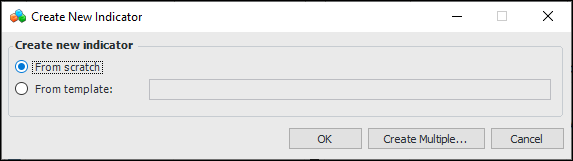
Click New. The Create New Indicator dialog appears.
3.
Select From scratch or From template and browse for a template.
4.
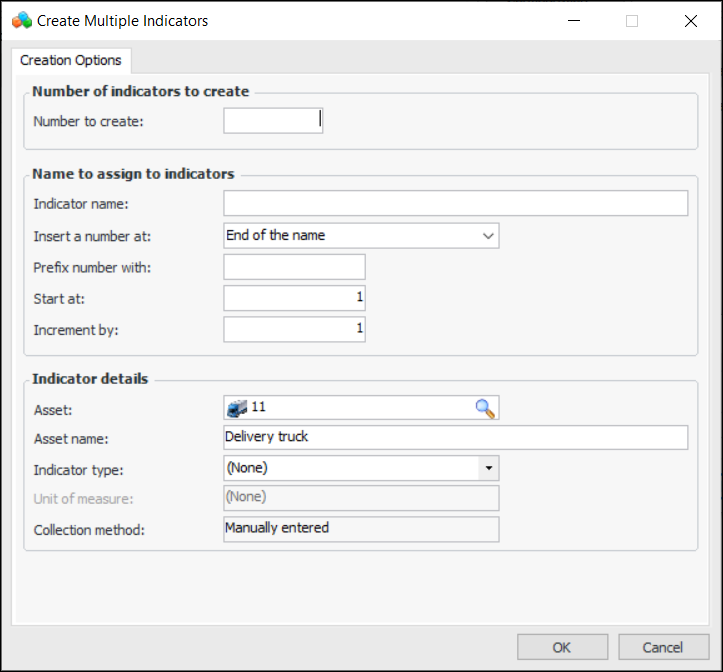
Click Create Multiple. The Create Multiple Indicators window appears. For example:
If you are creating indicators based on a template, the indicator type, unit of measure, and collection method are supplied by the template.
5.
Note: If the assigned number already exists, “(2)” is added to the number.
6.
7.
Click OK. The indicators are created and added to the table.