|
Creating a Descriptive Indicator
Using the indicator’s collection policies, you can specify how its reading due dates are calculated. You can also set up the indicator’s collection window to define early and late collection periods. You can track collection compliance using table configurations, sidebar dashboards, and KPIs. For information about viewing an indicator’s collection status, see Viewing Indicator Collection Compliance.To Create a Descriptive Indicator
1.
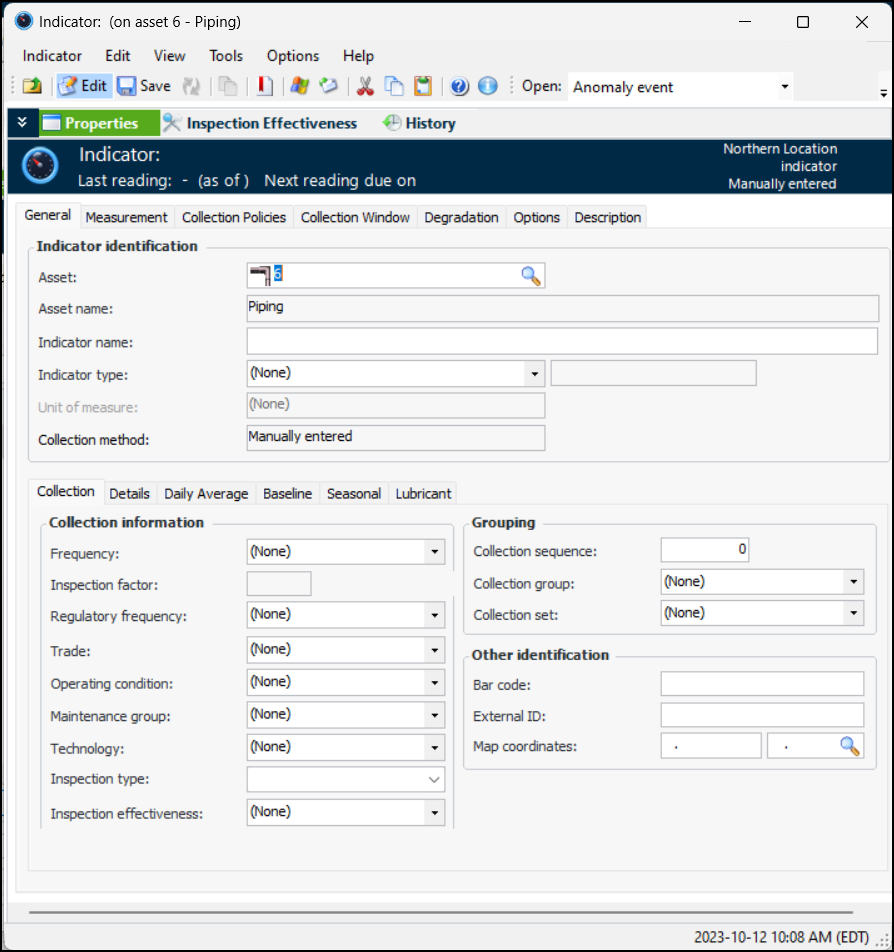
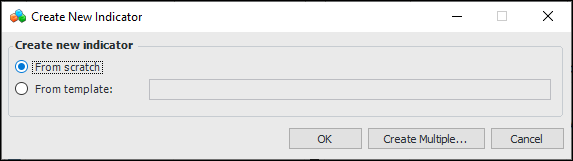
2. Click New. The Create New Indicator dialog appears.
3.
5.
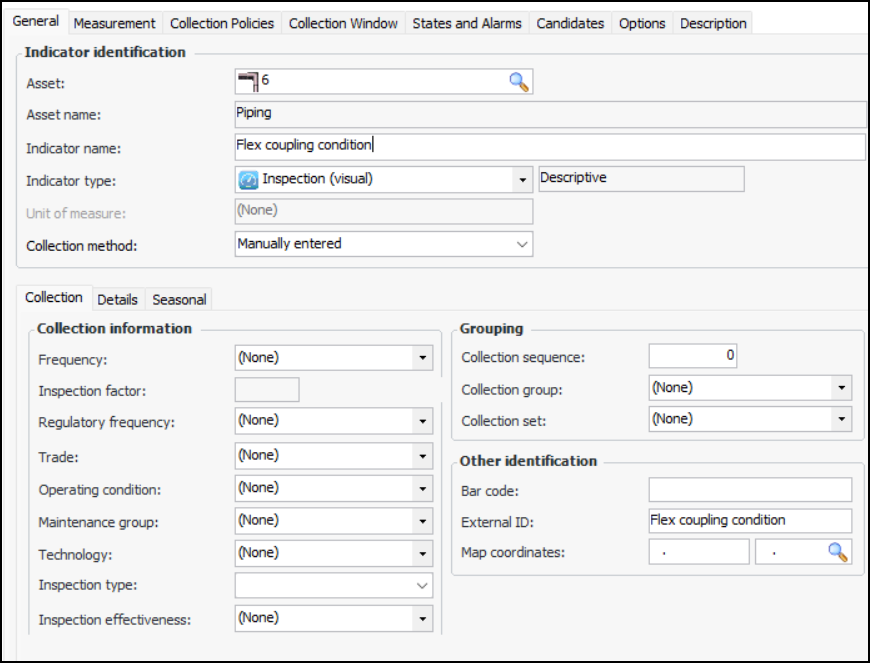
• Select a descriptive indicator type from the Indicator type list. When you select a descriptive indicator type, the Type of value box displays “descriptive”.
•
• If they are to be entered automatically by online collection devices, select Collected from an on-line source. The Online Data Source tab is added. See Configuring Indicators for ODC.
• If they are to be calculated, select Calculated using a formula. The Calculation tab is added. See Creating a Calculated Descriptive Indicator.
7. On the Collection tab, you can enter values that determine how often readings are expected and the next collection date. You can also enter information to make it easier to select this indicator when adding indicators to a work order task or standard task, when copying indicators to another asset, when setting up dynamic inspection routes, or when implementing reliability programs.
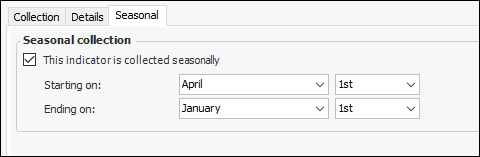
8. To specify the months during which readings should be taken, select the Seasonal tab. Click This indicator is collected seasonally and select the starting and ending dates. For example:
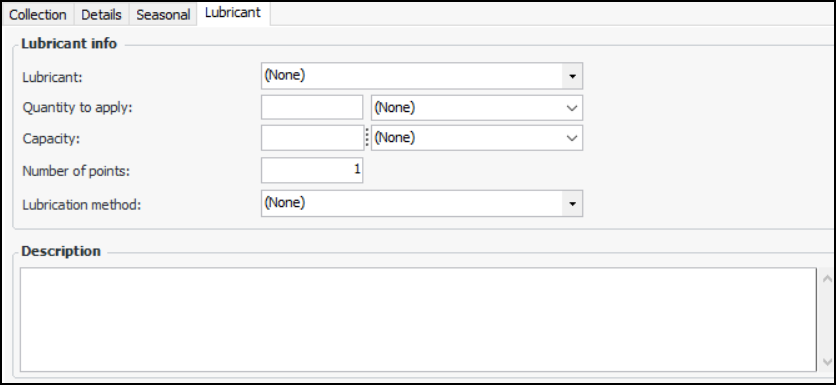
9. If the indicator type specifies that lubricant information is available on indicators of that type, the Lubricant tab is available. Select the tab to enter information about the lubricants, such as grease or oil, required for the route.
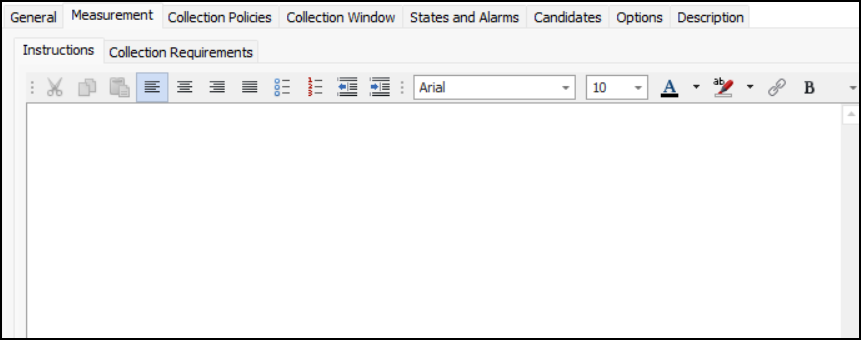
10. Select the Measurement tab and then the Measurement Points tab, if available, to define measurement points. For more information, see Adding Measurement Points to an Indicator.
11.
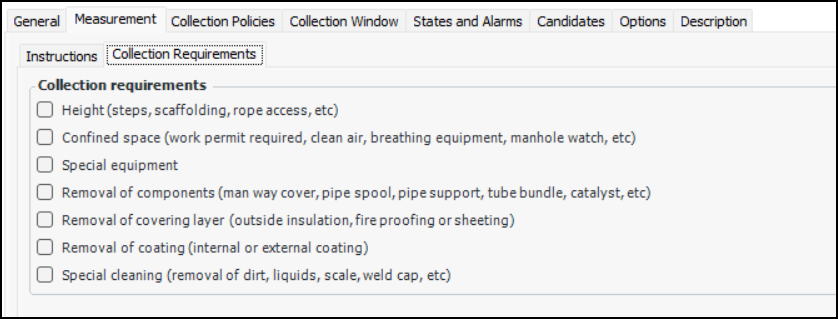
13. Select the Collection Requirements tab.
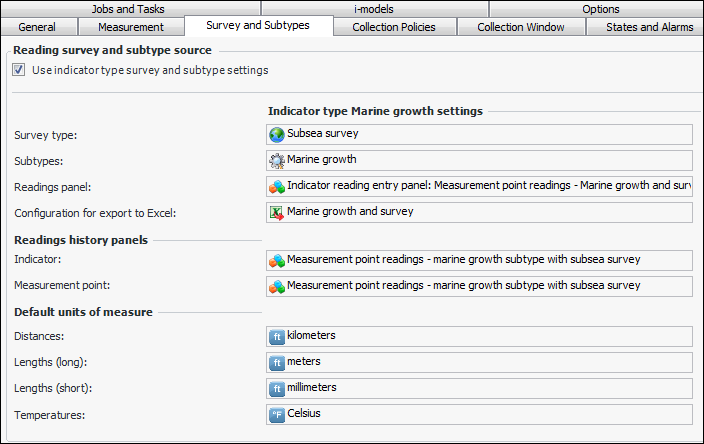
15. If the indicator type supports subtypes and surveys, you can select the Survey and Subtypes tab to review information. For example:
16. If the indicator type allows these settings to be overridden on individual indicators, you can clear Use indicator type survey and subtype settings. The default indicator and survey type settings appear on the right as a reference, and you can edit each option as needed. For example:
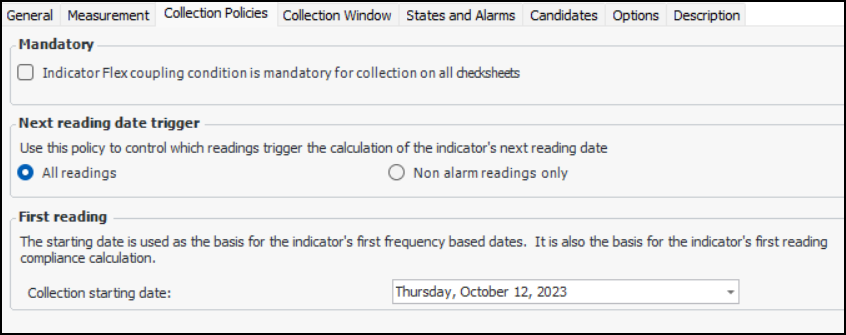
17. Select the Collection Policies tab.
• All readings – The indicator’s next reading due date is recalculated whenever a reading is processed
• Non-alarm readings only – The indicator’s next reading due date is recalculated only when a normal (non-alarm) reading is processed. Select this option if an alarm situation must be resolved and confirmed by a normal reading before regular collection resumesTip: On an alarm acknowledgment, you can request a follow-up reading and the time period for collecting it (for example, 10 days). For more information, see Acknowledging Indicator Alarms and Warnings.
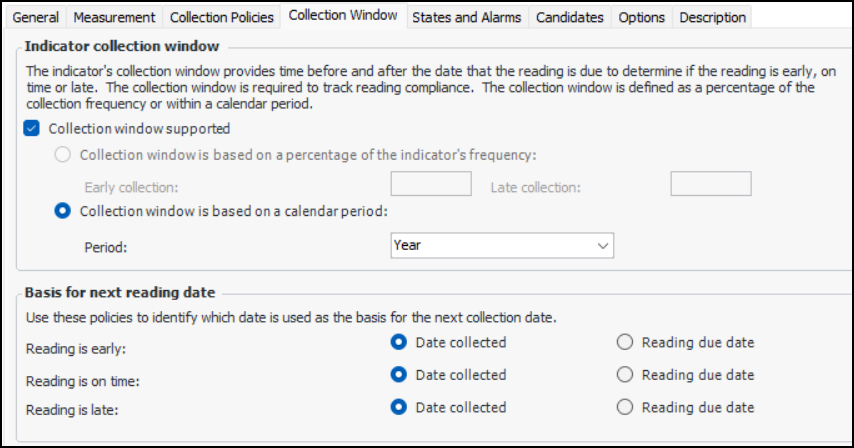
21. Select the Collection Window tab to enable reading compliance tracking. Select Collection window supported to set up reading tolerances.
• Collection window is based on a percentage of the indicator’s frequency – Enter percentages in the Early collection and Late collection boxes.Note: This option is not available if a frequency has not been selected on the General tab, Collection tab.
• Collection window is based on a calendar period – Select the period: Day, Week, Month, or Year. The collection periods have the following characteristics:Day – The early collection date is 00:00:01 on the due date, and the late collection date is 23:59:59 on the due date.Week – The early collection date is the first day of the week (at 00:00:01) in which the due date falls. The late collection date is the last day of the week (at 23:59:59) in which the due date falls.Month – The early collection date is the first day of the month (at 00:00:01) in which the due date falls. The late collection date is the last day of the month (at 23:59:59) in which the due date falls.Year – The early collection date is the first day of the year (at 00:00:01) in which the due date falls. The late collection date is the last day of the year (at (23:59:59) in which the due date falls.
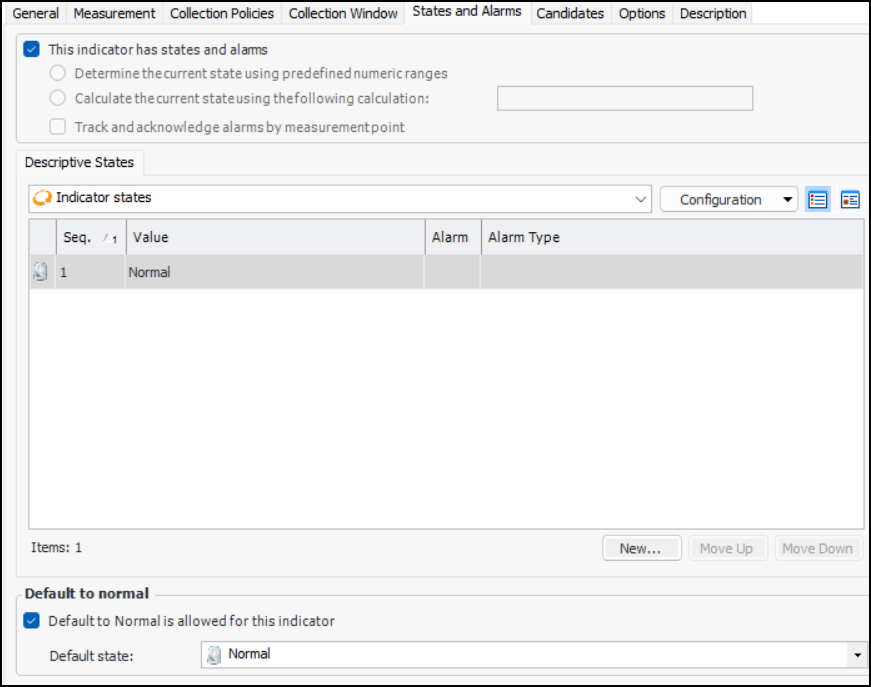
24. Select the States and Alarms tab.
25. If the indicator allows multiple measurement points, you can have each measurement point acknowledged individually. Select Track and acknowledge alarms by measurement point.
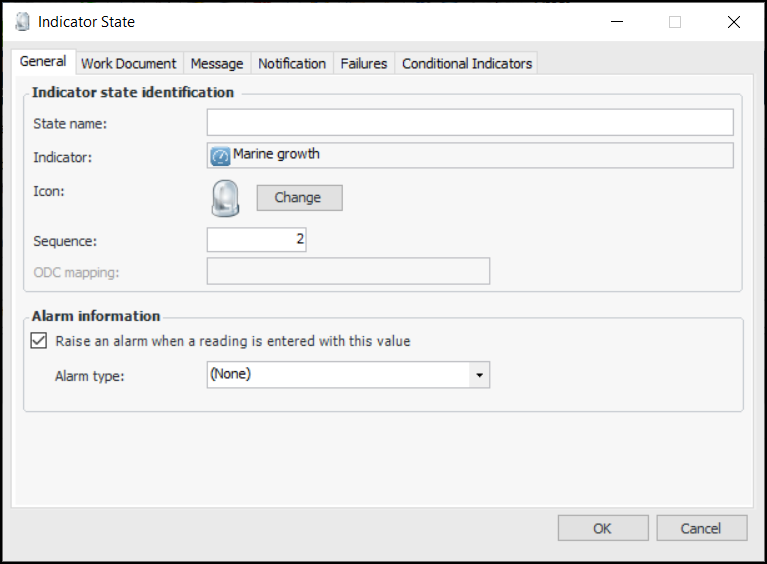
26. On the Descriptive States tab, add the values that users can choose from when they enter a reading for this indicator. The “Normal” state is added automatically. To add a state, click New. The Indicator State dialog appears.
•
• Optionally, you can have the system send an email to one or more employees when this indicator is in this alarm state. To set this up, click the Notification tab. Select one of the notification options, and then use the Browse button to select one or more employees.
•
•
27. When you have finished defining the state, click OK in the Indicator State dialog. The state is added to the States tab.
28. If the collection method is “manual”, the Default to normal is allowed option is selected by default. This means that, when a user enters readings for descriptive indicators, the Default to normal button is available. If you wish to disable this functionality, clear the option.
29. If Default to normal allowed is selected, you can specify which non-alarm state is the default normal state by selecting it from the list.
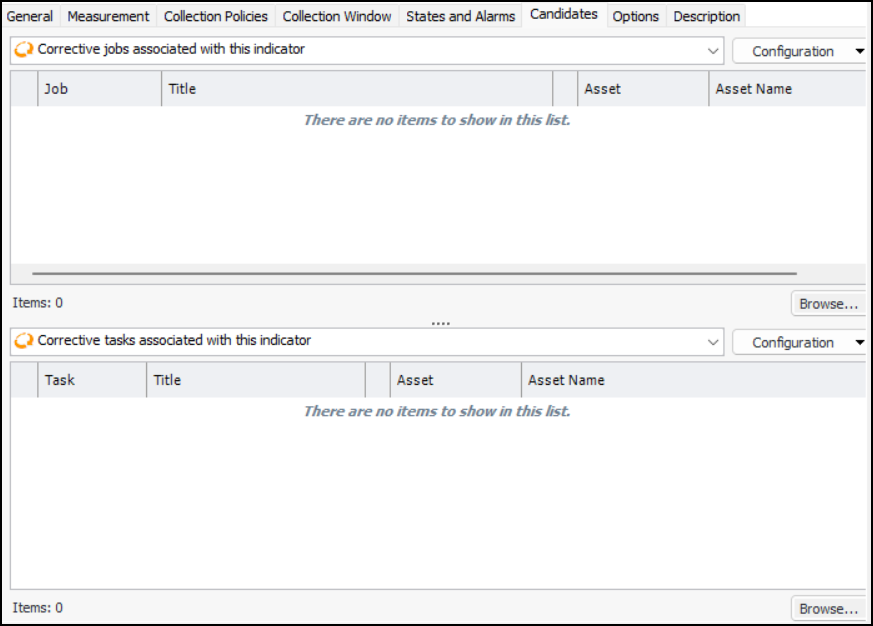
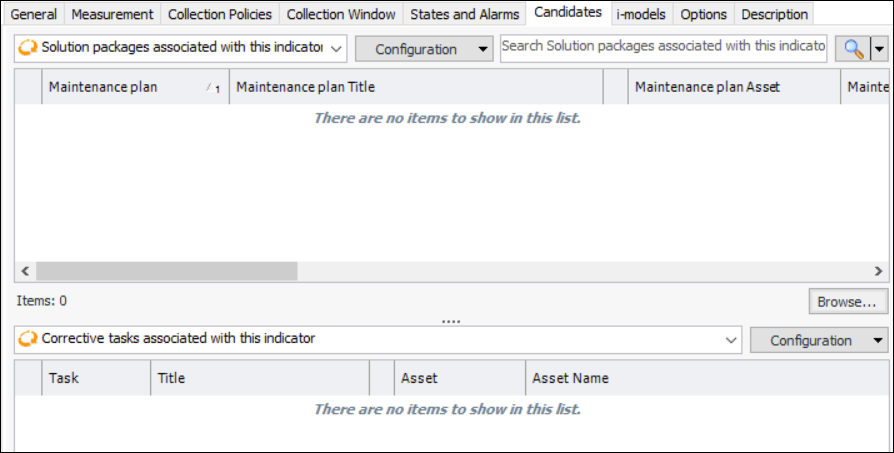
30. Select the Candidates tab.If APM has been configured to exchange data with an external CMMS using AssetWise Enterprise Interoperability (AWEIS), the Candidates tab displays tables listing solution packages and corrective tasks associated with this indicator. For example:
31. To add a corrective job (APM), solution package (AWEIS), or task to the list, click Browse. Select the item that you want to add, and then click OK.
32. If APM interoperability has been set up to access data in SAP Plant Maintenance, the SAP Corrective Tasks tab is available. Select this tab to browse for SAP objects for reference purposes. You can add maintenance items, maintenance plans, and task lists.
33.
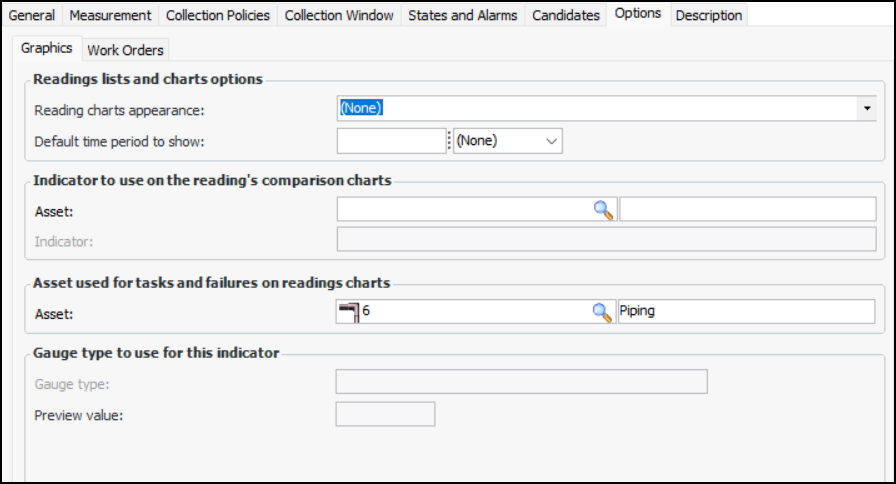
Amount of time (for example, weeks, months, years) for which to show indicator readings. When this option is enabled, the Indicator window’s Readings view, Readings tab displays readings for this amount of time, ending with the next reading date. This setting also affects how KPI readings are displayed on dashboards.
35.
36. Select the Description tab to add more information about the indicator.