|
Creating a Calculated Numeric Indicator
VB. NET and C# Scripts
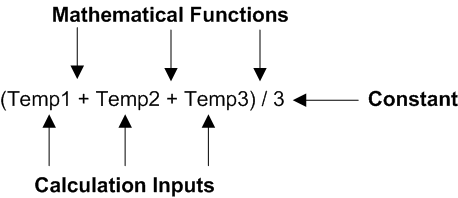
• Calculation inputs: data from another numeric, cumulative, descriptive, or rule-based asset indicator; data from the current calculated indicator; or data derived from an APM object (for example, a count of work orders or the dates when indicator readings were entered)
• Mathematical functions: such as add, subtract, multiply, or divide
• Constants: a fixed value used in the calculationStored Procedures
To Create a Calculated Numeric Indicator
1.
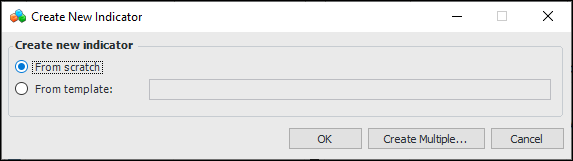
2. Click New. The Create New Indicator dialog appears.
3.
5.
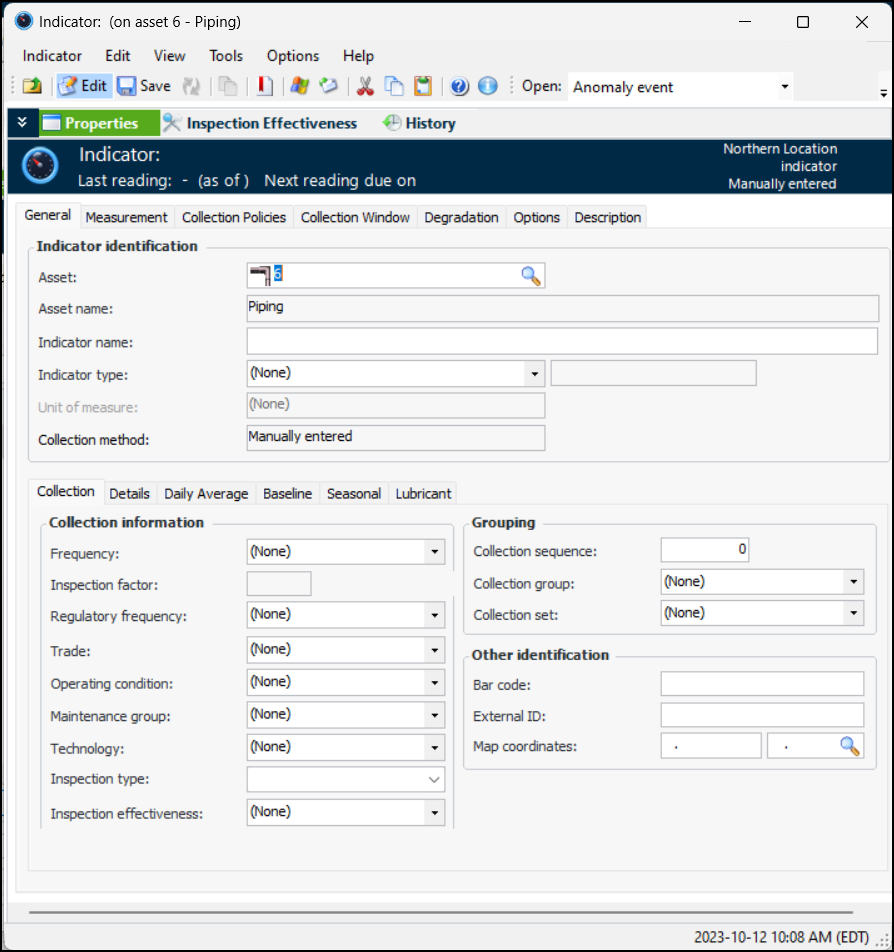
• Select a numeric indicator type from the Indicator type list. The tabs on the window change to reflect the numeric value type.
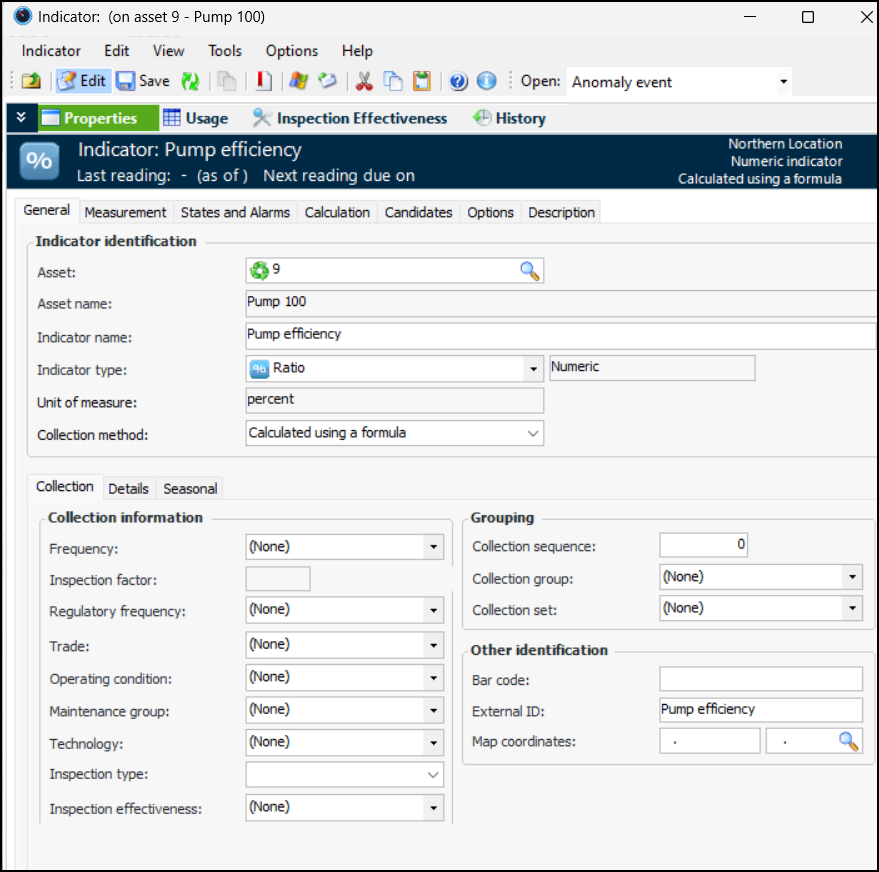
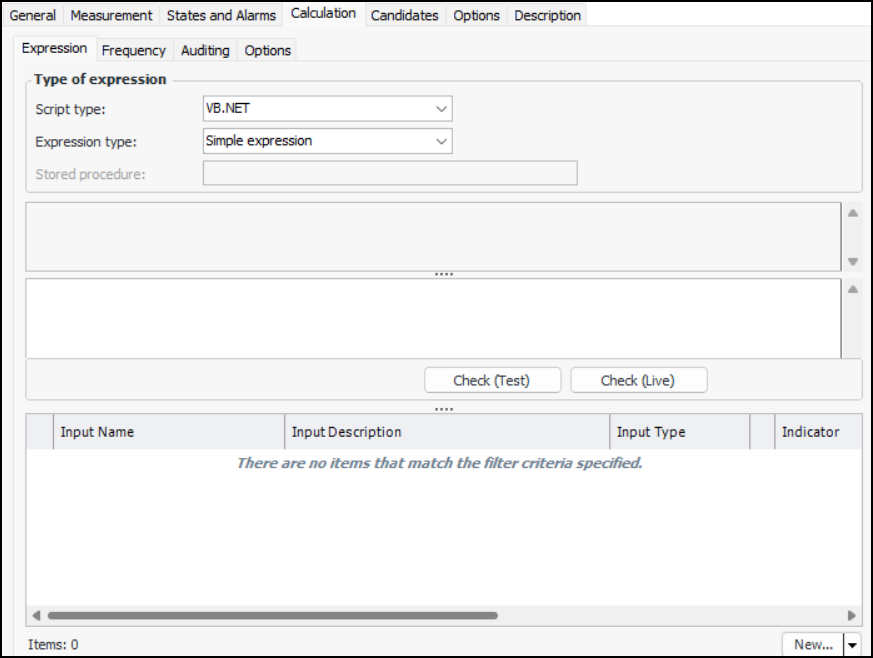
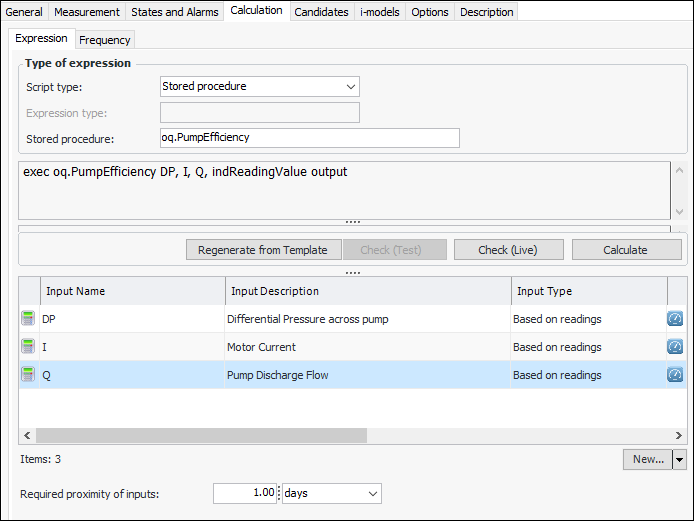
7. In the Collection method list, select “Calculated using a formula.” The Calculation tab is added to the window. For example:
8. On the Collection tab, you can enter values that determine how often readings are expected and the next collection date. You can also enter information to make it easier to select this indicator when adding indicators to a work order task or standard task, when copying indicators to another asset, when setting up dynamic inspection routes, or when implementing reliability programs.
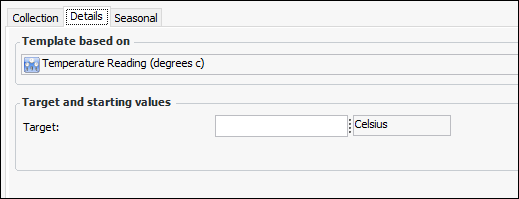
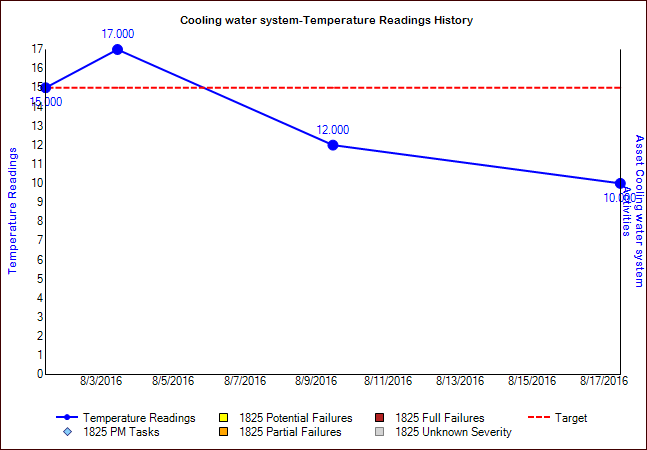
9. You can enter a target value for a numeric or cumulative indicator on the Details tab. For example:
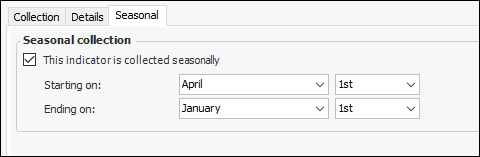
10. To specify the months during which readings should be taken, select the Seasonal tab. Click This indicator is collected seasonally and select the starting and ending dates. For example:
11. Select the Measurement tab and the Limits tab to set limits on the values that users can enter in readings. For example, if you enter a minimum value of 0.000 Celsius, a user who enters a negative number when recording a reading will receive the message, “The value entered cannot be less than 0.000 Celsius.” To set limits on readings:
• Select Minimum value is enforced when entering readings and Maximum value is enforced when entering readings, as appropriate.
12.
13. Select the Calculation tab.
14. On the Expression tab, select the type of expression. A calculated indicator can be based on:
• VB.NET – Inputs and functions defined on the Calculation tab can be used to create a formula that is calculated at run time. This is the default option
• C# – Inputs and functions defined on the Calculation tab can be used to create a formula that is calculated at run time
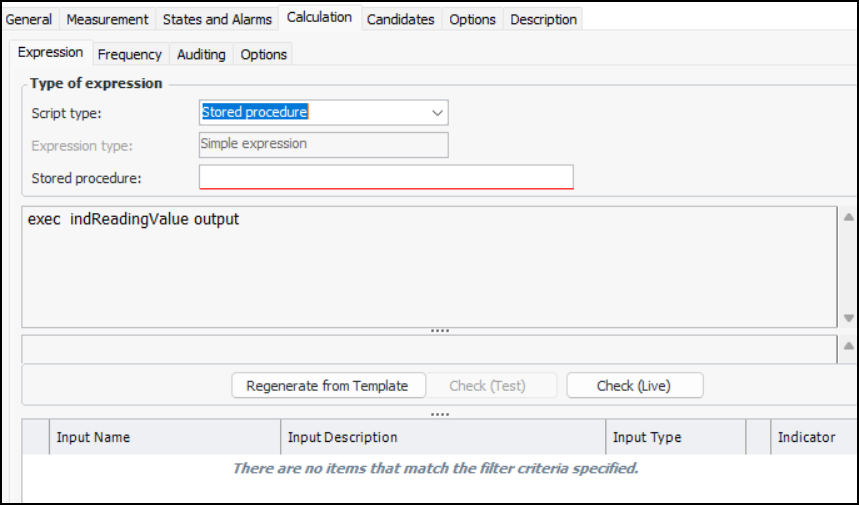
• Stored procedure – The expression is provided in a stored procedure that receives its inputs at runtime and returns a valueWith the Complete class option, a starter script template is provided automatically, which you can edit as needed. You can also click Regenerate from Template to reset the formula to the starter script.Tip: You can view the template scripts by opening the Enterprise window, clicking the Administration menu and then Calculation options. For more information, see Defining Calculation Options.
•
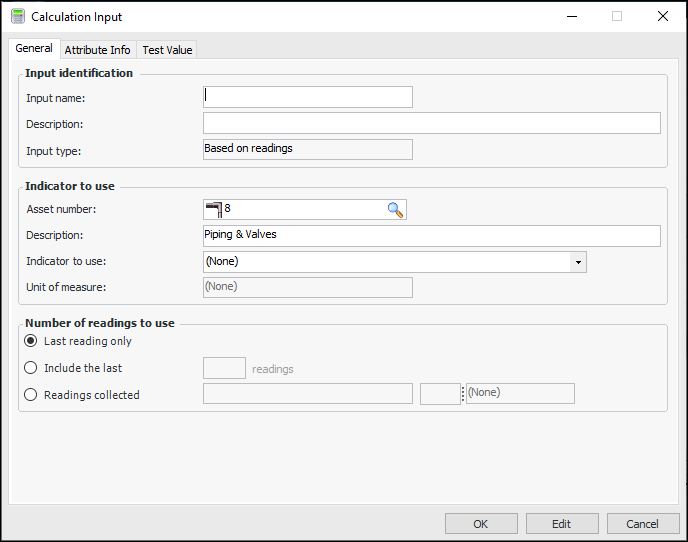
17. If the type of expression is stored procedure, the information on the Calculation tab changes:From the New list, select either Indicator Input or Filter Input. The Calculation Input dialog appears. Here is an example for an indicator input:
19. Click OK when you have finished creating the input. The Calculation Input dialog closes and the input is added to the table of inputs.
20. For VB.NET and C# expressions, you can check the syntax (the order of the elements) of your calculation by clicking Check (Test) on the Expression tab. APM looks for errors in how you have typed the calculation. In addition, the system uses the test values on the inputs to complete a test calculation. You can use the result of this calculation to check that the expression is giving the desired results.
21. To use the test values on the inputs to complete a test calculation, click Calculate. You can use the result of this calculation to check that the expression is giving the desired results.
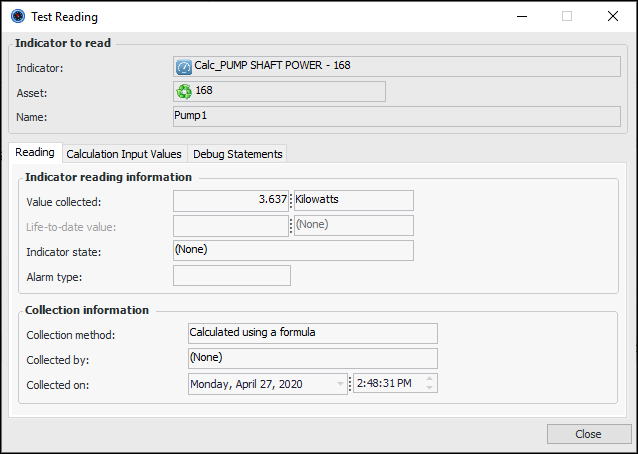
22. When you have defined the calculation expression and inputs, you can click Check (Live). The test function uses the values from the inputs (for example, indicator readings) and displays the result in the Test Reading window. For example:Select the Calculation Input Values tab to see the individual input values. If the calculation formula includes DebugData statements, the Debug Statements tab shows the result.Click Close when you are finished.
24. If necessary, you can change the Required Proximity of the calculation inputs. This option appears in the Expression tab after you have added two or more inputs based on readings.
25. Select the Frequency tab. In the Triggering mechanism section, select when and how the system will trigger the calculation. If the calculation will be triggered at a regular interval (based on a recurrence pattern), define the scheduled interval for the indicator.
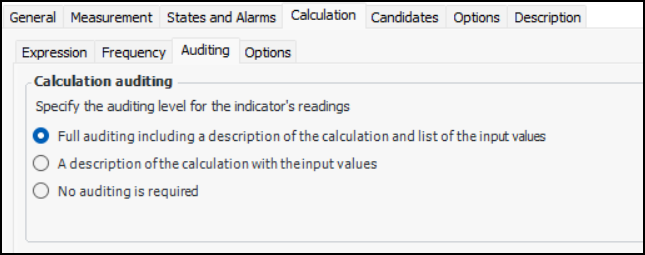
26. Select the Auditing tab. To improve product performance, you can control the amount of audit information generated when a reading is created. (The audit information is displayed in the Indicator Reading window, Calculation tab.)
• Full auditing – Full information is displayed on the reading’s Calculation tab
• Description and input values – The reading’s Calculation tab displays the description and input values in the text field. The table of input values is not displayed
• No auditing – The reading’s Calculation tab is not displayed
27. Select the Candidates tab. On this tab, you can add the standard jobs, standard tasks, and templates that will be displayed to users acknowledging alarms or warnings.
28. If APM interoperability has been set up to access data in SAP Plant Maintenance, the SAP Corrective Tasks tab is available. Select this tab to browse for SAP objects for reference purposes. You can add maintenance items, maintenance plans, and task lists.
29.
Amount of time (for example, weeks, months, years) for which to show indicator readings. When this option is enabled, the Indicator window’s Readings view, Readings tab displays readings for this amount of time, ending with the next reading date. This setting also affects how KPI readings are displayed on dashboards.
31.
32.
33. On the Description tab, you can enter a detailed description of the indicator and what it measures.