Adding States and Alarms to a 4D Indicator

There are two types of states for an indicator: normal states and alarm states. Alarm states occur when an indicator has a reading that is outside of the defined normal state for the indicator.
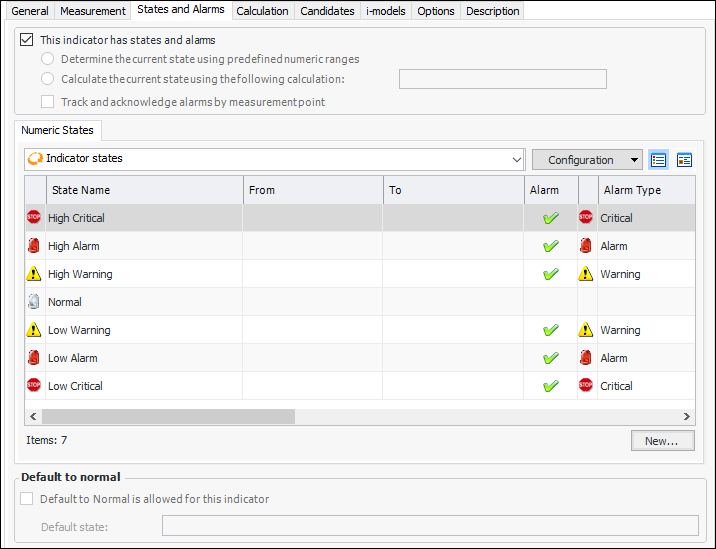
For example, you might have a temperature indicator with the following states and alarms:
If an indicator reading of 75° is recorded, APM triggers the low critical alarm.
If your APM environment is set up to track failures, you can set options to automatically create failure records and downtime incidents when users acknowledge alarms. You can provide default values for the failure mode and PF intervals, and failure severity on generated failure records.
This topic explains how to add states and alarms to an existing 4D indicator. It explains how:

To Add States, Value Ranges, and Alarm Types to Indicators

1.
2.
3.
On the Properties view, select the States tab and then select This indicator has states.
APM adds the default states for the indicator: one normal state and high and low states for each alarm type. The high states apply to ranges above normal, and the low states apply to ranges below normal. For example:
Tip: If APM provides a state that you do not want to use, you can remove it. Right-click the state and select Remove. A confirmation message appears. Click Yes.
4.
5.
6.
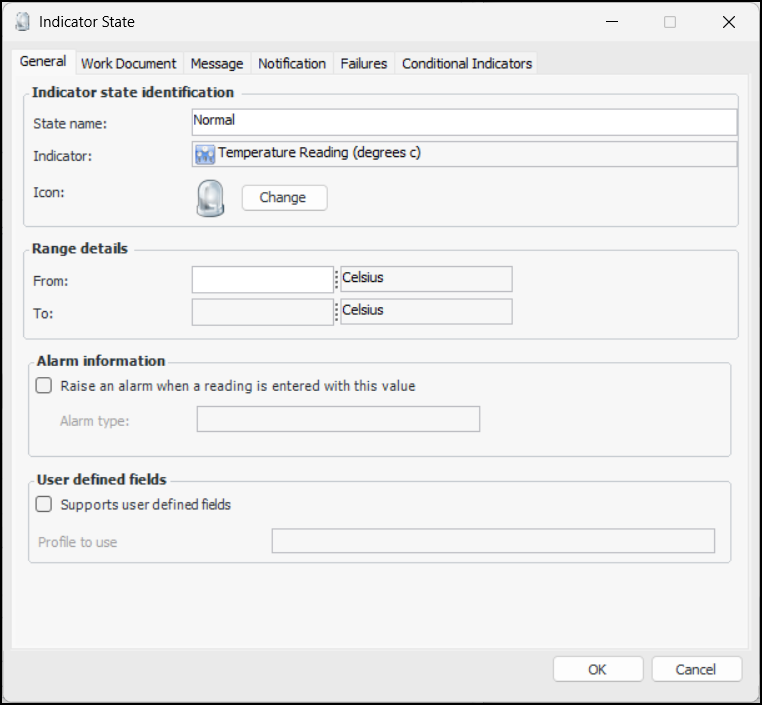
Enter the lower value of the normal range in the From box. You cannot enter a value for the upper limit of the normal range. APM calculates this value once you have defined the rest of the states.
7.
Click OK to save the state and close the dialog.
8.
9.
Enter the lower value of the state’s range in the From box. You cannot enter a value for the upper limit of the state’s range. APM calculates this value once you have defined the rest of the states. Note that you cannot enter a lower range for the most severe “low” alarm; the lower range for this state is automatically set to negative infinity.
10.
You can now define the notification and failure settings for the state, as explained in the next sections. When you save and close the state, go on to the next abnormal state. When you have finished entering ranges for all of the states, APM calculates the other end of the range for each state.

To Select Notification Methods for an Alarm State

1.
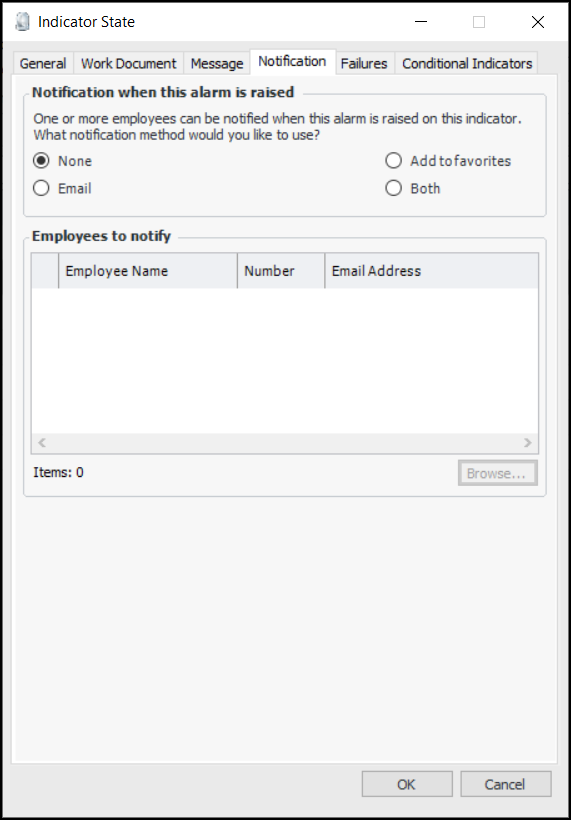
Select the Notification tab. APM can send an email and/or a favorite to one or more employees when this indicator is in this alarm state.
2.
None: No notification will occur.
Email: Notify employee(s) with an email.
Add to favorites: Notify employee(s) with a favorite.
Both: Notify employee(s) with both an email and a favorite.
3.
Click Browse to select one or more employees.
Note: For this feature to work, the employee must be a domain user with a valid email account. This email account must be added to the employee record in APM.
You can now set failure options for the state or click OK to save the state and close the dialog.

To Select Failure and Downtime Options for an Alarm State

1.
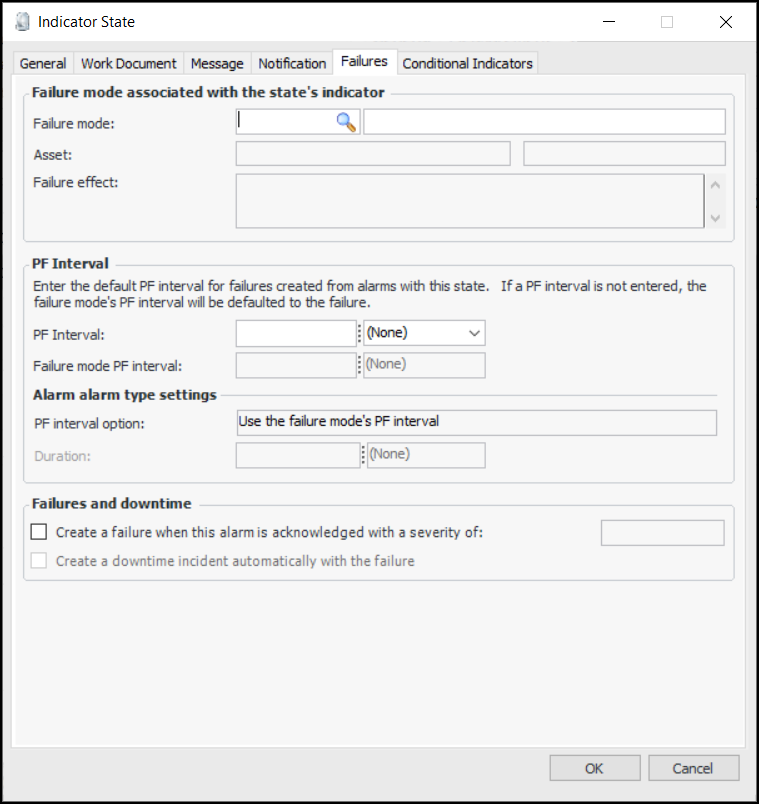
Select the Failures tab. On this tab, you can select options to have failure records and downtime incidents automatically created when users acknowledge alarms with work orders, work requests, monitoring, or by marking the alarms as being fixed during inspection. For example:
2.
To associate one of the asset’s failure modes with the indicator state, click the browse icon, select the failure mode, and click OK in the selector dialog. If failure records are created automatically when an alarm is acknowledged, the records display this failure mode.
3.
Set the PF interval directly by entering a value and unit of measure in the PF interval boxes. You can do this if a failure mode is not selected or to override the selected failure mode’s PF interval.
4.
To have failure records created automatically, select Create a failure when this alarm is acknowledged. Select the failure severity to assign to the failure record.
5.
Note: The site’s Acknowledgment policies determine which acknowledgment methods allow a failure record to be created. For more information, see Setting Acknowledgment Policies.
6.
Click OK to save the indicator state and close the dialog.