Entering Bid Information on an RFQ

If you have not sent the supplier an Excel spreadsheet (for example, you used a mail, fax, or verbal contact method), you can manually enter the supplier’s bid into the RFQ. When entering the bid, you can record:
If you have sent the supplier an Excel spreadsheet, you can import the bid to the RFQ. For more information, see Importing Bid Information From an Excel® Spreadsheet.

To Manually Enter a Bid Into an RFQ

1.
2.
On the Properties view, select the Suppliers tab.
3.
Note: This option is only available if the status of the supplier is “Sent”. If you have chosen the Phone contact method, you can set the status to “Sent” by selecting the Mark as Sent option.
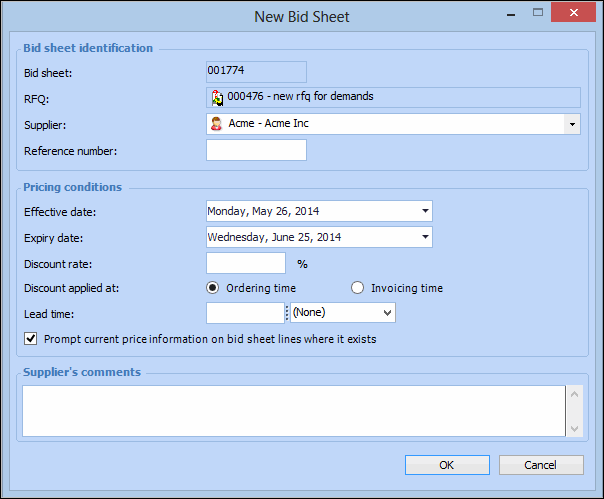
The New Bid Sheet dialog appears.
4.
5.
6.
Click OK. The system opens a new bid sheet for the supplier.
7.
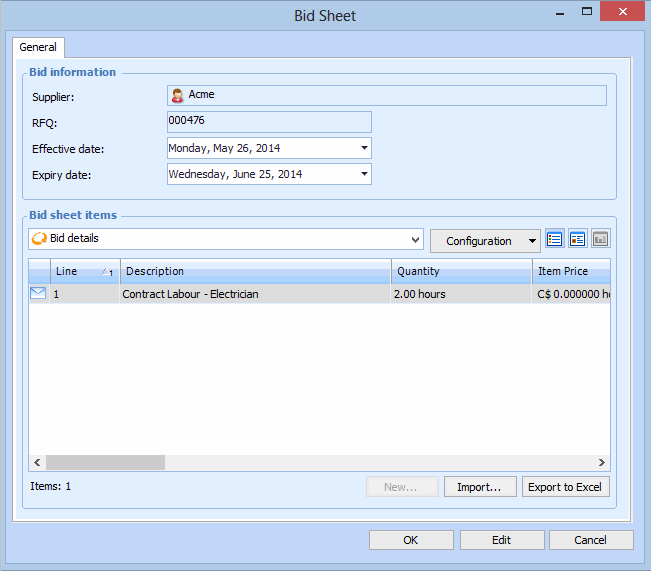
In the Table view (default): The view shows a list of the RFQ resources. You can press F2 to enter the bid directly in the list or double-click each line to open a separate dialog for each resource and enter the bid information.
In the Form view: This view shows one item at a time as a form in the Bid Sheet dialog. In the Form view you can enter more details for each item, such as the ordering unit of measure, the minimum order quantity, or the manufacturer information. You can use the arrow buttons to select a different item.
You can select either the Table or Form views by clicking the View as Form or View as Table button.
8.
If necessary, you can override the resource description or quantity and unit of measure for the supplier. If you later accept the supplier’s bid, this information is copied to the resource demand.
9.
When you are finished, click OK on the Bid Sheet dialog.
10.
11.
Repeat steps 3 to 10 for each supplier.
12.
If necessary, you can edit the bid information for a supplier. On the RFQ, select the Bids view. Double-click the bid sheet to open it. You can edit the bid information using either the Form or Table view.
13.