|
Entering Prioritization Results
• Open the analysis and the Worksheet viewNote: If AWEIS is active for the site and an asset change request type has not been set, a banner appears at the top of the Properties and Worksheet views. Click Edit Setting to assign a type for priority updates. For more information, see Setting up Asset Change Request Types.To Enter Prioritization Results
1. From the Site window, select the Strategy Development view, Prioritization tab, and double-click the analysis. The Asset Analysis window appears, open to the Properties view, General tab.
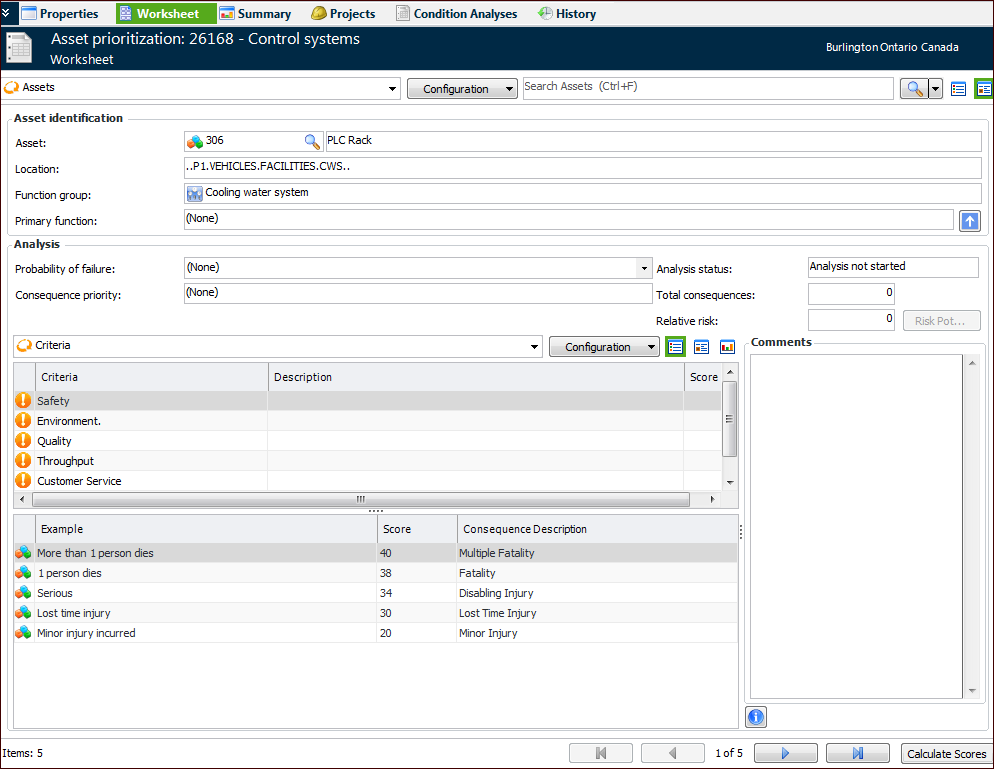
3. Select the Worksheet view. For example:Tip: You can also select the Properties view, Assets tab. Double-click the asset that you wish to analyze. You can then enter scores in the Analysis Asset window.Tip: When returning to an analysis to complete it, you can select the “Analysis incomplete” configuration in the Worksheet view. The table lists the analysis assets for which criteria have not been analyzed.
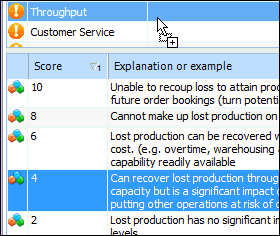
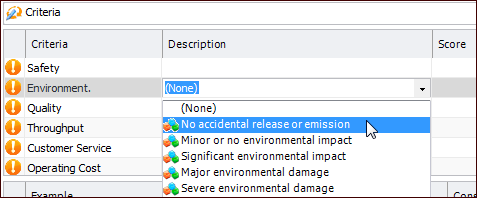
4. In the Analysis area, select a criterion in the Criteria table to populate the list of scores and examples.
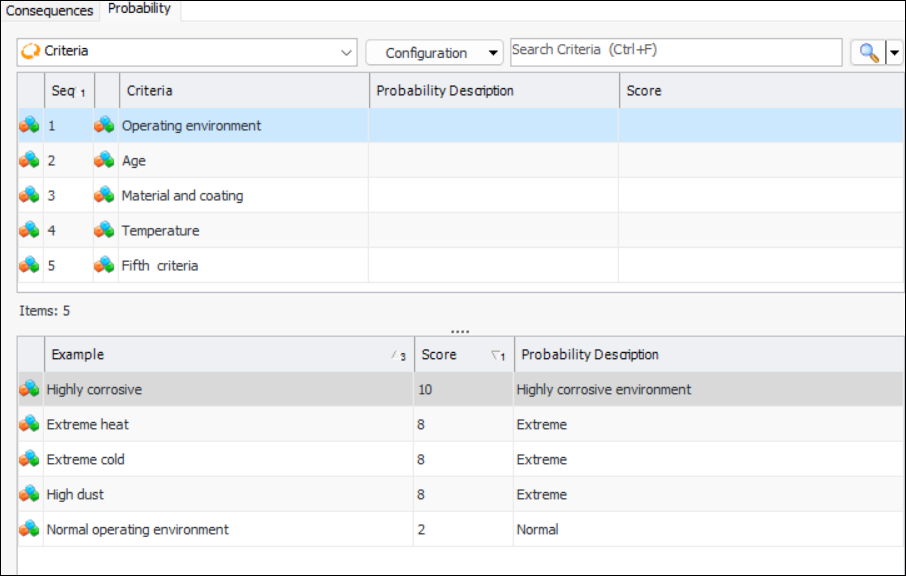
7. Select the relevant value from the Probability of failure list or select the Probability tab. For example:
12. Click Calculate Scores. The Probability of Failure, Consequence Priority, Total Consequences, and Relative Risk boxes are populated with values.
13. Click Risk Plot to view the Risk Plot window.Tip: You can also copy an analysis from one asset to another. In the Worksheet view, in the Asset identification area, click the View as Table icon (). The analysis’ assets are listed in a table. Right-click the asset and click Copy Analysis. The Copy Analysis dialog lists the other assets in the analysis. Select the target asset and click OK.
Once you have analyzed the assets, you can view the data in the Summary view. You can also apply the results to the assets and create projects and condition analyses.