
|
Entering an Invoice
A new invoice can be created as part of an invoice batch or on its own. This topic explains how to create an invoice that is not part of a batch. To enter invoice batches, see Creating an Invoice Entry Batch.To Create an Invoice
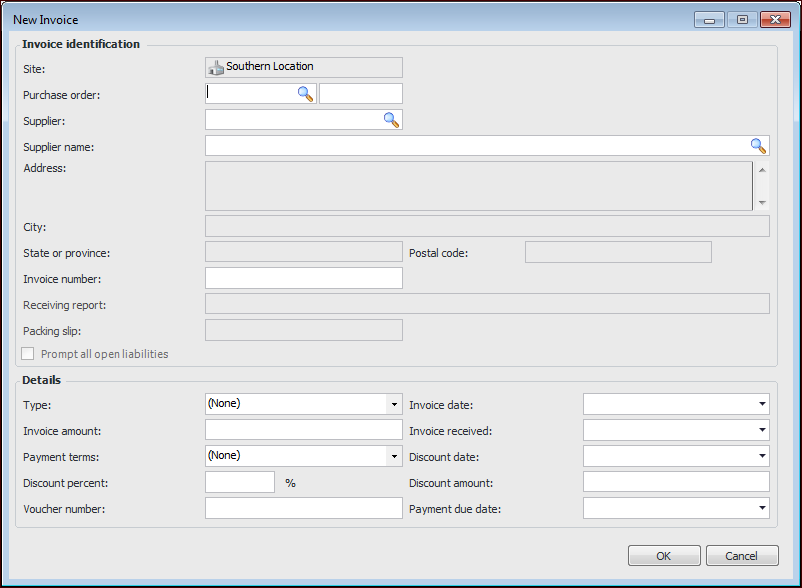
1. From the Site window, select the Invoicing view, Invoices tab, then the Invoices tab. By default, this tab lists all invoices by supplier.
2. Click New. The New Invoice dialog appears.
3. To create an invoice that is based on a purchase order, enter the purchase order number or click Browse to select the appropriate purchase order.If you enter a purchase order in the dialog, the system fills in the supplier name and number and displays the option Prompt all open liabilities. When this option is selected, the system creates an invoice line for each un-invoiced transaction related to the purchase order. If necessary, you can clear this option.
4. For invoices based on a purchase order, you can limit the invoice lines to those contained on a particular receiving report. Enter the Receiving Report number or click Browse to select it.
5. If you are creating an invoice that is not based on a purchase order, you can fill in the Supplier or click Browse to select the appropriate supplier from the list.
10. When you are finished entering the appropriate information, click OK. The system creates and opens a new invoice. If requested, invoice lines are created for all un-invoiced purchase order lines.