Entering a Credit Memo

A credit memo is used to credit your organization for a previously entered invoice. Common reasons why a credit memo is issued are the wrong price was charged on the original invoice, the quantity was incorrect on the original invoice, the wrong material was shipped, or the material was sub-standard and was returned.
A credit memo works in the same way as an invoice, except that normally you can enter lines with negative amounts.
Both quantity and price adjustment credits are supported in APM. A quantity credit is entered when your organization is receiving a credit for some or all of the quantity previously invoiced. A price adjustment is used when the credit is adjusting the price at which the material was originally invoiced.
When creating a credit memo for items that have been returned to the supplier, you must first have created a return receipt transaction to record the quantity that was returned. Then you can create a credit memo line matched to the return transaction.
When a supplier issues a credit for materials that are not being returned, you can enter a price adjustment line to the credit memo. For example, you could use this process when your organization was overcharged for materials delivered on the original invoice.
A new credit memo can be created as part of an invoice batch or on its own. This topic explains how to create a new credit memo that is not part of a batch. To enter invoice batches, see Creating an Invoice Entry Batch.
Note: If you are creating a credit memo for material that has been returned, you must first record the return with a return receipt. For more information, see Returning Materials to a Supplier.

To Create a New Credit Memo

1.
Select the site’s Invoicing view and Invoices tabs.
2.
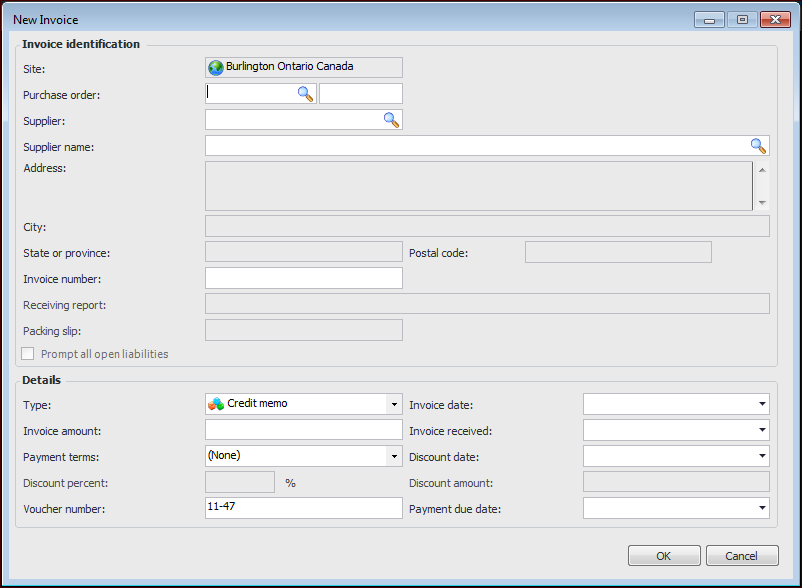
Click the New list, and then Credit Memo. The New Invoice dialog appears.
3.
If you enter a purchase order in the dialog, the system fills in the supplier name and number and displays Prompt all open liabilities. If necessary, you can clear this option.
4.
5.
6.
7.
8.
9.
When you are finished entering the appropriate information, click OK. The system creates and opens a credit memo. If requested, lines are created for the purchase order lines.
10.
11.