Reporting Downtime Incidents

This section explains how to create a downtime incident for a work order task.
Downtime incidents are usually created when you are reporting activity for work order tasks. You can create one or more downtime incidents for each task. In addition, you can create “ad-hoc” downtime incidents that do not reference any work order. You can also track downtime incidents on failure records.
For information about reporting downtime incidents from a failure, see Adding Downtime to Failure Records.

To Create a Downtime Incident

1.
2.
From the Task menu select Report Activity. The Activity Report dialog appears.
3.
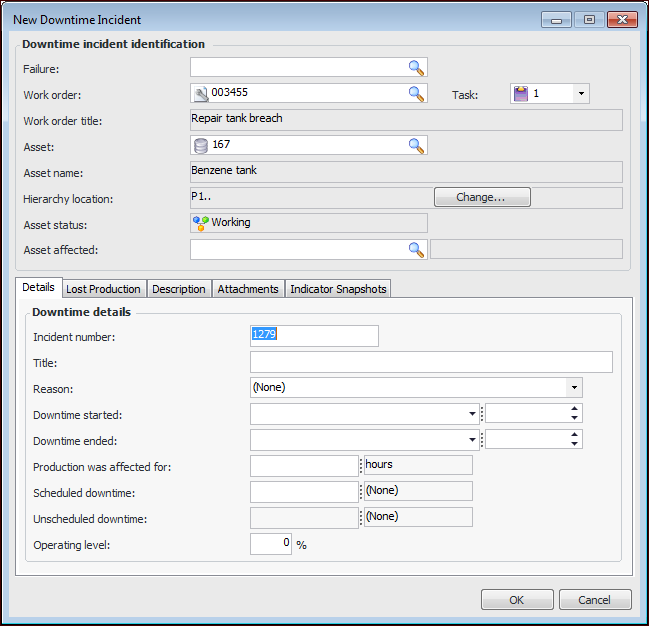
Select the Asset Info tab and then the Downtime incidents tab. Click New. The New Downtime Incident dialog appears.
4.
5.
On the Details tab, provide the following information:
6.
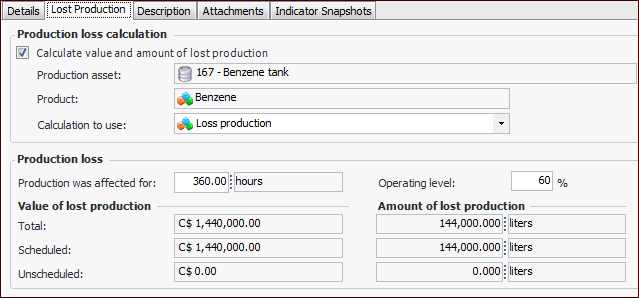
Select the Lost Production tab to view the lost production costs and amount incurred by the incident.
7.
Click Calculate value and amount of lost production. APM uses the Production was affected for and Operating level values from the Details tab in the calculation. For example:
Tip: You can select a different calculation for the asset from the Calculation to use list.
8.
Select the Description tab to enter a longer, more detailed description of the incident.
9.
Select the Attachments tab to attach external files to the downtime incident, and click New. Complete the information on the Attachment dialog and click OK. For more information on attachments see Adding Attachments to Objects.
10.
Select the Indicator Snapshots tab to view indicator values at downtime.
11.