|
Selecting Roles and Permissions for an Employee
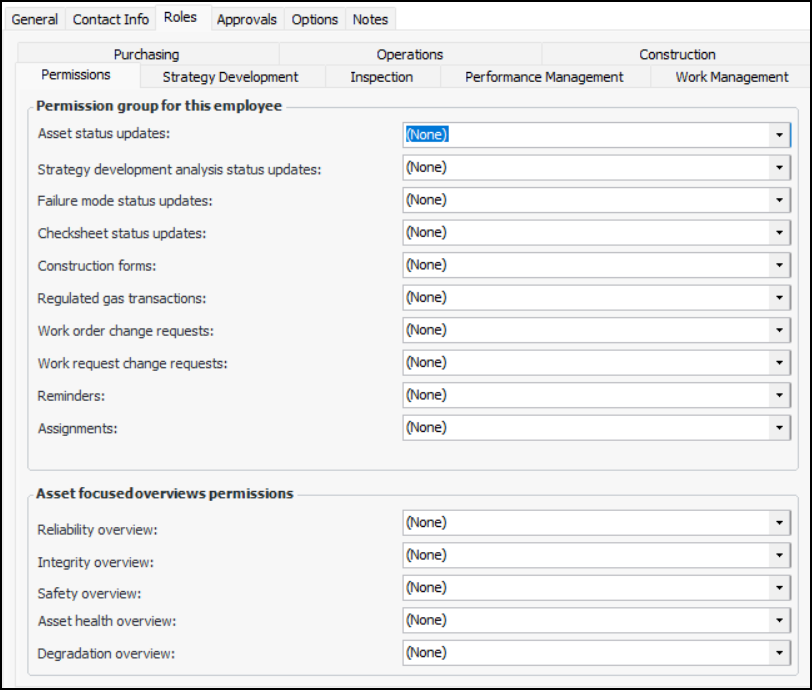
In the case of regulated gas transactions, group members can select only the specified gas and transaction types when entering gas transactions. For example, the “Electrician” permission group might be restricted from entering gas recovery transactions for SF6 gas. When a group member creates a transaction, “Gas recovery” is not available in the Transaction type list and “SF6” is not available in the Gas type list.Note: We recommend using security profiles to identify employees who have the authority to perform actions. Employee permission groups allow you to fine-tune security by restricting access at a more granular level. For more information, see Security.To Select Roles and Permissions for an Employee
1. From the Site window, select the Personnel view, Employees tab, and Listing tab. By default, this tab lists all employees for the site and below.
2.
4.
7. Select the Strategy Development tab. If the employee is not allowed to create and update a type of analysis or template, clear the option for that type.
8. Select the Inspection tab. Select the appropriate options:
9. Select the Performance Management tab. If your APM environment is configured to use AWEIS and anomaly risk assessment integration, you can select owners for anomaly events. Select Can own anomaly events to include the employee in selection lists.
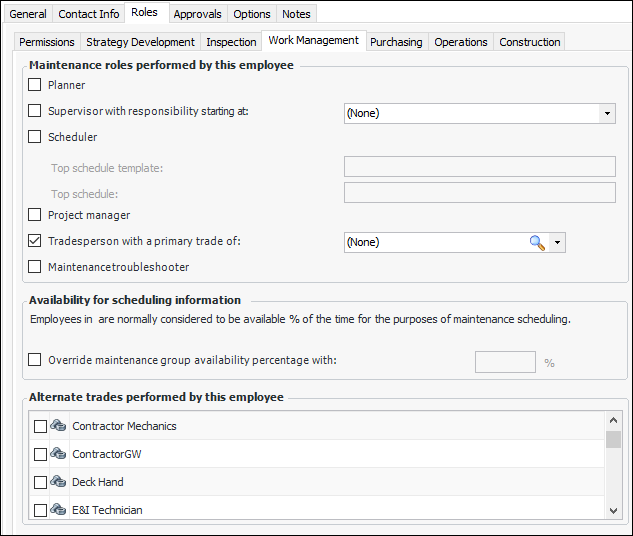
10. Select the Work Management tab. For example:
Maintenance supervisors can be referenced on construction forms. The site’s Construction Management view, Review tab provides a configuration for displaying construction forms by maintenance supervisor.Tip: The Construction form review panel can be added to a My Desk dashboard, and then the dashboard can be added to a My Desk set. When the employee logs on to APM, the site’s My Desk view displays a review pane showing construction forms that are ready for his or her review. See Setting up My Desk Views.
This schedule template hierarchy will appear on the employee’s My Desk view. If a schedule template is not selected, the schedule template hierarchy will not appear on this view.
Select the schedule that will be the top parent schedule for the employee’s schedule hierarchy. This schedule hierarchy will appear on the employee’s My Desk view. If a top parent schedule is not selected, the schedule hierarchy will not appear on this view.
Note: Only trades that are set to have either Maintenance only or Both maintenance and purchasing as an Available source will be available for selection.
12.
13.
14.
15.
16. Select Construction supervisor if the employee monitors and approves construction activities. The employee can be referenced on construction forms. The site’s Construction Management view, Review tab provides a configuration for displaying construction forms by construction supervisor.Tip: The Construction form review panel can be added to a My Desk dashboard, and then the dashboard can be added to a My Desk set. When the employee logs on to APM, the site’s My Desk view displays a review pane showing construction forms that are ready for his or her review. See Setting up My Desk Views.