Linking an Employee to a User ID

Employees who will be using APM should have their employee records linked to a user ID. This might have been done when the employee was created.
Tip: You can quickly review a list of employee records that are not linked to user IDs. From the Site, select the Personnel view. On the Employees tab, select the Listing tab. From the list of configurations, select Employees without a login name.
If the user ID does not exist, you will need to create it first. See Creating an APM User ID.
Once a user is linked to an employee record, that employee’s site window opens automatically when the user launches APM. The employee’s name appears in view banners.

To Link an Employee Record to a User ID

1.
From the Site window select the Personnel view. Open the employee record.
2.
3.
On the Properties view, select the General tab.
4.
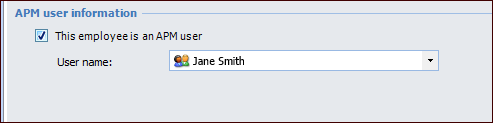
In the APM user information area, select This employee is an APM user.
5.
6.