Entering Timecards

This section explains how to enter timecards for employees from the site. You can enter multiple timecards at the same time using a timesheet. Normally, you will enter timecards as part of activity reporting for a work order task, but you can also enter timecards for employees from the site.

To Enter Timecards

1.
On the site’s Tools menu, click New, Personnel, and then Timesheet. The Transaction Entry Form window appears.
2.
3.
To add a timecard, click New. The Report Labor Charge dialog appears.
4.
On the Timecard tab, enter the following information:
Enter the Employee name or number. To change the employee, click Browse. Select an employee in the selector dialog, and then click OK.
5.
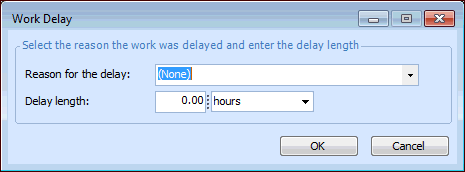
To record delays in performing the work, select the Delays tab, and then click New. Select why the work was delayed from the Reason for delay list, enter how long the delay was in the Delay length box, and then click OK.
6.
If the timecard is being reported for an on-site contractor, select the Contractor tab. Select the Contractor time card option, and then select the Purchase order and Line to which the contractor is charging their time.
Note: Only purchase orders that are set to be used for contractor time reported are available to be selected.
7.
Select the Distribution tab. If necessary, update the accounting information for the timecard.
If you need to select a different work order, use the Browse button. If you need to change the task, select the correct task from the Task list.
To change the GL account, select the Override the account option (if available). Click Browse, select the appropriate account, and then click OK.
8.
9.
Repeat steps 3 to 8 for each timecard that you need to enter.
10.
When you are finished, click Post Transactions. The timecards are posted.