Adding an Employee

You can set up records for each employee by site. An employee is not the same as an APM user. Employee records contain information about the people working at the site, but they do not provide access to the APM system. An APM user ID allows the user to log on to the system using Windows or Bentley CONNECT authentication.
Employees who will not be using APM might need employee records so that you can schedule work order tasks or track labor costs. Employees will not be registered as APM users unless you also set up a user ID for them and link the user ID to the employee record.
This section explains how to add employee records to the system. If the employee you are adding is to be an APM user, you should create the user record first. For information about creating user IDs, see APM Users.
Also see Selecting Roles and Permissions for an Employee and Setting up an Employee as an Approver.

To Add an Employee Record

1.
From the Site window, select the Personnel view, the Employees tab and the Listing tab. This tab shows a table with all employee records for the site.
2.
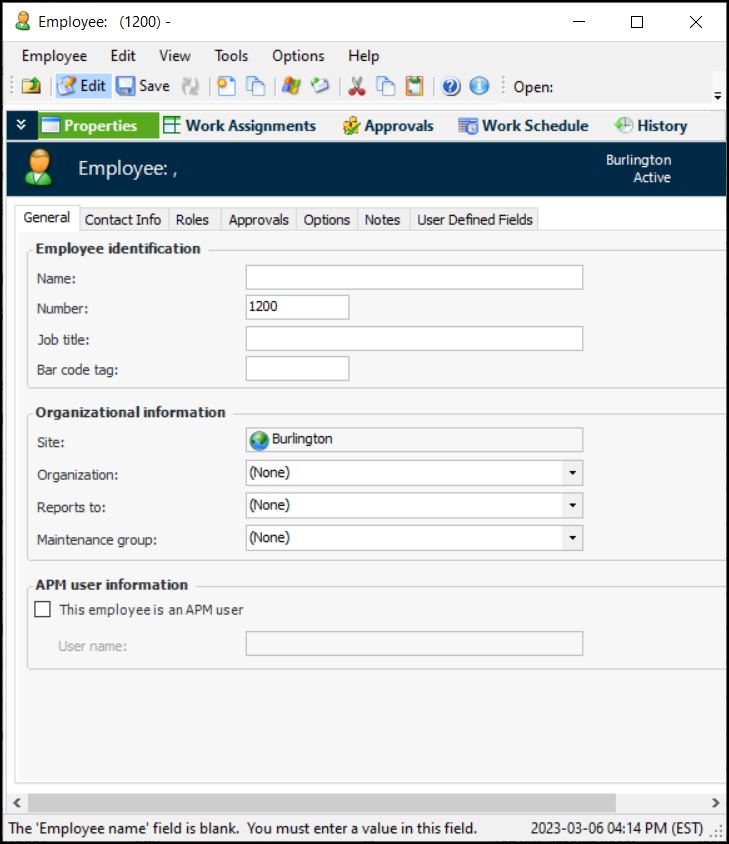
Click New. The Employee window appears:
3.
On the Properties view, General tab, enter the following:
The name of the person who supervises this employee. Click Browse to select the appropriate person. The new employee record is listed under the selected supervisor in the organizational chart.
4.
If the employee is an APM user, select This employee is an APM user. Select the user from User name list.
5.
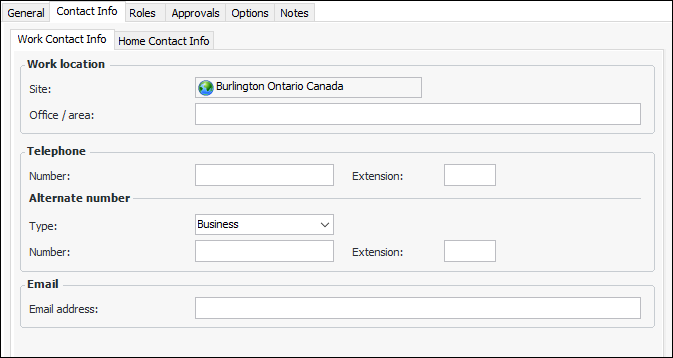
Select the Contact Info tab. For example:
6.
7.
8.
9.
Select the Home Contact Info tab. Fill in any required information on this tab.
10.
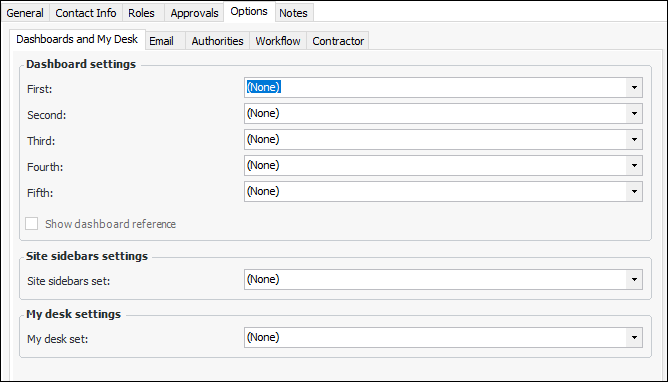
Select the Options tab. If the employee is also an APM user, the Dashboards and My Desk tab is displayed. For example:
11.
When logged on to APM, the employee sees the Dashboard view on the site window if at least one dashboard is assigned to the employee record. You can select up to five dashboards to display in the view.
12.
When Show dashboard reference is selected, the employee sees the icon and name of the dashboard definition at the bottom of the Dashboard view. This is handy for dashboard designers, who can open the definitions when testing their dashboards.
13.
Tip: To assign a sidebar dashboard set to multiple employees, see To Create a Sidebar Set.
14.
Select a My desk set for the employee. When the employee logs on to APM, the My Desk view appears on the site window. The My Desk dashboard set lists the dashboards that appear in the view. For example, the set might include the My Approval Requests tab.
15.
If available, select the User Defined Fields tab and populate the string boxes and dates, as needed.
16.
17.