Editing a Standard Document

You can edit any existing standard document. When you edit the contents of a standard document, you must create a new version. APM tracks each version, when it was created, and who created it.
You can modify some of the properties of a standard document without creating a new version. You can edit:
This topic explains how to edit a standard document.

To Edit a Standard Document

1.
Select the site’s Reliability Program view and the Documents tab.
2.
3.
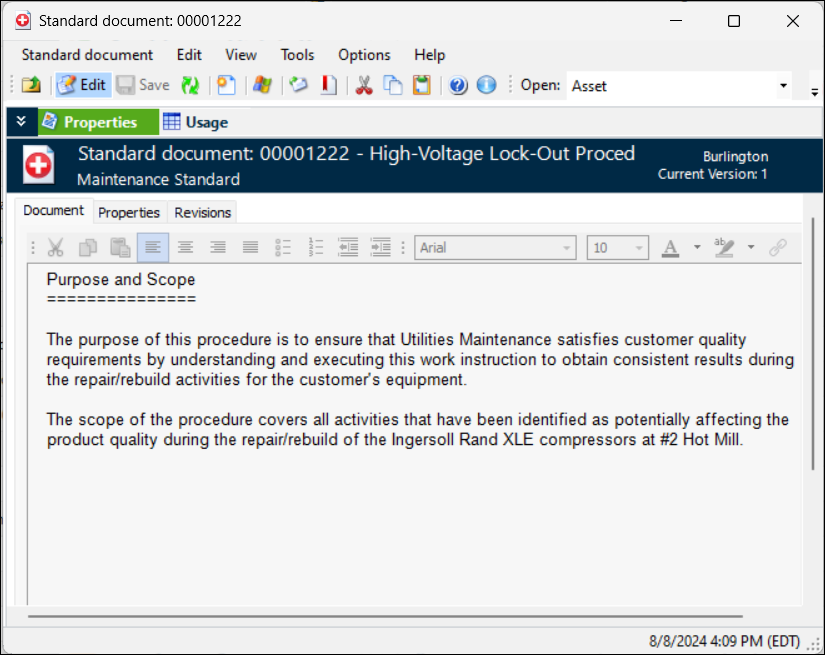
This example shows a procedure that was entered on the Text tab when the standard document was created. If the document is stored outside of the APM database, the Document tab does not appear, and instead you must right-click the document from the list of standard documents on the Reliability Program view, Documents tab, and select Open File to view the contents directly from within its native application.
4.
On the Properties tab, make any required changes.
5.
Select the Usage view to browse for additional assets and resources. You can remove an asset or resource by right-clicking it and clicking Remove. In the confirmation message that appears, click Yes.
6.
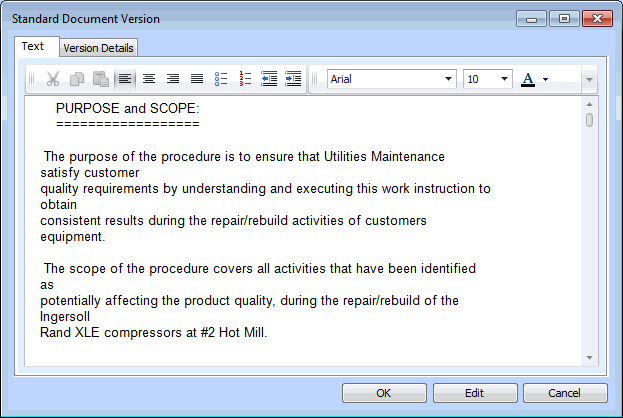
To create a new version, click New Revision. The Standard Document Version dialog appears. For example:
7.
If the standard document is text, use the Text tab to edit the content.
8.
For linked files, on the Version Details tab, select the file for this version of the standard document. To browse for the file, click the folder icon.
9.
Select the Print policy option for the standard document. This option determines if the document is sent for printing along with the work order.
Note: Other document types cannot be printed as part of a work package or directly from the standard document. Users must open the linked document in its native or associated program (for example, Microsoft Edge for HTML documents) and print it from within the external program. Documents that are linked from a URL (that is, links starting with “https”, “ftp”, or “www”) cannot be printed from within APM.
10.
11.
You can view all of the revisions for the standard document on the Revisions tab. When you select a version in the table, the summary of changes and the text of the revision is displayed in the tab.