|
|
|
•
|
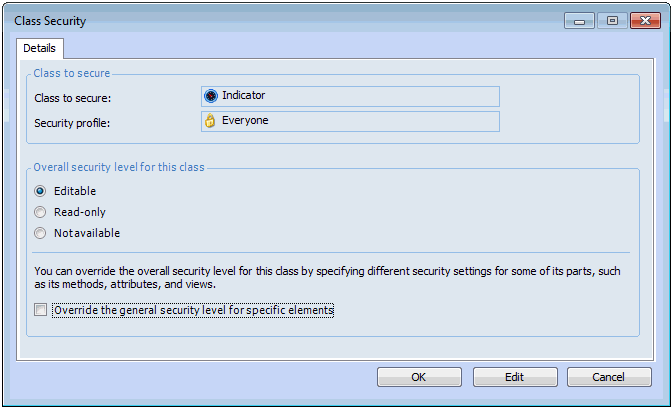
Editable (Full access): This level allows a user to perform any task on objects of this class, including viewing data, entering new data, and editing existing data. All actions are enabled, and all views and pages are visible. For example, a user whose profile has the purchase order class enabled will be able to create, edit and view purchase orders.
|
|
•
|
Read-only: This level allows a user to view data, but not to add or modify data on objects of this class. Actions are disabled, but views and pages are visible. For example, a user whose profile has the purchase order class set to read-only will be able to see purchase orders, but will not be able to edit them, or to create new ones. Any actions that relate to purchase orders will be disabled.
|
|
•
|
Not available (No access): This level means that a user cannot view, add, or modify data on objects of this class. Actions are disabled, and views and pages are hidden. For example, a user whose profile has the purchase order class set to not accessible will not be able to see any purchase orders in any view. Any tables or columns that contain purchase order information will be blank. Any purchase order fields that normally appear on any view will not be shown at all. Further, all menu items that relate to purchase orders will not appear.
|
|



 on the tool bar. The Enterprise window appears.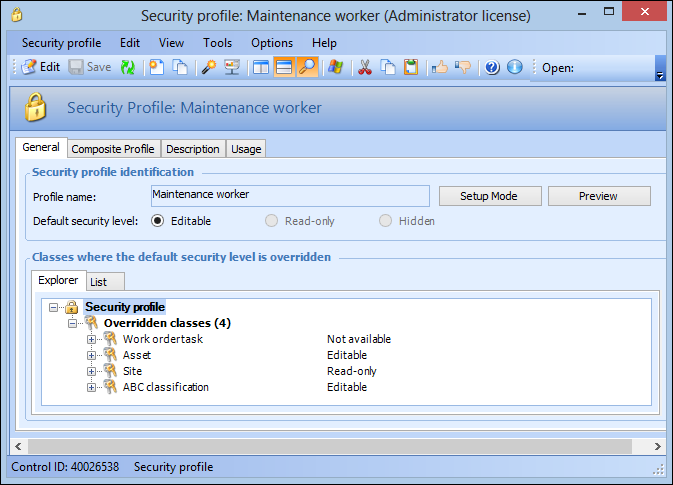
 is enabled.