Editing Maintenance Group Settings

After a maintenance group has been set up, you might need to edit the settings for the group. For example, you might need to add employees or change the default planner.

To Edit Maintenance Group Settings

1.
On the Site window, select the Personnel view and then the Maintenance Groups tab.
2.
Select the maintenance group on either the Hierarchy or Listing tab and then double-click to open the maintenance group that you want to edit. The Maintenance Group window appears.
3.
4.
Select the Properties view.
5.
On the General tab, enter the following information:
6.
Select the Hierarchy tab to view the maintenance group’s location in the hierarchy. You can modify the position as needed.
7.
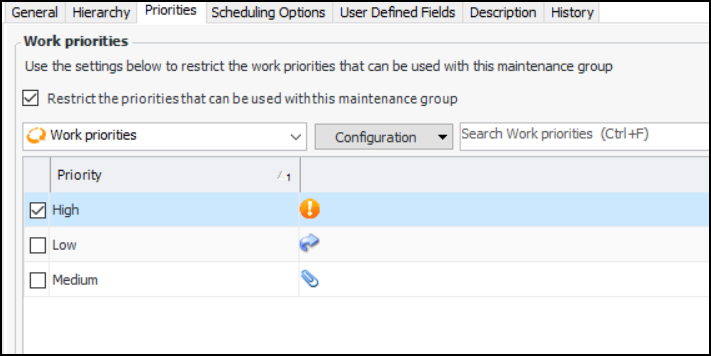
Select the Priorities tab to restrict the work priorities that are available for selection on new requests for work associated with the maintenance group. Select Restrict the priorities and select the priorities that will be available for this group. For example:
Note: Support for restricting work priorities is generally available. To use this functionality, you must first enable feature 64. In the Enterprise window, select the Features view and the Enabled Features tab. Click Browse, select “Ability to restrict the priorities used on a work request based on the maintenance group” and click OK. If APM is running as a smart client, click Refresh Enabled Features on the server. Then restart the client to use the functionality.
8.
Select the Scheduling Options tab. On this tab you can select whether the maintenance group uses simple or availability scheduling:
If a simple schedule has not yet been created, click Create Schedule to add a simple schedule for this group.
9.
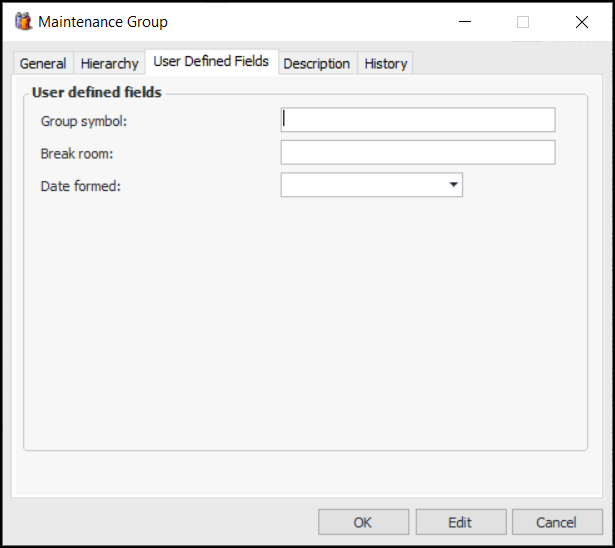
If it’s available, select the User Defined Fields tab. As many as five string fields and five date fields can be defined at the enterprise level for use in maintenance groups. The number of fields and their labels are specific to your organization. Provide information as required. For example:
10.
Select the Description tab to provide more information.
11.