|
Editing a Task Template
• Requirements (materials, tools, trades, and services)
•To Edit a Task Template
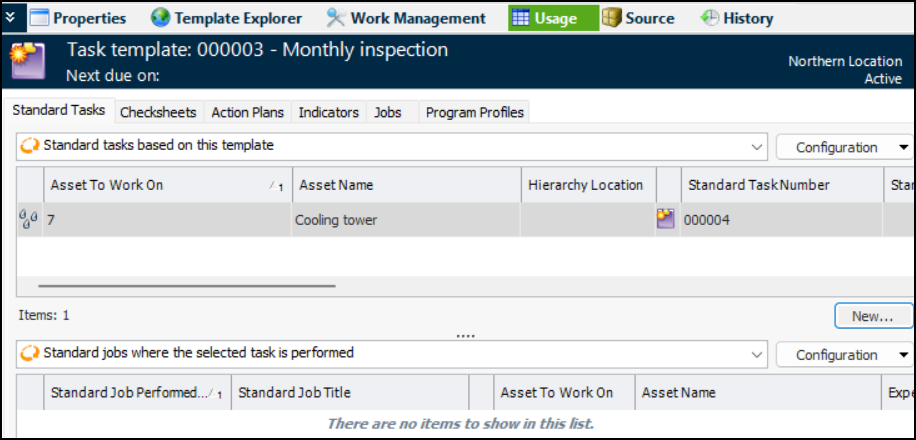
3. To see a list of standard tasks that have been created from the task template, select the Usage view and the Standard Tasks tab.
4. To change the list of indicators to be read, select the Properties view and the Inspection tab. On the Static tab you can:
• Remove indicator templates from the task template. Right-click the indicator template and click Delete. APM asks you to confirm the deletion. Click Yes. The indicator template is removed from the list.
5. To change planning information and the list of requirements, select the Planning tab. On this tab you can:
• Remove requirements. Right-click the requirement and click Delete. APM asks you to confirm the deletion. Click Yes. The selected requirement is removed from the list.
6. To change the list of standard documents, select the Documents tab. On this tab you can:
• Remove standard documents. Right-click the standard document and click Delete. APM asks you to confirm the deletion. Click Yes. The selected document is removed from the list.
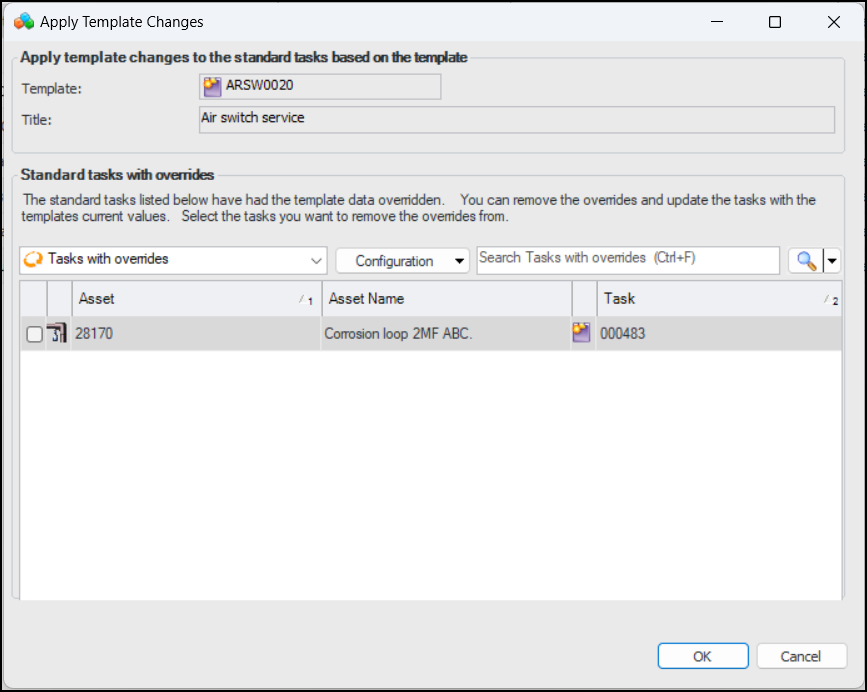
8. When you are finished making changes to the task template, you can apply the changes to the standard tasks that are based on the template, including those that have overrides. On the Tools menu, click Apply Changes. the Apply Template Changes dialog appears:
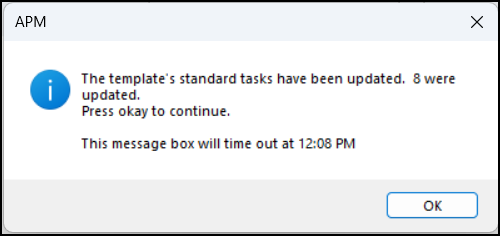
9. This dialog lists only standard tasks that override the template properties. Select tasks to have their overrides removed and the template changes applied. When you click OK, all of the template’s tasks are updated.
10. Click OK.