Editing the Default Theme

Depending on the user’s environment such as remote desktop, the default settings in a table configuration might not be acceptable for viewing. For example, the alternating row color in a table might appear too light. As needed, the settings in a theme file can be modified to change the default appearance of the user interface.
For thin client installations, the bin\Themes folder included in the APM smart client deployment package contains a file called DefaultThemes.xml. Changes made to the DefaultThemes.xml file on the server are automatically pushed out to each client machine. Note that this file can also be modified for users running a thick client (local server) instance.
The DefaultTheme.xml file can be modified and the default value can be replaced with a different value. These changes can be made while APM is open, and any changes take effect when the user opens a new window.
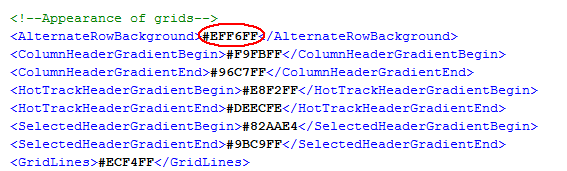
The alternating row color is referenced as a Hex value and is controlled by the setting: <AlternateRowBackground> where the default color, represented as a HEX value, for alternate rows is shown as #EFF6FF.
This topic describes how to change the alternate background row color in an APM table configuration.

To Edit the DefaultTheme.xml file

1.
Navigate to the APM install directory and open the bin folder.
2.
3.
Right-click the DefaultTheme.xml file and click Edit with Notepad. A file containing the theme settings used in APM opens.
4.
To change the alternate row color for table configurations, scroll down to the section <!--Appearance of grids--> and find the <AlternateRowBackground> attribute value.
5.
Replace the default HEX value with a new value, ensuring that the value is prefixed by #. For example, you can replace the default color HEX value of #EFF6FF with #CCFFCC.
Tip: A variety of Internet websites are available that list the HEX values for each color.
6.