Creating an Indicator State Calculation Record

Indicator state calculations compute the state of the indicator when a reading is taken. Once defined, these calculations can be reused for other indicators.
Calculations can be simple or complex. Each calculation can be composed of multiple calculation variables.
This topic describes how to create an indicator state calculation record.

To Create an Indicator State Calculation Record

1.
2.
In the Properties view, select the States and Alarms tab, and ensure that both This indicator has states and alarms and Calculate the current state using the following calculation are selected.
Tip: APM Administrators can also create calculations from the Enterprise window, Customization Center view, Calculation tabs.
Note: The Calculate option is not available when Track and acknowledge alarms by measurement point is selected. Measurement point readings must be aggregated to use calculations.
3.
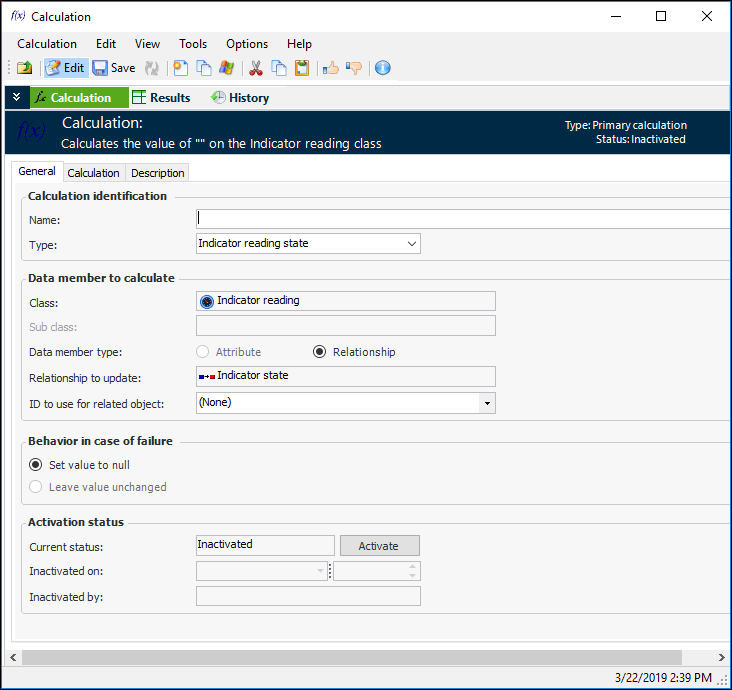
Click New. The Calculation window appears.
4.
In the Calculation view, General tab, enter the following information:
5.
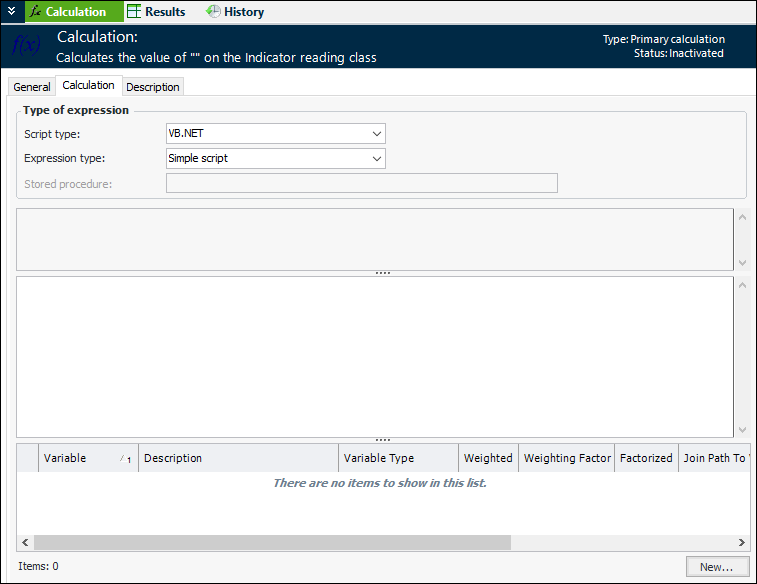
Select the Calculation tab.
6.
VB.NET – Inputs and functions defined on the Calculation tab can be used to create a formula that is calculated at run time. This is the default option
C# – Inputs and functions defined on the Calculation tab can be used to create a formula that is calculated at run time
Stored procedure – The expression is provided in a stored procedure that receives its inputs at runtime and returns a value
7.
With the Complete class option, a starter script template is provided automatically, which you can edit as needed. You can also click Regenerate from Template to reset the formula to the starter script.
The template scripts include DebugData statements that you can augment to output trace messages when the Check (Test) or Check (Live) method is invoked to test the calculation.
Tip: You can view the template scripts by opening the Enterprise window, clicking the Administration menu and then Calculation options. For more information, see Defining Calculation Options.
8.
If you are entering a function, see Using Logical Operators in Calculations.
If you are using a formula, you can use three elements:
Example:
To enter a calculation that takes the average of two inputs, you would type:
(Input1 + Input2) / 2
The variables “Input1” and “Input2” are placeholders for data. When the calculation is evaluated, APM gets the current values of the inputs.
9.
Select the Description tab to enter a description about the calculation.
10.