Reviewing and Closing Downtime Incidents

After a downtime incident has been created, the information on the incident can be changed until the downtime impact has been reviewed. After a user has reviewed the downtime incident, it becomes frozen. However, users can still edit the information using the Change Impact feature.
This topic explains how to review the impact on an incident and close it.

To Review and Close Downtime Incidents
1.
From the Site window, select the Performance Management view, Downtime tab.
2.
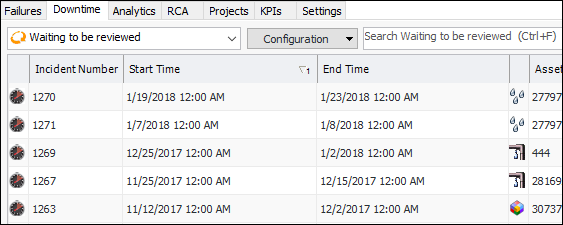
On the Downtime tab, select the Waiting to be reviewed configuration. The table lists downtime incidents and their data. For example:
3.
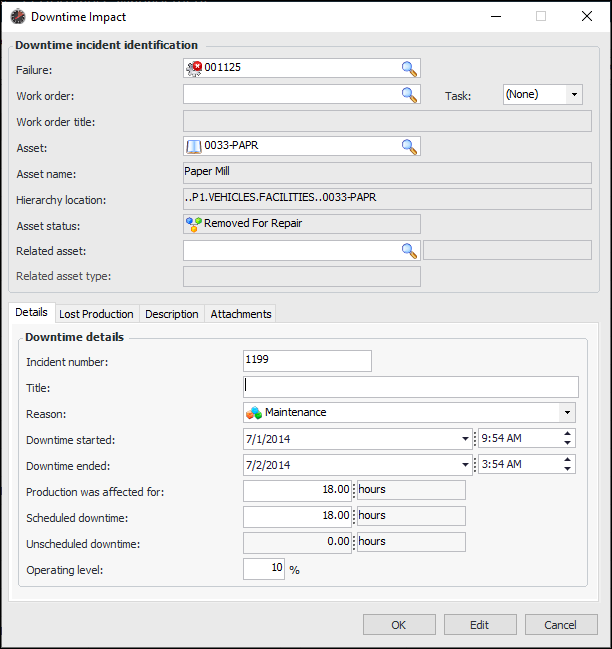
Right-click the downtime incident that you want to review and select Record Impact. The Downtime Impact dialog appears.
4.
5.
When you are finished, click OK. The system records the date and time of the impact review and the name of the reviewer. The downtime incident is now frozen.
To change incident information, find it in another configuration, right-click it, and select Change Impact. Make your changes and then click OK. The incident is frozen.