Distributing Costs on a Purchase Order Line

If you select the option to distribute the costs of a purchase order by line, you then need to select how you want the costs of each line to be distributed: to one account or to multiple accounts. Distributing the cost of the line to one account means that all costs of that line (the price of the item, taxes, and shipping charges) will be charged to one account.
Distributing the cost of the line to multiple accounts enables you to attribute portions of the cost to different accounts. For example, you could charge the price of the item to one account, the cost of the taxes to another account, and the cost of the shipping charges to a third account. Distributing costs to multiple accounts also enables different departments that share a piece of equipment to share the cost of it; for example, you could charge 50% of the cost of purchasing the item to one department and 50% to another department.

To Distribute Costs to One Account

1.
2.
On the Properties view, select the General tab and double-click the purchase order line. The Purchase Order Line dialog appears.
3.
Select the Distribution tab.
4.
Select Charged to a Single Account.
5.
6.
7.
Repeat steps 2 to 6 for each line.
8.

To Distribute Costs to Multiple Accounts
1.
2.
On the Properties view, select the General tab, then the Lines tab. Double-click the line. The Purchase Order Line dialog appears.
3.
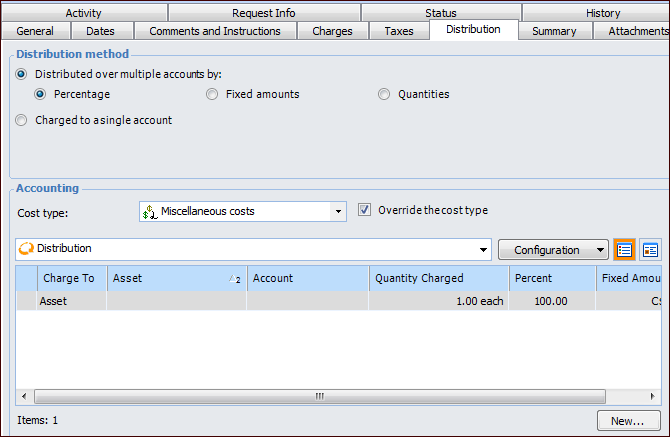
Select the Distribution tab.
4.
Select Distributed over Multiple Accounts by and then select Percentage, Fixed amounts, or Quantities. One cost type is charged for the line, and APM creates one account record.
5.
6.
7.
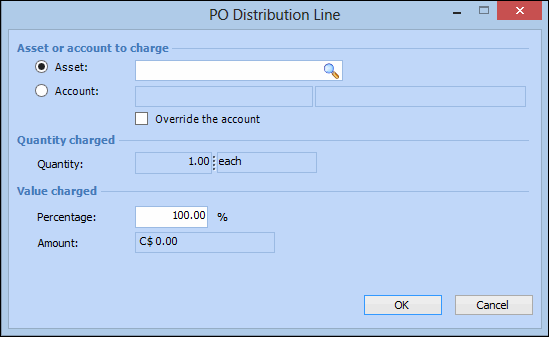
If the cost of the line is distributed based on a percentage, select the Percentage option and enter the appropriate number. APM will calculate the amount to be charged to this account in the Amount box.
If the cost of the line is distributed based on a fixed amount, select the Fixed Amounts option and enter the appropriate amount.
8.
Click OK to save the information and close the dialog.
9.
Click New to enter the next account that you want to charge.
10.
Repeat steps 6 to 9 for each account record you need to create. If the total percentage is greater than 100% or the amounts on all the account records add up to more than the total cost of the line, APM will warn you that the account distributions total more than the line.
11.
Click OK to close the purchase order line.
12.