Performing Design FMECA Failure Mode Risk Analysis

In the process of evaluating a failure mode, you can quantify the relative risk (criticality) associated with the failure by evaluating the consequences (severity of the effect), the probability of the failure occurring, and (optionally) the failure’s detectability, assigning values for each factor. APM then calculates the relative risk by multiplying the severity value by the probability value, and then by the detectability value, if it is used.
When the relative risk is established, APM calculates the failure mode’s consequence priority using a set of customer-defined rules. The consequence priority rules can be based on the failure mode’s severity, relative risk, downtime costs, downtime duration, or a combination. For example, the Extreme priority could be assigned to failure modes whose total severity is equal to 5.0.
After you have analyzed the failure modes, you can compare failure modes and identify the relative importance of addressing them. The Risk Assessment view in the Strategy Development Analysis window includes failure mode lists based on criticality, consequence priority, severity, and relative risk, as well as a risk plot, risk matrix, and lists of the evaluations.
APM provides two ways to perform failure mode risk analysis:
With both methods, APM calculates the relative risk and displays it in the risk matrix chart. The method available in the Maintenance Action Plan window depends on the option selected in the risk analysis settings.
For instructions on using the simpler evaluation with weighted severities, see Performing Design FMECA Risk Analysis with Weighted Severities.
Note: Before you can perform risk analyses, the severities, probabilities, and risk matrix entries must be set up in the site’s risk analysis settings. If you are using evaluations forms, they must also be set up. For more information, see Setting up APM for Design FMECA.
This topic explains using evaluation forms to perform risk analysis. It explains how:
1.
To Evaluate the Probability of Failure – The probability of failure is the likelihood that the asset will fail due to the failure mode. You can determine the probability score using a questionnaire, by selecting a value directly, or by entering the estimated time between failure (ETBF). The options available to you depend on the risk analysis settings.
2.
To Evaluate Economic Effects of Failure – The economic consequence of failure reflects the financial effect of the failure on assets and production. Labor and material costs associated with lost production and with repairing or replacing the damaged equipment are economic consequences. You can use a questionnaire or select a value directly, depending on the risk analysis settings.
3.
To Evaluate Health & Safety, Environmental, and Reputation – Equipment failure can cause hazards in the workplace and environmental damage. Examples are extreme temperatures, noxious fumes, and the release of liquids that cause pollution. Mitigating factors are considered when assessing health and safety and environmental consequences. You can use questionnaires or select values directly, depending on the risk analysis settings.
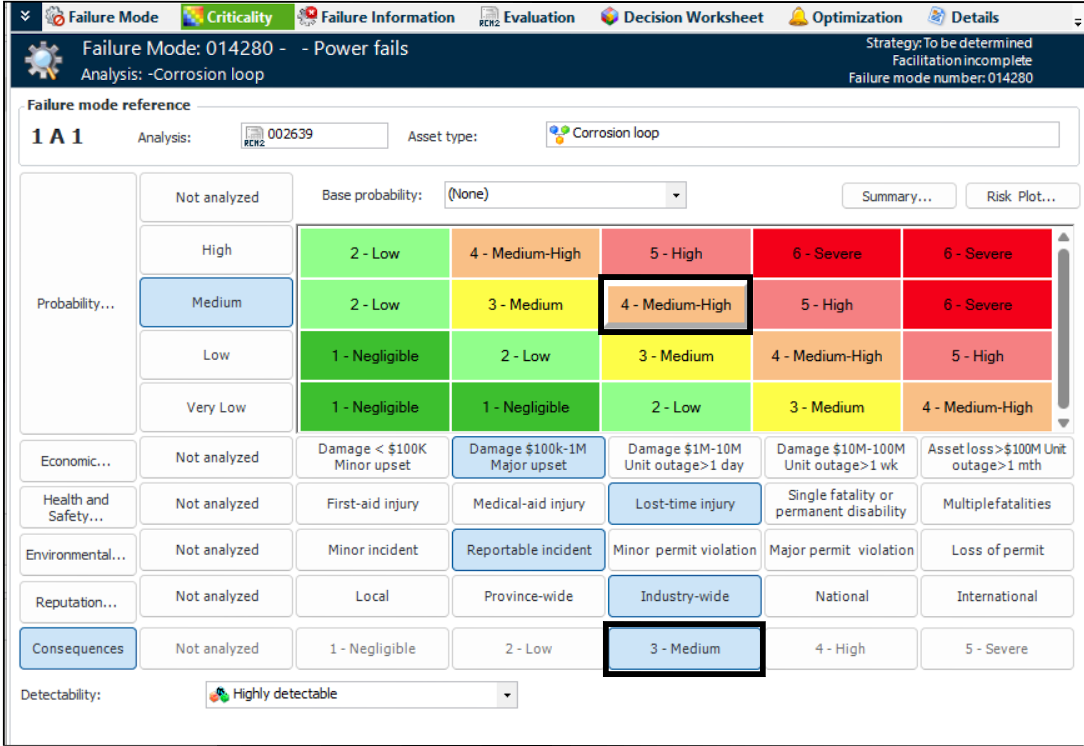
When you have finished the probability and consequence evaluations, the risk matrix shows the resulting criticality score. In this example, the results are Medium High (criticality) and Medium (consequences):
4.
To Assign a Detectability Value – When support for detectability is enabled in an analysis, the relative risk calculation becomes:
(Economic severity score + Health and safety severity score + Environmental severity score + Reputation severity score) * Probability score * Detectability score = Relative Risk Number
5.
Viewing the Risk Analysis Summary – You can view the most recent evaluation results by clicking Summary on the Criticality tab. The Risk Summary dialog displays tabs for each of the questionnaires used in the analysis.

To Evaluate the Probability of Failure

1.
2.
3.
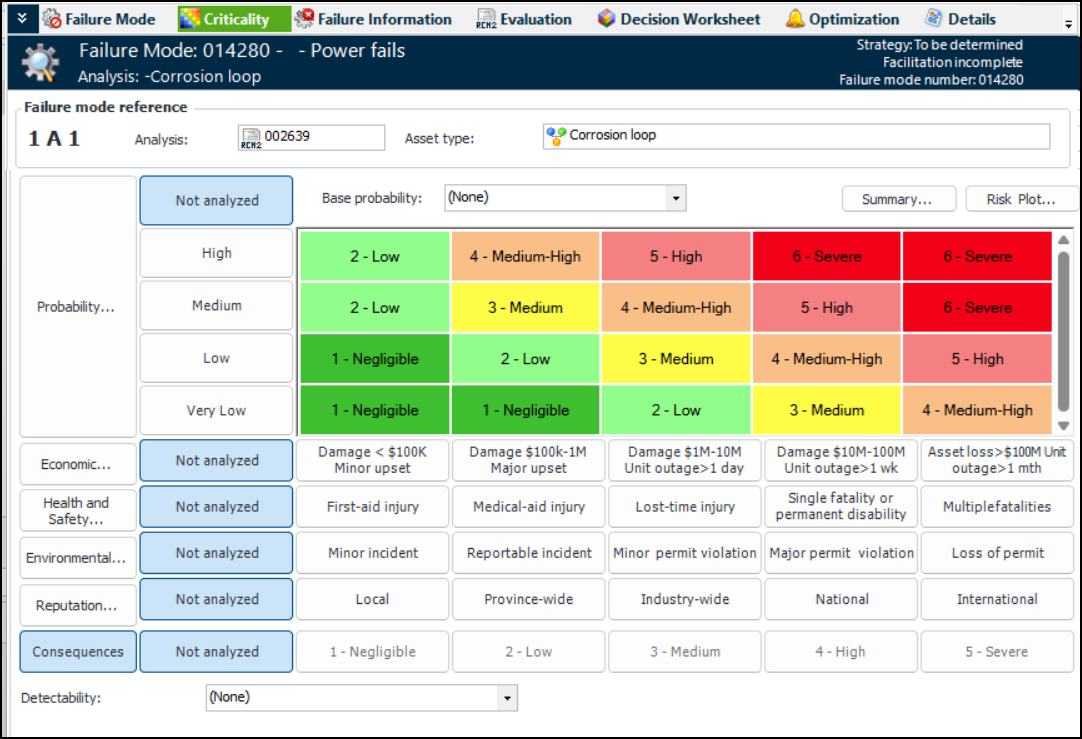
Select the Criticality view. For example:
4.
If probability can be based on time between failure, the Criticality view displays the Estimated TBF without maintenance options:
Enter the amount of time and the unit of measure. The corresponding probability value is displayed in the risk matrix.
5.
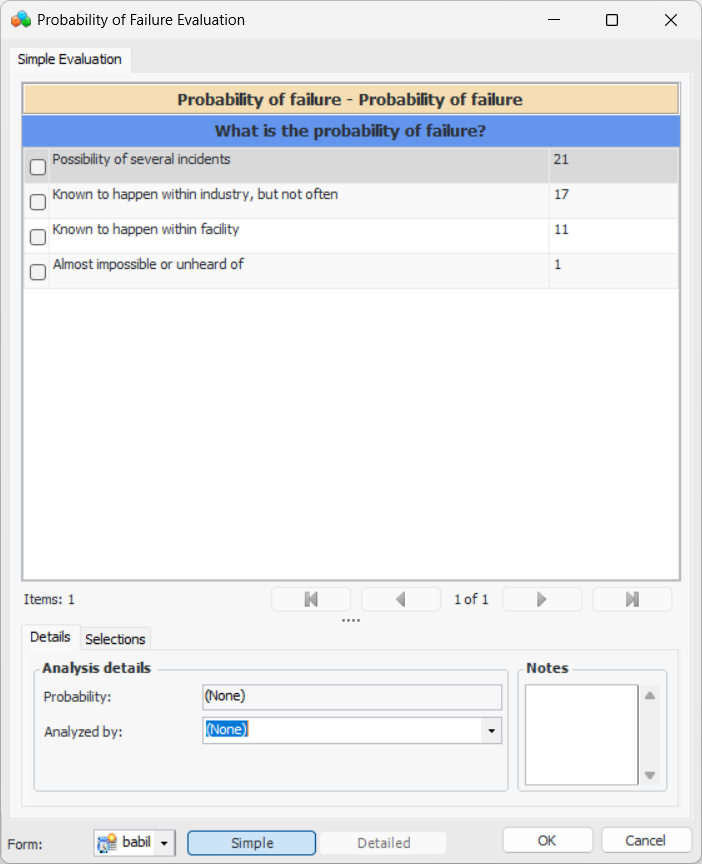
To use a questionnaire, click Probability. The Probability of Failure Evaluation appears. The evaluation types (simple, detailed), categories, and questions available to you depend on the form’s design and the asset properties. Here is an example of a simple evaluation:
You can refer to the History and Barriers tabs for information to aid in the evaluation, for example, historical inspections, failures, and work.
6.
As you move through the analysis, the Probability box displays the most severe probability assigned to your selections. For example, if you select options for three categories, two of which have a result of “Negligible” and one with a result of “High”, the score for the evaluation as a whole will be “High”. This will be the probability used in the risk analysis.
7.
In the Analyzed by list, select the team member performing the evaluation.
8.
In the Notes box, you can provide additional information about the analysis. Notes are collected and available in several locations.
9.
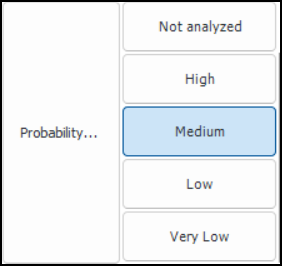
When you have completed the evaluation, click OK. The evaluation form closes and the result (for example, high, medium, low, or negligible) is selected in the risk matrix. For example:

To Evaluate Economic Effects of Failure

1.
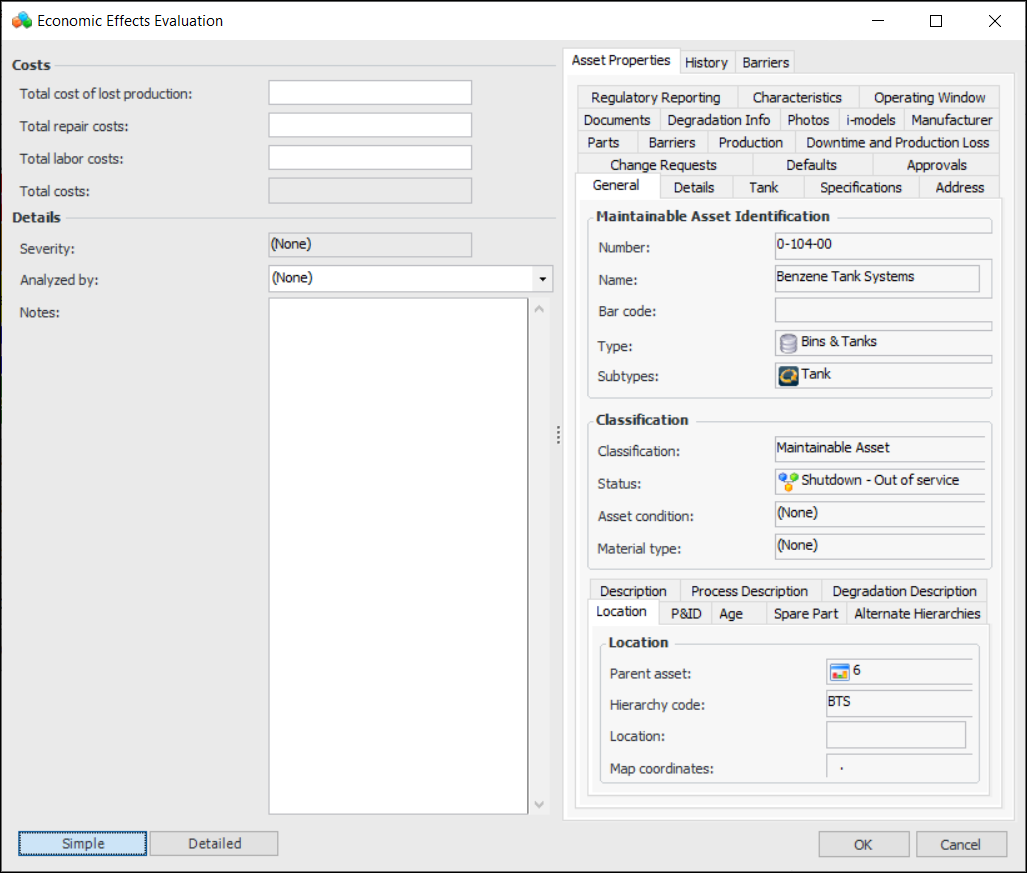
In the risk matrix, click Economic. The Economic Effects Evaluation form appears. For example:
At any time, you can refer to the Asset Properties, History, and Barriers tabs for detailed information about the asset.
2.
As you enter amounts in the Total cost of lost production, Total repair costs, and Total labor costs boxes, APM calculates the total amount and the severity.
3.
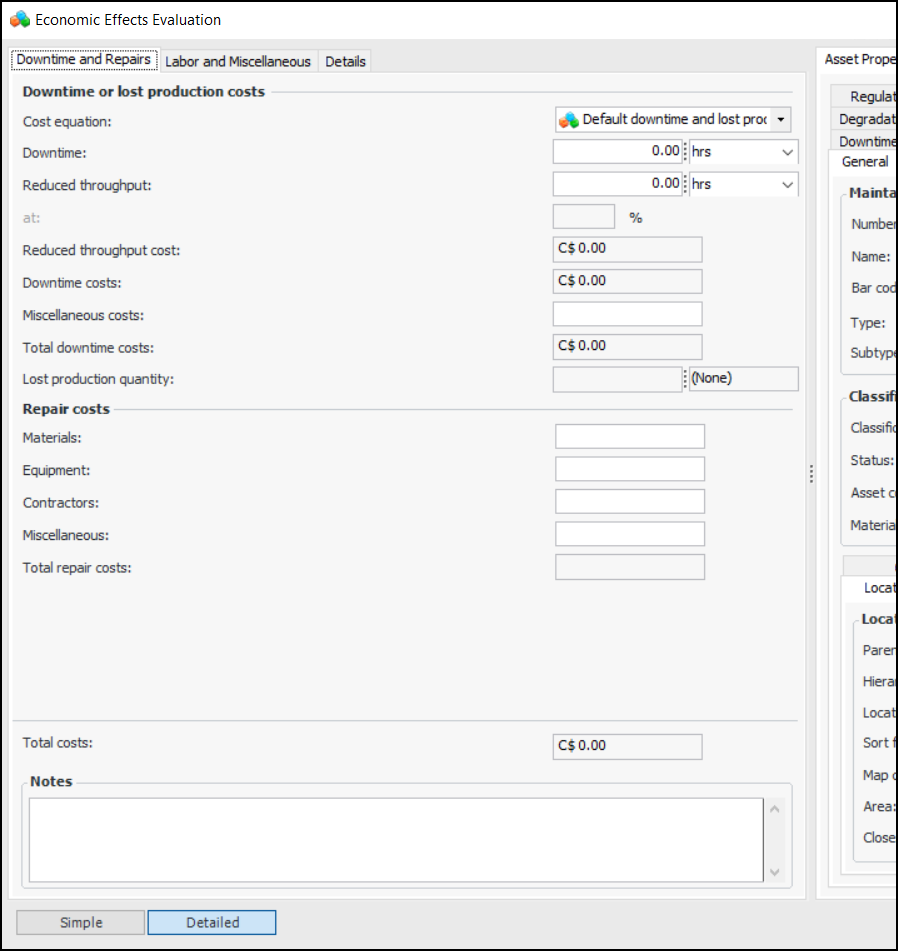
To perform a more detailed evaluation, click Detailed. Here is an example of a detailed form:
As information is added to the form, APM calculates the total costs for the failure and displays the Severity score. All monetary amounts are shown in the site’s currency.
4.
Tip: Select the Asset Properties tab and then the Downtime and Production Loss tab to view the production loss cost equation.
5.
6.
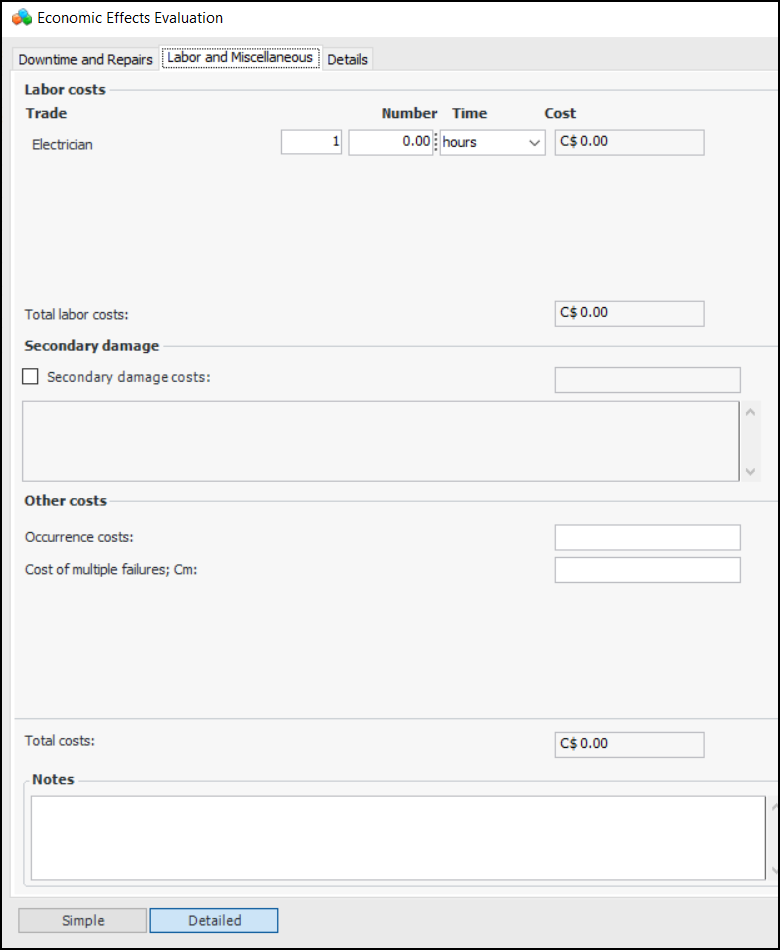
Select the Labor and Miscellaneous tab. For example:
7.
Enter information to calculate labor costs. The number and types of trades listed in the Labor costs area are defined in the Economic Evaluations settings. They vary depending on the trades defined for the site and selected for the evaluation. For each trade, enter the amount of time required to respond to the failure. APM calculates the cost based on the trade’s rate.
8.
Secondary damage is additional damage caused to other assets by the initial or primary failure. If appropriate, select Secondary damage costs and enter an amount and a description of the damage. This information is included in the total costs and shown on the failure mode’s Failure Data tab.
9.
In the Occurrence costs box, enter the estimated fixed cost associated with a downtime occurrence. For example, this could be a fixed cost associated with restarting a machine after it has been shut down.
When failure mode optimization requires Isograph Availability Workbench, this attribute is mapped to project effect per occurrence cost in AWB.
10.
In the Cost of multiple failures box, enter the estimated cost if a protected function fails while its protective device or protective system is in a failed state.
11.
In the Notes box, you can enter additional information about the evaluation. Notes are collected and available in several locations.
12.
Select the Details tab. In the Analyzed by list, select the team member who performed the evaluation.
Note: For information about creating production loss rules, see Setting up Production Loss Rules on an Asset.
13.
When you are finished the evaluation, click OK. The result of the economic evaluation is shown in the risk matrix. For example:

To Evaluate Health & Safety, Environmental, and Reputation

1.
Click Health and Safety, Environmental, and Reputation in turn. The evaluation form appears. The evaluation types (simple, detailed), categories, and questions available to you depend on the form’s design and the asset properties.
At any time, you can refer to the Asset Properties tab for detailed information about the asset.
2.
As you move through the analysis, the Severity box displays the most severe score assigned to your selections. For example, if you select options for three categories, two of which have a result of “Negligible” and one with a result of “High”, the score for the evaluation as a whole will be “High”. However, if a mitigation category has been defined for the evaluation, its score can raise or lower the severity. The resulting ranking is used in the risk matrix.
3.
In the Analyzed by list, select the team member performing the evaluation.
4.
In the Note box, you can provide additional information about the analysis. Notes are collected and available in several locations.
5.
When you have completed an evaluation, click OK. The evaluation form closes and the result is selected in the risk matrix. For example:

To Assign a Detectability Value

1.
In the Criticality view, select the appropriate value from the Detectability list below the risk matrix. This number is used in the relative risk calculation.

Viewing the Risk Analysis Summary

1.
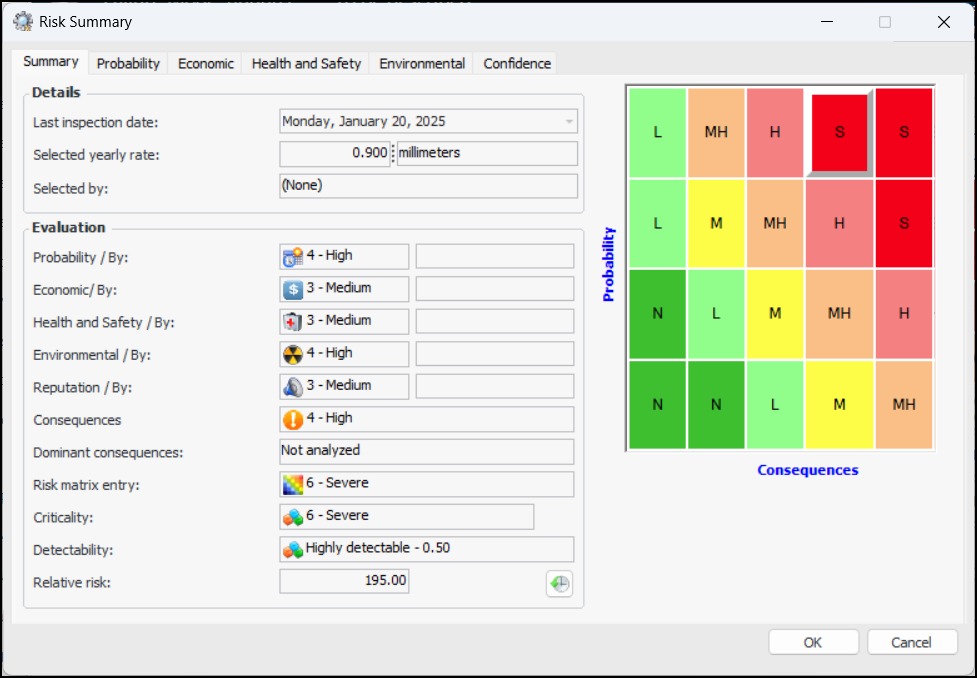
In the Criticality view, click Summary to display the results of the risk analysis. For example:
A tab is displayed for the confidence evaluation and each of the questionnaires that were used to evaluation probability of failure and consequence severities.
2.
3.
Click Close to dismiss the window.