Setting Failure Mode Options for a Design FMECA

This topic explains how to set the failure mode options for a design FMECA.
These options include:
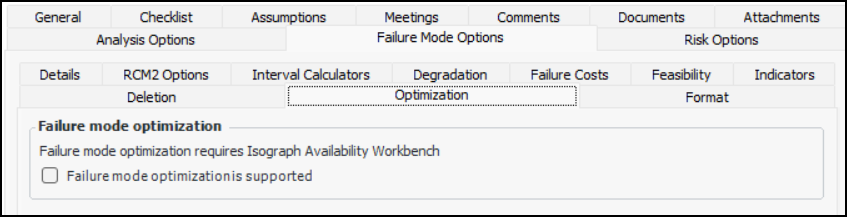
Using the integration functionality in APM, you can export failure modes from design FMECA, MTA2, and RCM2 analyses to the Isograph® Availability Workbench (AWB), where you can analyze and optimize the data. You can then import optimization results into the APM analysis, review the recommendations in the Optimization view, and make appropriate changes to the action plans.
Note: Before you can export failure modes, you must have installed the Availability Workbench. The Reliability Strategy Development and Implementation and Performance Management modules must be active on the sites where you want to use the functionality.
Hide or show the Failure mode note sidebar in Maintenance Action Plan windows
This topic explains how:

To Set Failure Mode Details

1.
2.
3.
On the Properties view, select the Failure Mode Options tab.
4.
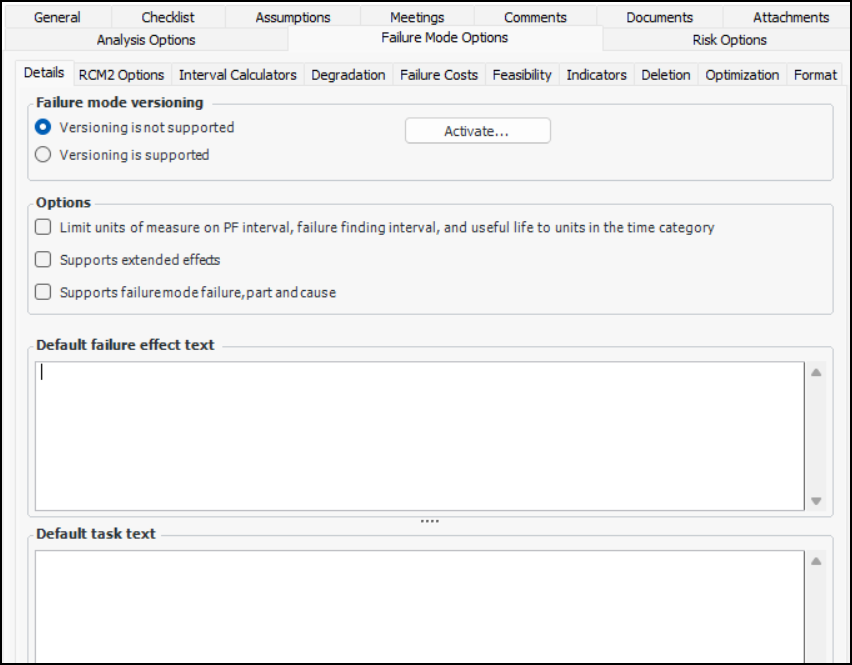
On the Details tab, set the following options:
5.
In the Default failure effects text box, you can enter text that will automatically appear in the Failure Effect box of new failure modes.
6.
In the Default task text box, you can enter text that will automatically appear in the Task boxes for new failure modes.

To Set RCM2 Options

1.
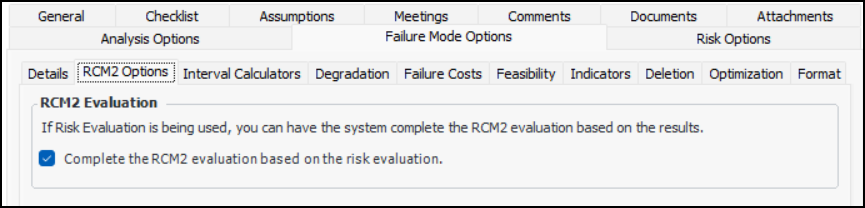
Select the RCM2 Options tab.
2.

To Set Failure Cost Options

1.
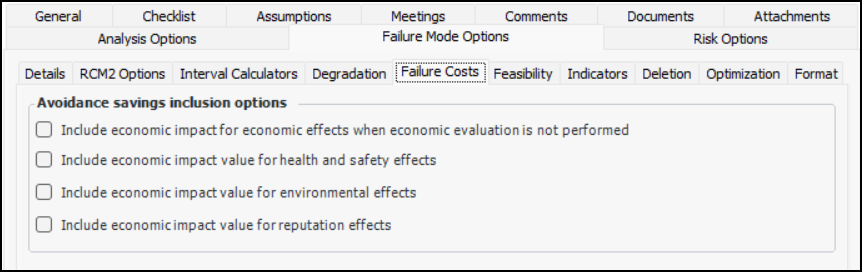
Select the Failure Costs tab.
2.

To Set Feasibility Options

1.
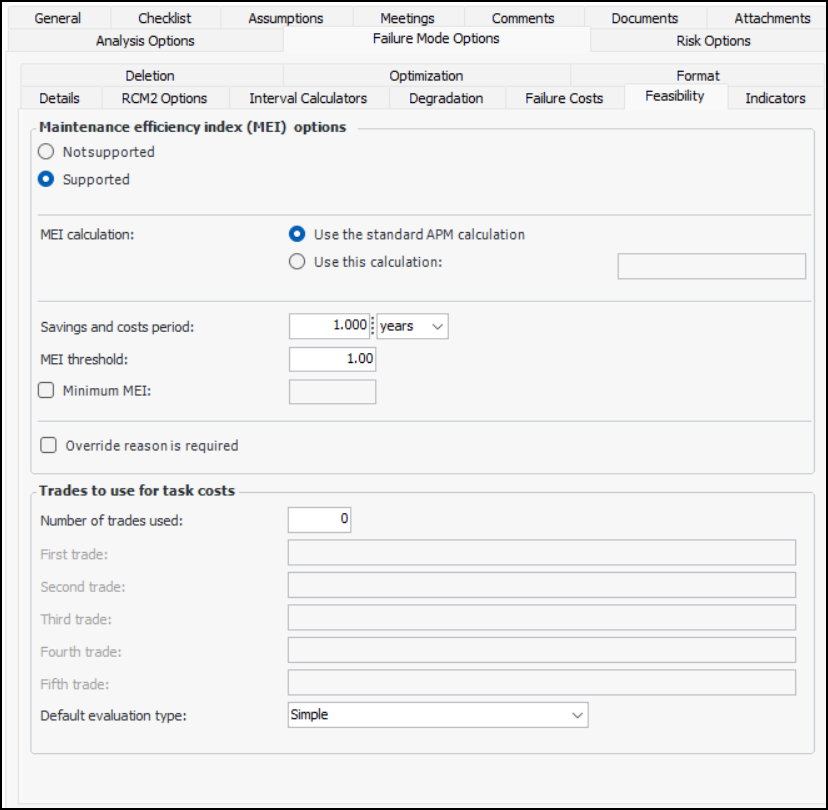
Select the Feasibility tab. Select Supported.
2.
Use the standard APM calculation – The calculation supplied by APM
Use this calculation – Select the custom calculation from the list
3.
4.
Simple – The evaluator can select one statement for each category on the form.
Detailed – The evaluator can select two statements for each category on the form.
Tip: If you wish to use a custom MEI calculation, create a triggered calculation in the Customization Center. Set the triggering method to Through a program. When defining the attribute to calculate, set the options as follows:
Class – Maintenance action plan
Contained class – Maintenance feasibility
Attribute to update – Maintenance efficiency index
Data type – Float magnitude
Result value type – Derived value
In case of failure – Leave value unchanged

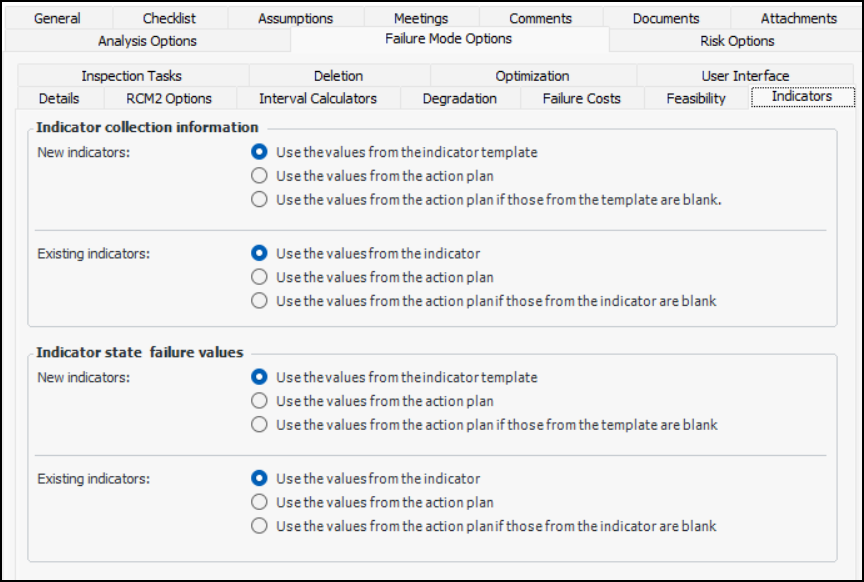
To Set Indicator Options

1.
Select the Indicators tab.
2.
Note: When you create an indicator based on an indicator template, the system checks to see if the asset already has an indicator based on that template. If such an indicator exists, it is used in the analysis, and a new indicator is not created. In this situation, the indicator is not affected by the options described above. If you want the indicator to be updated with the action plan’s values, be sure to set the appropriate option for adding existing indicators to analyses, as described next.
3.
4.
5.
Note: If indicators are to be updated, they are modified when the action plan’s status changes to “Implementation completed”.

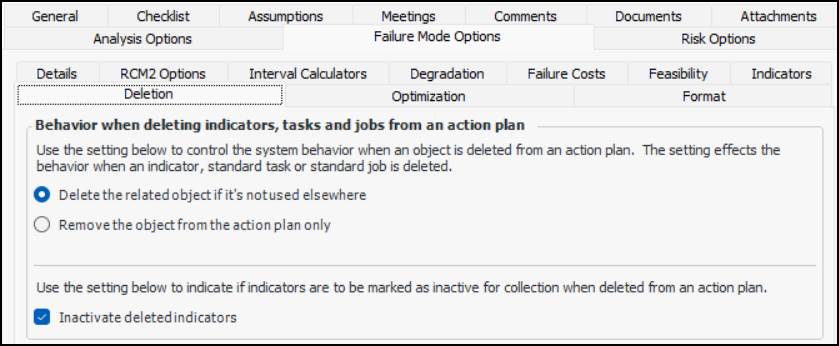
To Set Deletion Behavior Options

1.
Select the Deletion tab.
2.

To Enable Optimization

1.
Select the Optimization tab.
2.
Select Failure mode optimization is supported. When this option is selected, the Optimization view is available in the analysis window.

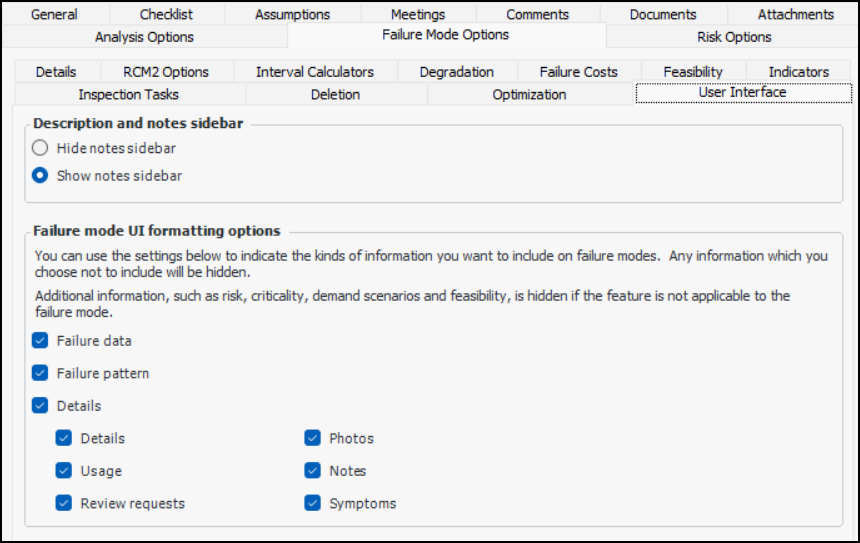
To Set User Interface Options

1.
Select the User Interface tab.
2.
Hide or show the Analysis note and Evaluation comments areas in the Maintenance Action Plan window.
Tip: The analyst can add information to the Analysis Note and Evaluation Note tabs located in the Details view, if available.
When this option is selected, the Failure Data tab appears in the Maintenance Action Plan window.
When this option is selected, the Failure Pattern tab appears in the Maintenance Action Plan window.
When this option is selected, the Details tab appears in the Maintenance Action Plan window.
When this option is selected, the second Details tab appears on the Details tab in the Maintenance Action Plan window.
When this option is selected, the Usage tab appears on the Details tab in the Maintenance Action Plan window.
When this option is selected, the Review Requests tab appears on the Details tab in the Maintenance Action Plan window.
When this option is selected, the Photos tab appears on the Details tab in the Maintenance Action Plan window.
When this option is selected, the Notes tab appears on the Details tab.
When this option is selected, the Symptoms tab appears on the Details tab in Maintenance Action Plan windows.