Creating Secondary FMECA Action Plans

Sometimes one action is not enough to deal with a failure mode in a strategy development analysis. For example, an asset’s failure mode might require a condition-based maintenance task to check for signs of wear, a physical modification to the asset, and a modification to procedures (for example, training for maintenance personnel). In cases like this, you can add secondary action plans to the failure mode, and you can have more than one task with the same action type. For example, you might need two modification/redesign tasks.
An additional task type is available for secondary action plans: “Review existing maintenance”. This action plan alerts the analysis team to review an asset’s existing maintenance program to identify items that are no longer required or require modification.
As long as an action plan has not been marked “Implementation Completed”, you can add a secondary action to it. This section explains how to add secondary action plans to existing failure modes.
Tip: The Action Plans view in the analysis window lists the action plans for each failure mode. The Action Plan Type column indicates whether the action plan is primary or secondary.

To Create a Secondary Action Plan

1.
Open the FMECA and select the Facilitation view, Info Worksheet tab.
2.
3.
4.
Select the Implementation view and the Secondary Action Plans tab.
5.
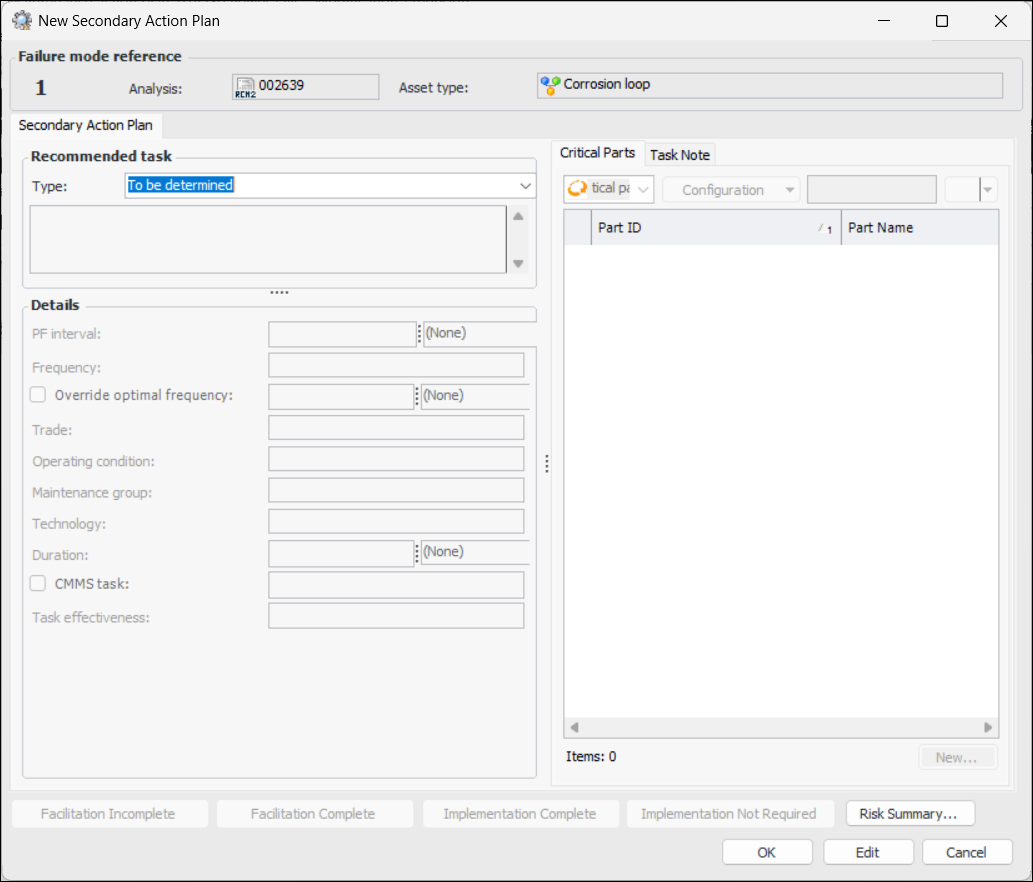
Click New. The New Secondary Action Plan window appears.
Tip: Click Risk Summary to view the primary action plan’s risk summary.
6.
Note: If APM is configured to interact with a SAP Plant Maintenance system, System condition and Work center are available in the Details area.
7.
8.
For more information, see:
9.
10.