|
Adding Team Members to a Design FMECA
To Add Team Members
1.
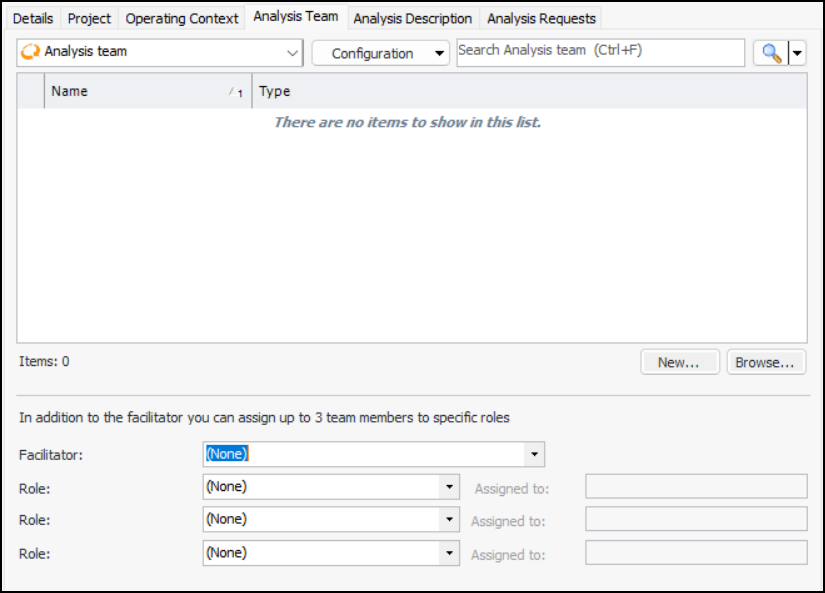
3. To quickly add one or more employees to the team, click Browse. The Browse Employees dialog appears. Select the employees and click OK. They are added to the Analysis Team tab.
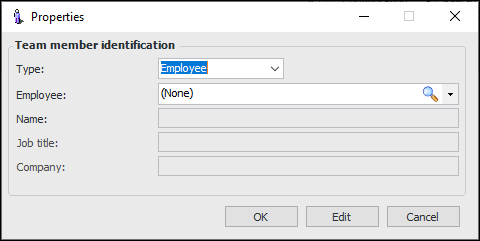
4. To create a team member record, click New. The Properties dialog appears.
5. If the member does not have an APM employee record, select Consultant from the Type list and provide the member’s name, job title, and company or department.
6. If the member has an APM employee record, select Employee from the Type list. Select the employee from the list or click the browse icon to select the employee or create a new record. The employee is added to the Employee box.
7. Click OK to save the information and close the dialog.
8. When all of the members have been added, select the team leader from the Facilitator list.