Deleting Table Configurations

You can delete configurations that you created. To delete a Customer configuration, you must be logged in with the administrator privilege.
If you remove a configuration with the standard APM icon, it is removed from the list but not deleted permanently. Removing a configuration to which you made ad hoc changes removes it from the list and deletes your changes to the original configuration. The original configuration is still available to be added.

To Delete Table Configurations

1.
2.
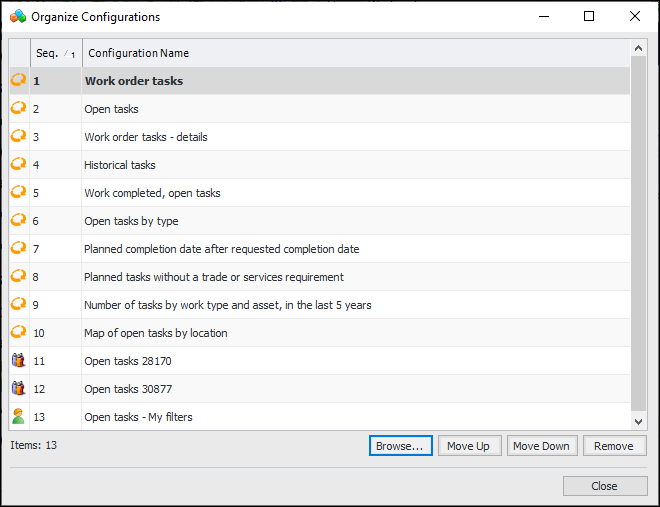
In the Configuration list, click Organize. The Organize Configurations dialog appears.
3.
Select the configuration and click Remove. The configuration is removed from the list.
4.
In the confirmation message that appears, click Yes. The configuration is removed from the list.
Note: A table must have at least one configuration, so you cannot remove all of its configurations.
Note: If you are the owner of a shared configuration and you remove sharing or delete the configuration, a confirmation message appears reminding you that other users will no longer be able to see it. If that shared configuration was set as a user’s default configuration, the system will revert to the first configuration in the list as the default configuration. For more information about removing sharing from your configuration, see Removing Sharing from a Table Configuration.