Defining Sidebar Dashboards

A sidebar dashboard consists of charts or gauges that appear at the side of a window to summarize the information in it. A sidebar dashboard contains one section that can show site panels (typically charts) or KPI gauge panels.
Standard sidebar dashboards can also be displayed on windows for individual assets, strategy development analyses, and asset prioritization analyses.
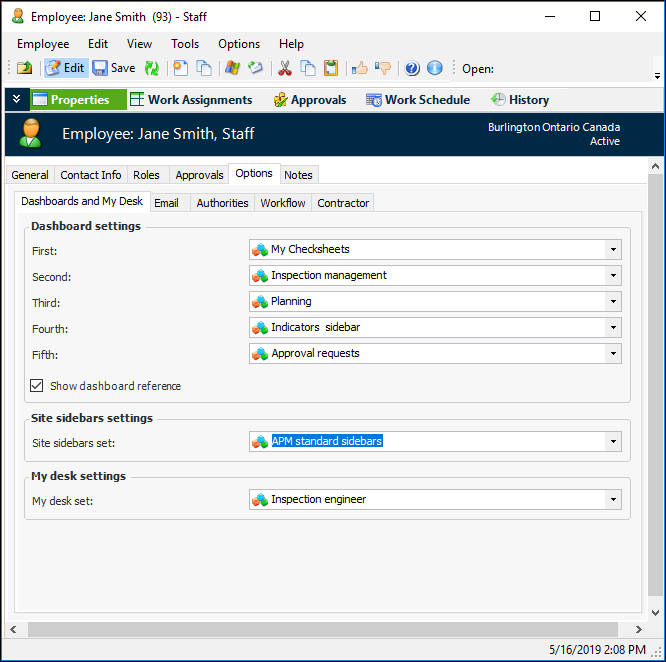
The employee record contains a reference to a dashboard set, thus allowing you to select the sidebar dashboards displayed for each employee. Typically, the same sidebars are displayed or hidden for groups of employees.
Defining site sidebars requires three steps:
1.
2.
3.

Dashboard Sets

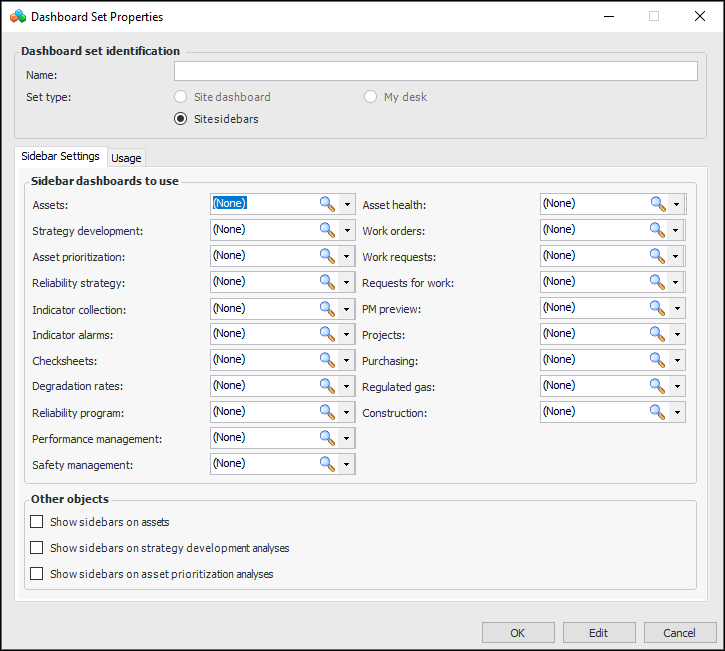
A dashboard set identifies the dashboard definition to display in each of the places where a sidebar is supported.
The following table lists the settings in a typical dashboard set (APM standard sidebars), the locations where sidebar dashboards can be displayed, and examples of the panel to show for each location.

To Define a Sidebar Dashboard

1.
From the Site window, select the Analytics view the Dashboards tab. In the configuration list, select “Sidebar dashboards”. This tab lists all of the sidebar dashboards that currently exist for the site and above.
2.
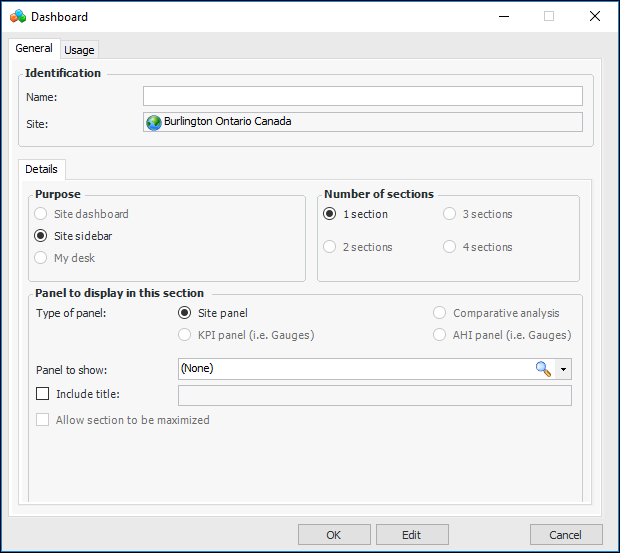
Click New. The Dashboard window appears with Site sidebar purpose and 1 section layout are automatically selected.
3.
On the General tab enter a name for the dashboard.
4.
On the Details tab, click the browse icon () to select a panel to show.
5.
Select Include title and type a name to display on this panel.
6.
Click OK to close the window.

To Create a Sidebar Set

1.
On the site’s Analytics view, select the Dashboard Sets tab. By default, this tab lists all of the dashboard sets that currently exist for the site and above.
2.
Click New. The Dashboard Set dialog appears.
3.
4.
5.
In the Other objects area, select the windows where standard sidebar summaries are to appear.
6.
Click OK to save the set and close the dialog, or see To Assign Employees to a Dashboard Set.

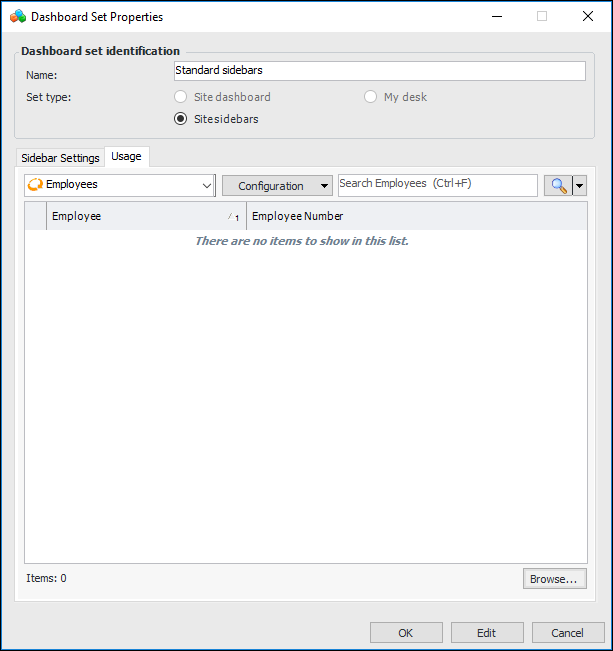
To Assign Employees to a Dashboard Set
1.
2.
Click Browse. The Browse Employees window appears.
3.
4.
Click OK to save the dashboard set.
The dashboard set is now saved in each selected employee’s record. For example:
Sidebar dashboards are hidden or displayed as follows:
Tip: If the dashboard information is not immediately updated, close the site and reopen it.