Defining View as Form Appearance Properties

You can display table configuration data in form view. When defining how a form appears and behaves you can select a pre-defined form. You can also determine navigation button options and behavior.
This topic describes how to define the appearance of a table configuration when viewed as a form.

To Define View as Form Appearance Properties
1.
2.
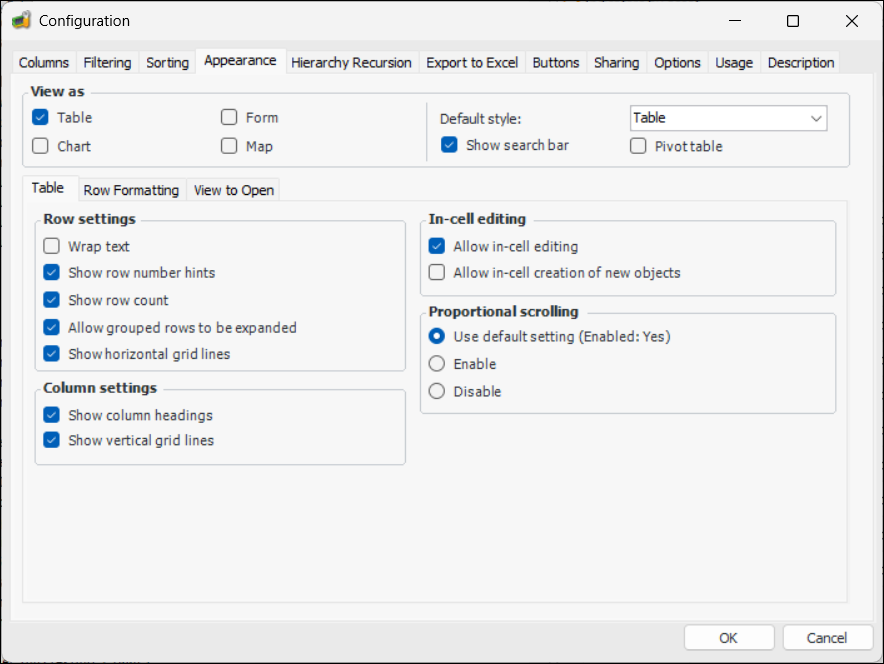
Click Configuration and then Open. The Configuration dialog appears, open to the Columns tab.
3.
Select the Appearance tab. For example:
4.
In the View As area, select the appropriate options:
5.
In the View as group, select Form. The form tab appears.
Note: The Display New button options are only available if you logged on as an administrator.
6.
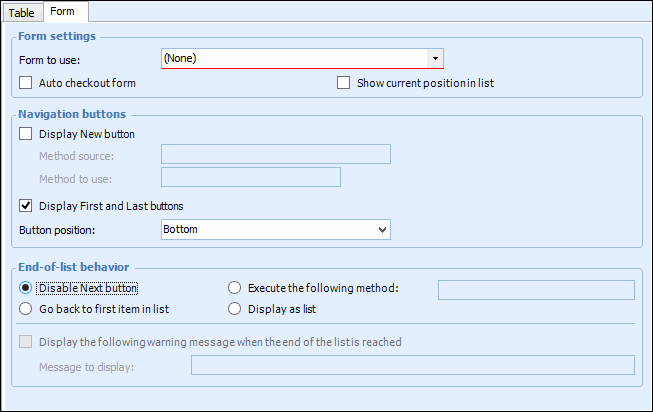
Select the Form tab and enter the form settings:
When this option is selected, a New button appears at the bottom of the form. You must also supply the method source and the method to use.
Select this option to determine what happens when the user reaches the end of the list. The options are: disable the Next button, display the first item in the list, execute a method, or display as a list.
7.
Click OK to save the formatting options.
You can also set the following table configuration options where appropriate:
If you are logged on as an APM administrator, you can also set the following options:
If the data can be displayed in other formats, you may also define the following appearance properties for: