Defining PM Generation Profiles

You can use preventive maintenance (PM) generation profiles to save the PM generation criteria that you use regularly. When you run the PM generation process, instead of entering PM generation settings, you can select a profile to use.
Tip: You can also run PM generation profiles automatically at scheduled intervals using the Action Scheduler. For more information, see Scheduling Actions. You can set the recurrence pattern when defining the PM generation profile.

To Define PM Generation Profiles

1.
From the Site window, select the Reliability Program view.
2.
Select the PM tab and then the PM Profiles tab.
Tip: You can also create a PM generation profile from the Asset window. Select the Reliability Program view and the PM Profiles tab.
3.
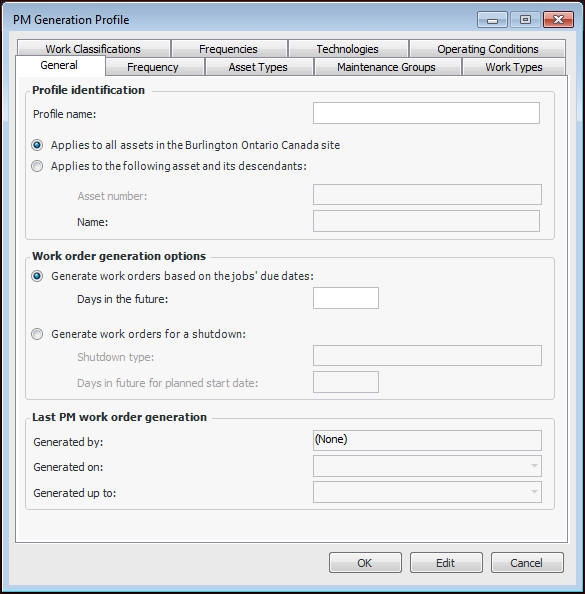
Click New. The PM Generation Profile dialog appears.
The Last PM Work Order Generation area displays information about the last time that the PM generation profile was executed.
4.
All assets in the site: This option enables you to generate work orders for assets throughout the plant; for example, you could generate all work orders to be completed during the plant’s summer shutdown.
This asset and its descendants: This option enables you to generate only the work orders required for a selected asset and its child assets. When you select this option, you must also select a specific asset.
Generate work orders based on the jobs’ due dates: Enter the number of days in the future that you want work orders to be generated. When you run PM generation using this profile, the system calculates the horizon date by adding this number of days to the current date. Work orders that need to be started by the calculated horizon date are generated.
Generate work orders for a shutdown: Select the shutdown type and the number of days in the future for the planned start of the shutdown. Work orders that need to be performed during the shutdown will have their planned start dates set to this date.
5.
Select the Frequency tab.
To have the PM generation profile executed by the Action Scheduler, select Automatically based on a recurrence pattern. You can then set up the recurrence pattern.
6.
Select the Asset Types tab.
If you select the option Include standard jobs for assets of the selected asset types only, you can then select the asset types that you want to consider in this profile.
7.
Select the Maintenance Groups tab.
If you select the option Analyze jobs for the selected maintenance groups only, you can then select the maintenance groups that you want included in this profile.
8.
Select the Work Types tab.
If you select the option Analyze standard jobs for the selected work types only, you can then select the work types that you want to include in this profile. For example, you could choose to generate work orders with a work type of “Preventive Maintenance” or of “Project.”
9.
Select the Work Classifications tab.
If you select the option Analyze standard jobs for the selected work classifications only, you can then select the work classifications that you want to include in this profile. For example, you could choose to generate only those jobs with the work classification “Regular Inspection.”
10.
Select the Frequencies tab.
If you select the option Analyze standard jobs for the selected frequencies only, you can then select the frequencies that you want to include in this profile.
11.
Select the Technologies tab.
If you select the option Analyze standard jobs for the selected technologies only, you can then select the technologies that you want to include in this profile.
12.
Select the Operating Conditions tab.
If you select the option Analyze standard jobs for the selected operating conditions only, you can then select the operating conditions that you want to include in this profile.
13.
Click OK to save the profile and close the dialog.