|
Defining Calculation Options
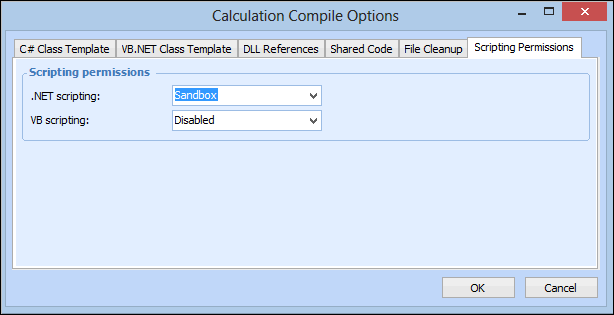
APM administrators can set the scripting permissions for .NET and VB scripts. By default, .NET scripting permission is set to “Sandbox” for all installations. (The Sandbox setting applies a security mechanism for untrusted code.) For new installations, the default VB script permission is set to “Disabled”, otherwise, it is set to “Enabled”.To View and Edit the C# Class Template
1. From the Enterprise window, select the Administration menu and then Calculation Options. The Calculation Compile Options dialog appears.Tip: APM administrators may also select the Customization Center view from the Enterprise window, select the Calculations tab, the Compile Options tab, and then click Edit Compile Options.
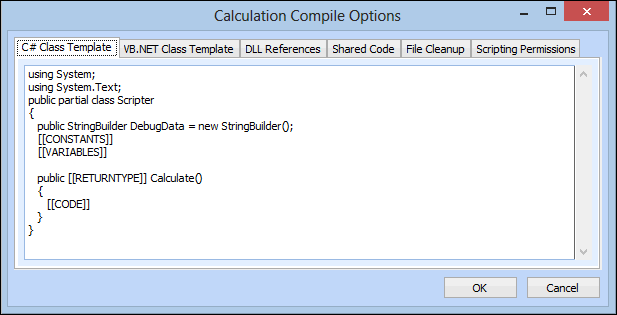
2. Select the C# Class Template tab. This tab displays the contents of the default template for C# complete class scripts. For example:
3. Tip: Easy to identify placeholders appear in the class template represented by [[CONSTANTS]], [[VARIABLES]], [[RETURNTYPE]], and [[CODE]] are to be replaced with user-defined content.Note: In order to apply these changes to an existing calculation, you must click Regenerate from Template on the calculation’s Expression tab.
4. When you are finished, click OK to save the changes to the template script and close the Calculation Compile Options dialog.To View and Edit the VB.NET Class Template
1. From the Enterprise window, select the Administration menu and then Calculation Options. The Calculation Compile Options dialog appears.Tip: APM administrators may also select the Customization Center view from the Enterprise window, select the Calculations tab, the Compile Options tab, and then click Edit Compile Options.
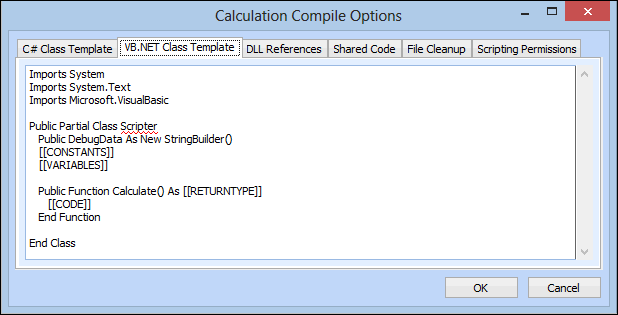
2. Select the VB.NET Class Template tab. This tab displays the contents of the default template for VB.NET complete class scripts. For example:
3. Tip: Easy to identify placeholders appear in the class template represented by [[CONSTANTS]], [[VARIABLES]], [[RETURNTYPE]], and [[CODE]] are to be replaced with user-defined content.Note: In order to apply these changes to an existing calculation, you must click Regenerate from Template on the calculation’s Expression tab.
4. When you are finished, click OK to save the changes to the template script and close the Calculation Compile Options dialog.To View and Add DLL References
1. From the Enterprise window, select the Administration menu and then Calculation Options. The Calculation Compile Options dialog appears.Tip: APM administrators may also select the Customization Center view from the Enterprise window, select the Calculations tab, the Compile Options tab, and then click Edit Compile Options.
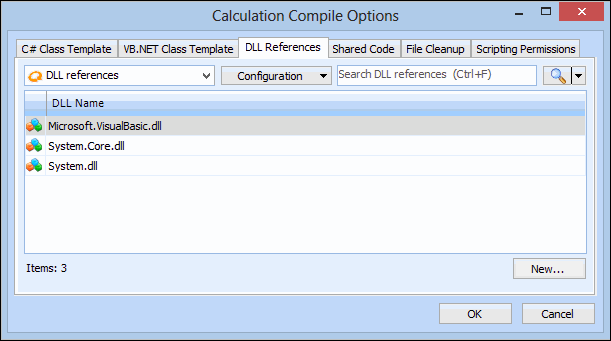
2. Select the DLL References tab. This tab lists external DLL files located in the bin folder of the APM installation folder. For example:
3. Click New. The DLL Reference dialog appears.
4. Enter a name for the DLL reference file and click OK. The DLL is added to the list.
5. When you are finished, click OK to save the changes to the template script and close the Calculation Compile Options dialog.To Create a Shared Code File
1. From the Enterprise window, select the Administration menu and then Calculation Options. The Calculation Compile Options dialog appears.Tip: APM administrators may also select the Customization Center view from the Enterprise window, select the Calculations tab, the Compile Options tab, and then click Edit Compile Options.
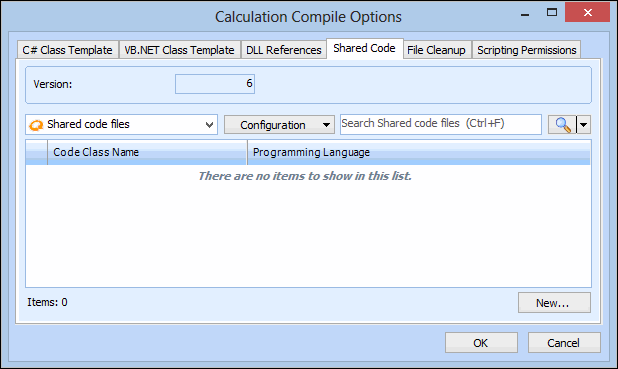
2. Select the Shared Code tab. This tab lists shared code files for use in APM calculations. For example:
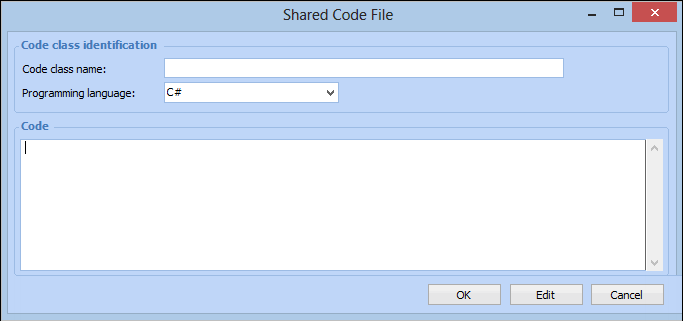
3. Click New to add shared code. The Shared Code File dialog appears. For example:
5. When you are finished, click OK to close the Shared Code File dialog. The shared code file appears in the list.
6. When you are finished, click OK to save the shared code file and close the Calculation Compile Options dialog.To Clean up Files
1. From the Enterprise window, select the Administration menu and then Calculation Options. The Calculation Compile Options dialog appears.Tip: APM administrators may also select the Customization Center view from the Enterprise window, select the Calculations tab, the Compile Options tab, and then click Edit Compile Options.
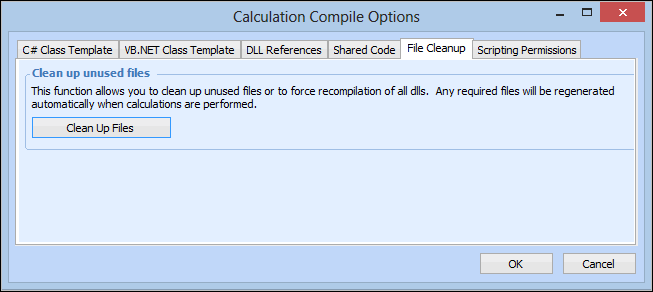
2. Select the File Cleanup tab.
3. Click Clean Up Files, and then click Yes to confirm. Unused files are removed and all DLLs are recompiled.
4. When you are finished, click OK to save your settings and close the Calculation Compile Options dialog.To Add Scripting Permissions to Calculations
1. From the Enterprise window, select the Administration menu and then Calculation Options. The Calculation Compile Options dialog appears.Tip: APM administrators may also select the Customization Center view from the Enterprise window, select the Calculations tab, the Compile Options tab, and then click Edit Compile Options.
2. Select the Scripting Permissions tab.
•
•
•
•
• Disabled is the default setting for a new APM installation, otherwise the default setting is Enabled.
4. When you are finished, click OK to save your settings and close the Calculation Compile Options dialog