Defining Base Map Options

Objects in APM configurations can be displayed in a geographical map format.
Each configuration that is displayed as a map consists of a base map layer and optional overlay layers. You can select the pre-defined web service OpenStreetMap for your base map, or you can choose another external web service that has been defined by your APM administrator. For information about defining map layers, see Defining Map Layers.
Additional map layers can also be included on the map as overlay layers. For more information about adding layers to maps, see Adding Map Layers to a Configuration.
A configuration cannot be displayed as a map unless the Map Coordinate attribute is included as a table column. It can be hidden.
In the base map marker settings, you can customize the way markers appear and react based on certain situations.
By default, APM uses the first icon in the configuration as its default icon for the map. If you want to use a different icon, you must position the icon as the first icon in the configuration.
To understand how map information is displayed, see Viewing Map Information.
This topic describes how to define the base map options for a configuration.

To Define Base Map Options

1.
2.
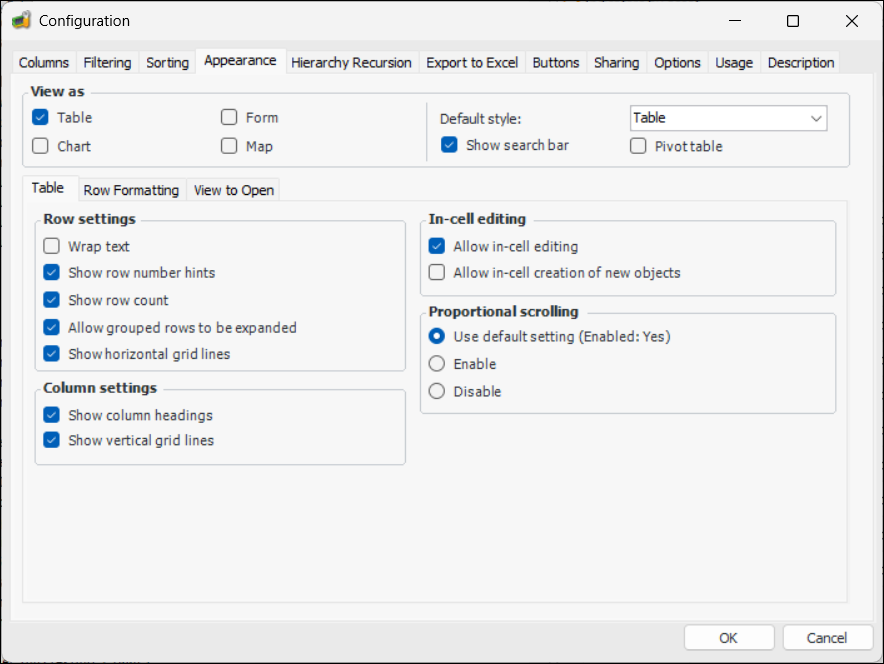
Select the Appearance tab. For example:
3.
In the View As area, select the appropriate options:
4.
In the View As group, select the Map option. The Map tab appears.
5.
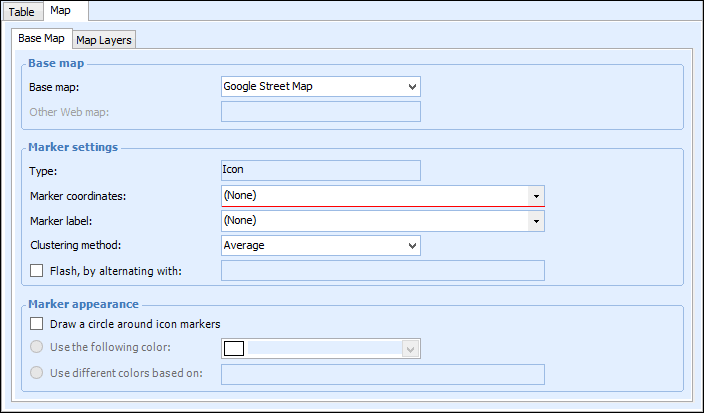
Select the Map tab. For example:
6.
Select one of the following base maps from the list: Google Street Map, Open Transport Map, OSM Simple Map, or Other Web Map.
7.
If you selected Other Web Map, you must select the other web map service from the list.
Note: APM Administrators can define additional map layers via the Customization Center view, Map Layers tab. For more information, see Defining Map Layers.
8.
In the Marker settings group, select the following:
If the configuration column used for marker labels is numeric, you must select a clustering method. Options are: Average, Maximum, Minimum, Sum. This aggregate value is appended to the marker label when viewed on the map.
9.
In the Marker appearance group, select the following:
Use the following color – You must then select a color to use for the marker icon.
Use different colors based on – The background color defined for the selected configuration column will be used to determine the marker color.
10.
Select the Map Layers tab if you want to add other layers as overlays to the map. For more information, see Adding Map Layers to a Configuration.
11.