
|
Manually Executing a Purging Rule
A purging rule must be activated before it can be executed. For more information, see Activating and Suspending Purging Rules.When the purging process is complete, you can view information about it on the History tab. For more information, see Viewing a Purging Rule’s History and Audit Files.To Manually Execute a Purging Rule
• If you wish to preview the list of items to be purged, use the preview function and click Purge Now. For more information, see Previewing a Purging Rule.
• On the Data Management view, Data Purging tab, Purging Rules tab, select the purging rule and click Purge Now.
•
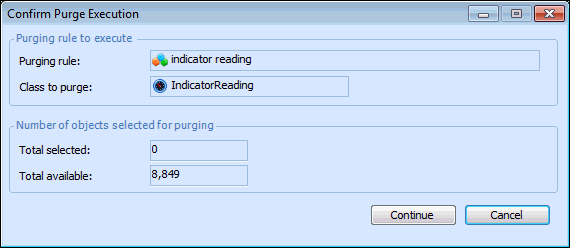
2. Click Yes to continue. The Confirm Purge Execution dialog appears.
3. If you wish to purge the items, click Continue. A progress dialog appears to show you the estimated time remaining to complete the purge.You can cancel the purge process at any time by clicking Cancel in the progress dialog. A message dialog appears to let you know the number of objects selected for deletion, the number that were deleted successfully, and the number that failed to be deleted. Any objects that were already deleted when the process was cancelled are not restored. Cancelling the purge prevents any further objects from being deleted.Tip: If you click Cancel within the first few seconds of the purging process, the deleted objects are likely to be restored. Objects are deleted in groups, and the first group is rolled back by the cancel action.