|
|


Working With Selection Criteria
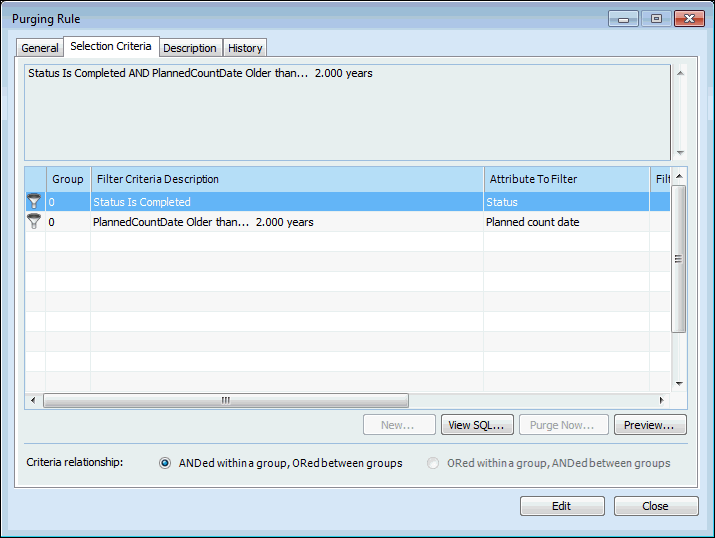
The Selection Criteria tab allows you to work with a purging rule’s criteria in several ways. You can:Viewing the Selection Criteria
The top area on the Selection Criteria tab displays the full statement used to select the objects to be purged. For example:Changing the Relationship Between Filter Groups
The default choice is ANDed within a group, ORed between groups. Because each group typically contains only criteria for the same attribute, in most situations it is not necessary to change the default operator.For example, the following criteria and the ANDed within a group, ORed between groups setting:
To Change the Relationship Between Filter Groups
Previewing the SQL Select Statement
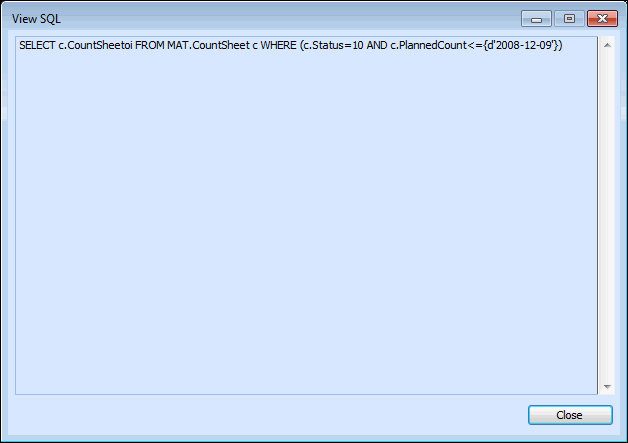
When a purging rule is executed, the selection criteria is translated into an SQL select statement. You can preview the SQL to be produced by clicking View SQL. You cannot alter the generated SQL.