Creating Purging Rules

A purging rule consists of a set of instructions that is used to select instances of a particular type of object to be deleted as a group. For example, an APM administrator could create one purging rule for resource transactions, another for indicator readings, and so on.
Creating a purging rule involves identifying the type of object to be purged, specifying whether the rule is triggered manually or automatically according to a recurrence pattern, and defining the criteria to use to select particular items. For example, a purging rule might specify that indicator readings over five years old be deleted automatically at the end of every month.
This topic explains how to specify objects and set triggering options. For information about choosing which of the items will be purged, see Defining Selection Criteria for a Purging Rule.
Note: When a purging rule is created, its status is automatically set to “Suspended” to prevent the rule from being run inadvertently before it is complete or tested. After you have defined a rule and previewed it, you must manually activate it before it can be executed. For more information, see Activating and Suspending Purging Rules.
Note: To create and activate purging rules, you must log on with as an APM administrator.

To Create a Purging Rule

1.
2.
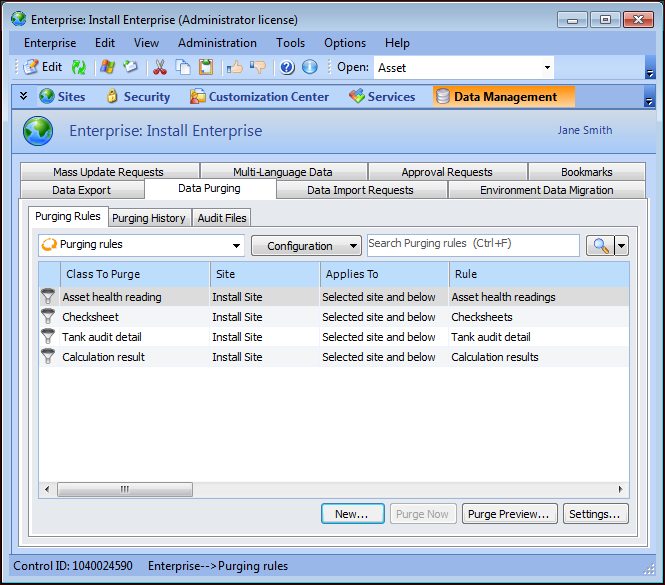
Select the Data Management view, Data Purging tab. The Purging Rules tab lists the rules that have been defined for the enterprise.
3.
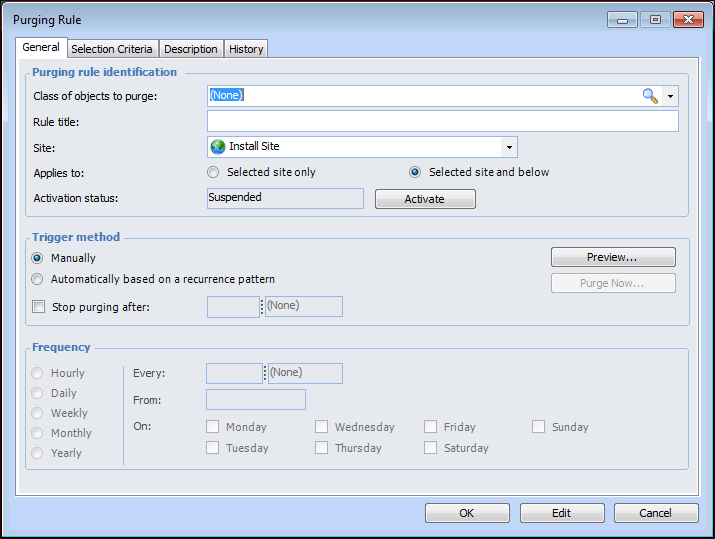
Click New. The Purging Rule dialog appears.
The new rule’s activation status is automatically set to “Suspended”. Once you have finished defining and testing the rule, you can activate it. Then its status on this tab changes to “Activated”.
4.
5.
6.
7.
8.
Manually: The activated rule can only be executed by clicking Purge Now from this tab or the Data Purging view.
Automatically based on a recurrence pattern: The activated purging rule is triggered automatically based on the options selected in the Recurrence pattern area.
9.
If you wish to specify a maximum length of time for which the purging rule will run, enter values in the Stop purging after boxes. For example, you might want the purge to run for an hour and then stop. Any objects that meet the selection criteria but are not purged within the allotted time are reselected and purged the next time the purging rule is executed.
10.
Hourly: Select this option to define a pattern that repeats more than once a day (for example, every two hours, every half hour, and so on).
Daily: Select this option to define a pattern that repeats more than once a week (for example, every day at 10 a.m.; every Monday, Wednesday, and Friday at 10 a.m.).
Weekly: Select this option to define a pattern that repeats at weekly intervals but not more than once a week (for example, every week on Tuesday at 10 a.m., every two weeks on Saturday at 10 a.m.).
Monthly: Select this option to define a pattern that repeats in monthly intervals but not more than once a month (for example, every month on the 15th at 10 a.m., every two months on the first Monday at 10 a.m.). You can choose the calendar or financial month.
Yearly: Select this option to define a pattern that repeats in yearly intervals but not more than once a year (for example, every year on the 1st of July at 10 a.m., every year on the last day in December at 10 a.m.).
11.
Select the Description tab to provide a detailed description of the purging rule.
The next step is to define selection criteria for the rule. For instructions, see Defining Selection Criteria for a Purging Rule.